
 Need help?
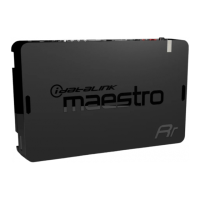
Do you have a question about the Automotive Data Solutions iDatalink Maestro RR CH1 and is the answer not in the manual?
Learn how to print a configuration card showing your steering wheel button assignments.
Details on how to retain uConnect functionality using dedicated steering wheel buttons.
How the Maestro RR module retains uConnect system functionalities with your new Pioneer radio.
Instructions for playing audio from a device connected to the vehicle's factory USB port.
Guide to using the uConnect system for hands-free phone calls and voice commands.
How to play audio from a Bluetooth device currently paired for streaming.
Details on how the Maestro RR operates the factory rear seat video system.
Information on displaying the factory backup camera image on the new radio.
How to view vehicle information like tire pressure, battery voltage, and entry points.
How to configure alerts for vehicle conditions such as check engine, door, or TPMS alerts.
How to view selected gauges in the My Vehicle menu and change their display style.
Customize gauge selection, warning text, fuel economy settings, and validate PIDs.
Configure how the module communicates with the vehicle's OBD2 system.
View the visual parking assist screen if the vehicle is equipped with a compatible system.
Configure parking assist interrupt and change units of length (feet to meters).
Adjust settings for factory systems like the vehicle amplifier gain and retention.
Configure Maestro module settings such as audio gain, master reset, and accessory during crank.
 General
| Interface | iDatalink Maestro RR |
|---|---|
| Amplifier Turn-On | Yes |
| Retained Accessory Power (RAP) | Yes |
| Factory Amplifier Integration | Yes |
| iDatalink Maestro RR Required | Yes |
| Steering Wheel Control | Yes |
| Navigation Outputs | Yes |
| OnStar Retention | Yes (if equipped) |
| Bluetooth Integration | Yes (if equipped) |
| USB Port Retention | Yes (if equipped) |
| Auxiliary Input Retention | Yes (if equipped) |
| Backup Camera Retention | Yes (if equipped) |
| Parking Sensor Retention | Yes (if equipped) |
| Climate Control Display | Yes (if equipped) |
| Vehicle Information Display | Yes (if equipped) |

 To Next Page