1) Transmitter is NOT compatible with ANY RCA (L/R) ports on back of your AV Receiver, ONLY
use the BIG 6.35MM PHONE OUT on front side of your AV Receiver with the 6.35mm to
3.5mm adapter.
2) Do NOT set the volume too high.
3) Plug wired ear buds into the port to check the sound.
4) Ensure the AUX/SPDIF(Optical) switch on the TC417 is set to the “AUX” position.
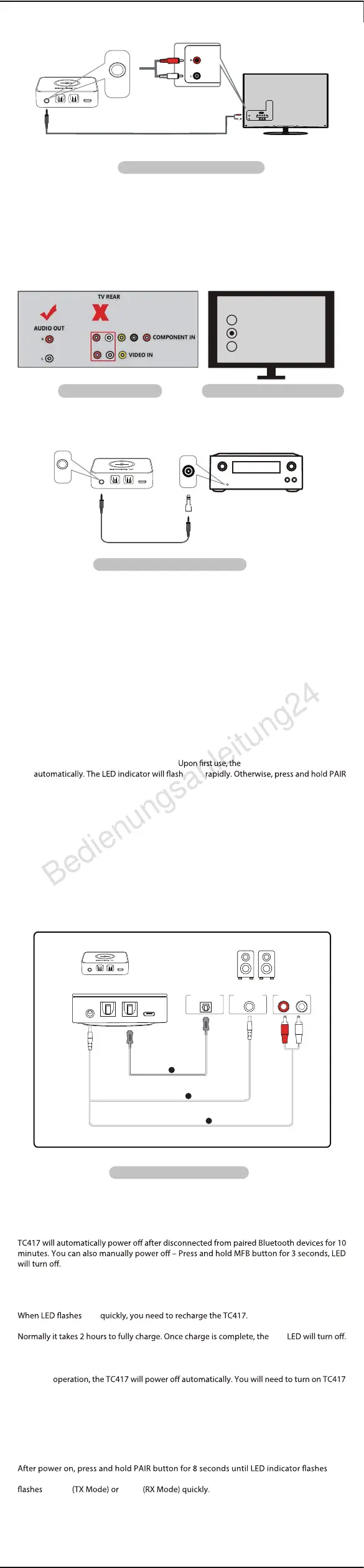
refer to Fig 4-1 Set up TC417 as Bluetooth receiver option A.
If no sound, ensure AUX / SPDIF (Optical) Switch on TC417 is set to “SPDIF” position.
refer to Fig 4-1 Set up TC417 as Bluetooth receiver option C.
If no sound, ensure AUX / SPDIF (Optical) Switch on TC417 is set to “AUX” position.
If no sound, ensure AUX / SPDIF (Optical) Switch on TC417 is set to “AUX” position.
refer to Fig 4-1 Set up TC417 as Bluetooth receiver option B.
audio source and search for “Avantree TC417” - tap to connect. Once connected, LED
on the TC417 will turn SOLID .
Activate Bluetooth on your Bluetooth
TC417 will enter pairing mode
button for 2 seconds to enter into pairing mode.
Slide TX/RX switch to “RX” position.
Press and hold MFB button for 3 seconds until you see the
light.
NOTES:
1) The TC417 supports charging during operation. However, if you plug in a USB charger
during
again and it will auto reconnect to the headphones.
2) While using the TC417, we do not recommend using a TV USB port for charging as it may
cause noise.
NOTES:
4. Bluetooth Receiver (RX Mode)
5. After Use
Connect to USB charger that supports 5V/500mA-2A using included Micro USB charging cable.
6. Charging
twice. Now all pairing history of TC417 is cleared and the TC417 will enter pairing mode, LED
7. Clear pairing history
4.1. Turn on the TC417:
4.2. Set the TC417 to RX mode:
4.3. Enter the TC417 into PAIRING MODE:
4.4. Connect the TC417 to Bluetooth audio source:
4.5. Plug the TC417 to wired speaker or sound bar
a) Optical audio input,
b) AUX 3.5mm input,
c) RCA audio input,
3.3.4 Receiver with 6.35mm Phone Jack at Front
3.3.3 RCA Audio Out (Red/White ports labeled )
BLUE
BLUE
BLUE
GREEN BLUE
RED
RED
RED
After connecting the cable you should be able to hear sound from your headphones;
if not:
1) Ensure the AUX/SPDIF (Optical) switch on the TC417 is set to the “AUX” position.
2) Ensure using TV Red/White ports labeled ; other Red/White ports are
incorrect.
3) Ensure your TV Speaker setting is set to “External Speaker”.
4) Plug headphone into RCA ports with AUX 3.5mm to RCA audio adaptor cable to
check if you can hear sound.
“AUDIO OUT”
"AUDIO OUT"
-
+
DC SV
AUX SPDIF IN
SPDIF OUT
-
+
DC SVAUX SPDIF IN SPDIF OUT
-
+
DC SV
AUX SPDIF IN
SPDIF OUT
Fig 3-7 Set up Tc417 using TV RCA audio out
AUDIO OUT
3.5mm to RCA audio cable
AUDIO OUT
Fig 3-8 Use the right RCA ports Fig 3-9 Set TV speaker to “External Speaker”
Speakers
PHONES
Internal speakers
External speakers
Headset
Fig 3-10 Set up TC417 using 6.35mm phone jack
Fig 4-1 Set up TC417 as Bluetooth receiver
PHONES
AUX
AUX
3.5mm audio cable
6.35mm to
3.5mm Converter ( )purchase separately
TC417
Speakers optical
Input
Speakers AUX
Input
Speakers RCA
Input
Option
B
AUX cable
AUX 3.5mm to RCA audio cable
Option
C
Option
A
Optical cable
Speakers
DC SVAUX SPDIF IN SPDIF OUT
- 2 -


 To Next Page
 Loading...