English
English English English English English
► Please note, this product only
supports Windows 2000 and
Windows XP
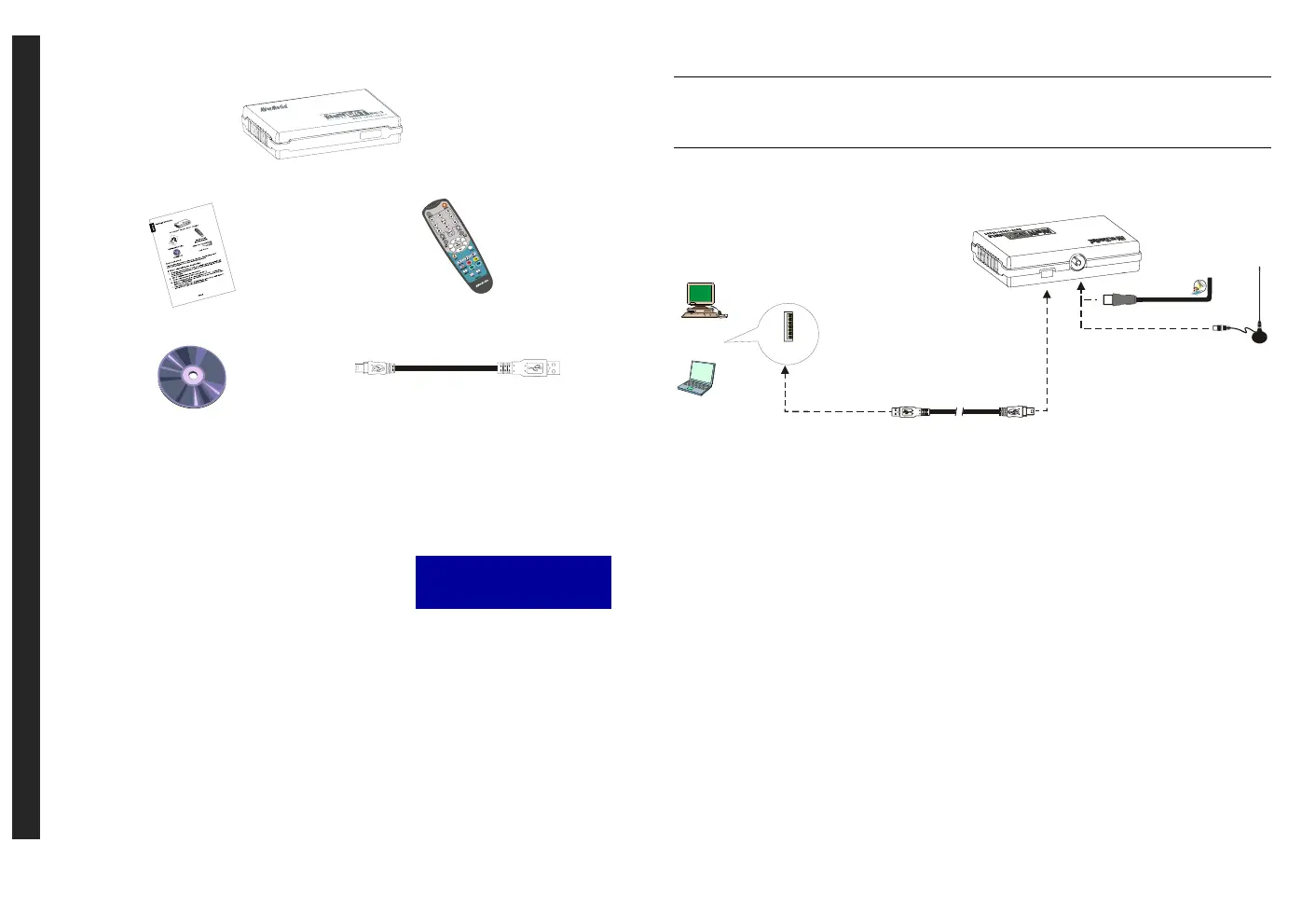
Package Contents
AVerMedia
®
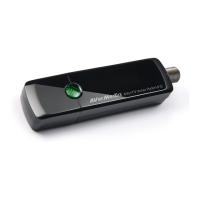
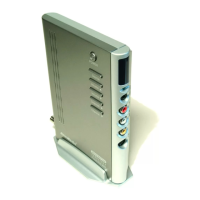
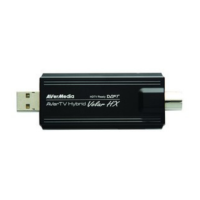
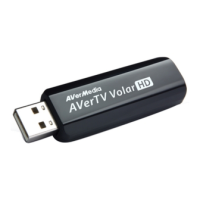
AVerTV DVB-T USB2.0
Quick Installation Guide
Remote Control
(Batteries Included)
Installation CD
USB Cable
System Requirements
System requirements are described in detail on the package box. Before installing AVerTV
DVB-T USB2.0, verify that your PC meets the described requirements.
‧Step 1 : Installing the Application
For Windows XP operating system users, this would install
both the application and the drivers at the same time. You
may run the AverTV DVB-T USB 2.0 application upon
connecting the unit to you PC (see Step 2).
1. Place the installation CD into the CD-ROM. The installation screen of the application will
appear. If the screen doesn’t appear, go to MY Computer and double-click the “CD-ROM”
to start the program.
2. Click TV Utility Software to start the installation.
3. When the “License Agreement” dialog box appears, click Yes.
4. Choose Complete to install all the software, including DVB-T USB 2.0 Application,
DirectX 9.0, and Acrobat Reader and click Next. You can also choose Custom to select
the software you want to install.
5. After installing the DVB-T USB 2.0 Application, the system will then install DirextX 9.0
and Acrobat Reader, just follow the on-screen instruction.
6. In the “InstallShield Wizard Complete” dialog box, if you are instructed to restart your
computer, select Yes.
Then click Finish to complete the installation.
NOTE:
If DirectX 9.0 or above is not installed in your system, usually the installation CD will automatically
install it during the process of installation. Make sure your system has DirectX 9.0 or above installed so
that the TV software utility can function properly.
‧Step 2 : Making the Connection
Portable Antenna
OR
VHF/ UHF Antenna
Back Pannel
PC
USB Cable
Notebook
USB Port
STEP 2.1
STEP 2.2
‧Step 3 : Installing Drivers in Windows 2000
For Windows 2000, users need to follow the instructions below to complete installing drivers.
1. When the “Found New Hardware Wizard” dialog box appears, click Cancel.
2. If a warning message about Digital Signature Not Found appears, click Yes.
3. You may be asked to restart the computer again, simply click Yes.
Uninstalling Application and Drivers
To remove the software and drivers, simply choose Start→Programs→AVerTV DVB-T USB2.0→
Uninstaller→”Remove AP and Driver”→Next→OK→Finish.
ENG-1
ENG-2




 To Next Page