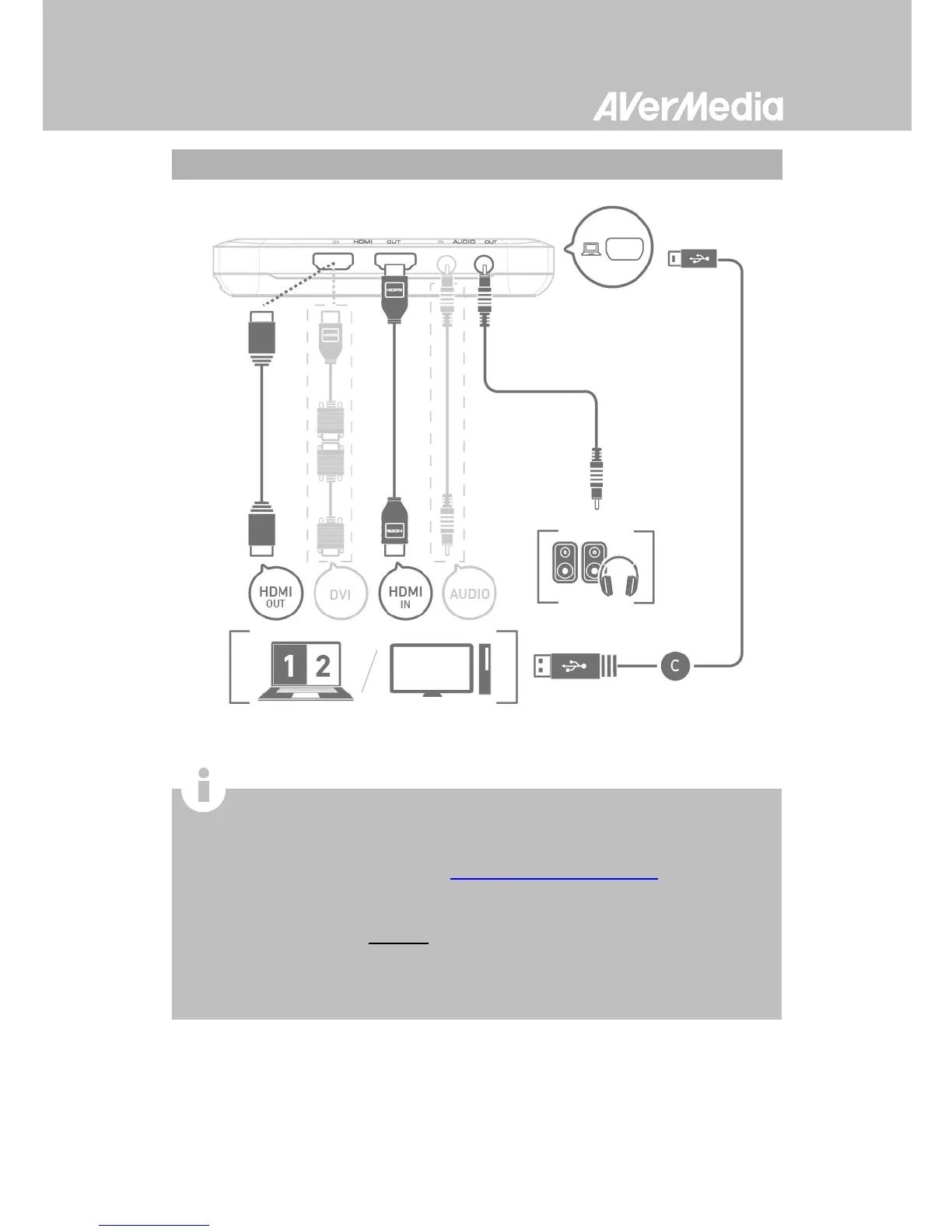
duplicate the displays to avoid no image on screen. To know more,
please refer to the FAQ on gamerzone.avermedia.com
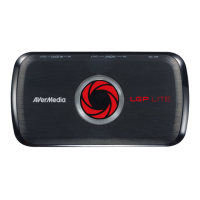
To capture from the other computer, please connect the computer
of your video source to the HDMI IN port on the LGP Lite.
For a computer without a HDMI Port, use a DVI to HDMI cable or
converter for connection. Also connect your PC or laptop to the
device (AUDIO IN) via the 3.5mm Audio Cable.


 To Next Page