
 Need help?
Do you have a question about the AVIWEST PRO3 Series and is the answer not in the manual?
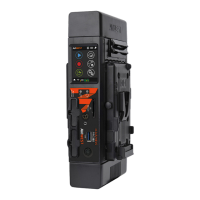
Details on the touchscreen, antennas, indicators, SD card slot, audio, USB, and power button.
Details on Ethernet, HDMI, SDI, SIM card slots, audio, and power connectors.
Description of camera and battery mounting plate compatibility.
Instructions for connecting an external battery or AC/DC adapter.
Guide for inserting an SD card, including recommended specifications.
Specifies that Micro SIM cards are required for the device.
Procedure for removing the cover and inserting SIM cards.
Recommended SIM card slot usage based on US mobile operators.
Instructions for connecting video sources via HDMI or SDI.
Procedure to power on the device using the power button.
Confirmation that the Home screen appears when the unit is ready.
Steps to navigate and set the video source to 'Auto'.
Instructions to enter the DESTINATION CONFIG menu.
Process to create a new profile, including editing the name.
Using the keyboard to enter and confirm the profile name.
Setting StreamHub IP, input assignment, and auto-connect options.
Final step to save the newly configured destination profile.
Steps to access the LIVE menu for stream management.
Display of selected profiles, auto-record status, and destination.
Procedure to start broadcasting a live video feed.
Monitoring network bitrate, source, latency, and duration.
Display of recording time and space when auto-record is active.
Steps to initiate and confirm the termination of a live stream.
Steps to access the RECORD menu for media capture.
Display of selected record profile and auto-forward status.
Procedure to start capturing video and audio.
Monitoring remaining time, space, source, and duration.
Display of network bitrate and data forwarded during recording.
Steps to initiate and confirm the termination of a recording.
Steps to access the file forwarding menu.
Option to select and forward the most recently recorded file.
Option to select and forward all recorded files.
Procedure for selecting and forwarding individual files.
Monitoring number of files, bitrate, data transferred, and duration.
First step to halt the file forwarding process.
Action to confirm the termination of the file forwarding.
Procedure to power down the device by long-pressing the power button.
Guidance to scan a QR code for access to user guides and release notes.
 General
| Brand | AVIWEST |
|---|---|
| Model | PRO3 Series |
| Category | Transmitter |
| Language | English |

 To Next Page