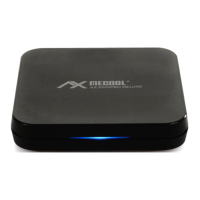
The MECOOL AX KM9PRO DELUXE is an Android TV box designed for media playback and smart TV functionalities. It runs on Android TV 10.0 and supports 4K HDR Ultra HD content, offering a high-quality viewing experience. The device integrates several Google services and popular streaming platforms, making it a comprehensive entertainment hub.
Function Description:
The MECOOL AX KM9PRO DELUXE serves as a smart media player that connects to your TV, transforming it into an Android TV. It allows users to stream content from various services, play games, and access a wide range of applications available on the Google Play Store. Key functionalities include:
- Media Playback: Supports 4K HDR Ultra HD video playback, ensuring crisp and vibrant visuals.
- Smart TV Features: Runs on Android TV 10.0, providing a user-friendly interface and access to a vast ecosystem of apps.
- Voice Control: Equipped with Google Assistant, allowing users to control the device and search for content using voice commands via the included voice remote.
- Casting: Features Chromecast built-in, enabling users to cast content from their mobile devices to the TV.
- Pre-installed Apps: Comes with popular applications like YouTube and Prime Video, offering immediate access to a wide array of movies, TV shows, and videos.
- Connectivity: Offers various connectivity options including HDMI for TV connection, Ethernet for wired network, Wi-Fi for wireless network, USB 2.0 and USB 3.0 ports for external storage and peripherals, and a TF card slot for memory expansion.
Important Technical Specifications:
- Operating System: Android TV 10.0
- Video Output: Supports 4K HDR Ultra HD
- Connectivity:
- HDMI output
- Ethernet (LAN) port
- Wi-Fi (wireless network)
- USB 2.0 ports
- USB 3.0 port
- TF card slot
- AV output
- DC IN (power input)
- Control: Voice remote with Google Assistant integration
- Included Accessories: AX MECOOL KM9PRO device, user manual, voice remote, HDMI cable, power supply.
Usage Features:
The device is designed for ease of use, from initial setup to daily operation.
- First Installation:
- Remote Pairing: The first step involves pairing the voice remote by simultaneously pressing and holding the "Volume -" button and the "OK" button until the LED indicator on the remote flashes.
- Language Setting: After successful pairing, users are guided to select their preferred language.
- Android Phone Setup (Optional): The device offers a quick setup option using an Android phone. Users can open the Google app on their phone, say "OK Google, set up my device," and select "KM9PRO" from the list.
- Internet Connection: Users can connect to the internet via an Ethernet cable or Wi-Fi. For Wi-Fi, the device scans for available networks, and users can select their network and enter the password using the remote's navigation buttons.
- Google Account Login: To fully utilize the device's features, users must log in with their Google account. This can be done via a phone/computer or directly using the remote control. The process involves entering the Google email/phone number and password using the remote's navigation buttons.
- Google Services Configuration: Users will be prompted to configure various Google services, including location access, Android improvement suggestions, Google voice control assistant, personal results, and Google Assistant settings.
- App Installation: Users can choose to install additional apps from the Google Play Store during the setup process.
- Voice Commands: The voice remote allows for hands-free control. By holding down the voice control button, users can issue commands or ask questions, such as "How is the weather tomorrow in London?", "Open YouTube," or "Start Prime Video."
- Settings Menu: Accessing settings is done by navigating to the cogwheel icon in the top right corner of the start menu. Here, users can manage network and internet settings, accounts, apps, device preferences (date, time, language, sound, storage), remotes and accessories (keyboard, mouse), and advanced settings (display, HDMI CEC, audio, picture).
- External Devices: The USB ports (2.0 and 3.0) allow for connecting external hard drives for media playback, as well as input devices like a mouse or keyboard. A memory card can be inserted into the TF input for additional storage.
Maintenance Features:
- Firmware/Software Updates: The device supports firmware and software updates to ensure optimal performance and access to the latest features.
- To update, navigate to "Settings" > "Device Preferences" > "About" > "UPDATE" > "OTA Update."
- Important Warning: Users are advised NEVER to turn off the device during an update. Also, only official software should be downloaded; third-party software is not supported. For manual installation or issues, contact the manufacturer or seller.
- Troubleshooting: The manual provides a troubleshooting guide for common issues:
- No TV signal: Check LED indicator (blue for on, red for off), cable connection to TV, and correct TV input source.
- No WiFi connections: Ensure WLAN is activated, restart the device, check if LAN cable is connected (which disconnects WLAN), or try another network/hotspot.
- Unable to use voice function: Verify remote control connection in settings, replace remote batteries if needed, ensure internet connection, and test with a YouTube video.
- Remote not responding: Replace remote batteries, ensure maximum distance (6m) is not exceeded, and check remote connection in settings.
- Product not booting: Contact seller or manufacturer.
- Picture OK, but no sound: Check if mute is active, adjust volume, verify video format support, and check TV cable connection.
- APK file not installed/recognized: Ensure it's an original file from Google Play Store; third-party files are not supported. The device is a Google ATV system and does not support mobile versions of APKs.
- Repair and Warranty: Users are explicitly warned against attempting to repair the device themselves, as this voids the guarantee/warranty and poses a risk of electric shock. For technical defects, contact the manufacturer or seller.
- FCC Warning: The device complies with FCC rules, emphasizing the importance of proper installation and operation to avoid harmful interference. It also specifies a minimum distance of 20 cm between the radiator and the user's body for radiation exposure compliance.


 To Next Page
 General