Set up
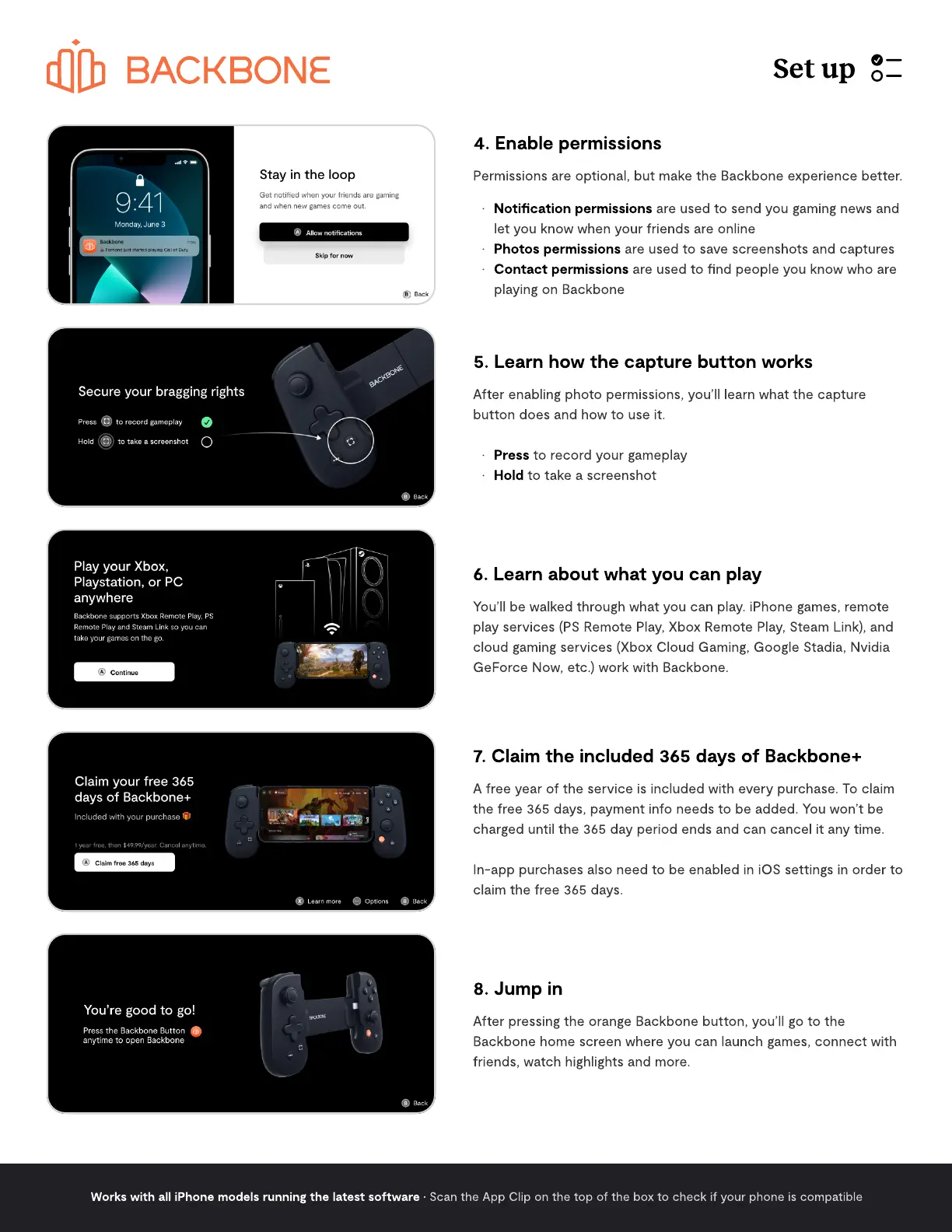
4. Enable permissions
Permissions are optional, but make the Backbone experience better
are used to send you gaming news and
let you know when your friends are onlin
are used to save screenshots and capture
are used to nd people you know who are
playing on Backbone
Notication permissions
Photos permissions
Contact permissions
5. Learn how the capture button works
After enabling photo permissions, you’ll learn what the capture
button does and how to use it.
to record your gamepla
to take a screenshot
Press
Hold
6. Learn about what you can play
You’ll be walked through what you can play. iPhone games, remote
play services (PS Remote Play, Xbox Remote Play, Steam Link), and
cloud gaming services (Xbox Cloud Gaming, Google Stadia, Nvidia
GeForce Now, etc.) work with Backbone.
7. Claim the included 365 days of Backbone+
A free year of the service is included with every purchase. To claim
the free 365 days, payment info needs to be added. You won’t be
charged until the 365 day period ends and can cancel it any time.
In-app purchases also need to be enabled in iOS settings in order to
claim the free 365 days.
8
.
J
ump in
After pressing the orange Backbone button, you’ll go to the
Backbone home screen where you can launch games, connect with
friends, watch highlights and more.
W
orks with all iPhone models runnin
g
the latest software
•
Scan the App Clip on the top of the box to check if your phone is compatible



 To Next Page
 Loading...