Set up
Game on
How to add a game to Backbone
The Backbone app will try to detect and add supported games from
your iPhone. If any are missed, here’s how to manually add them for
easy access.
Launch the game from your iOS home screen
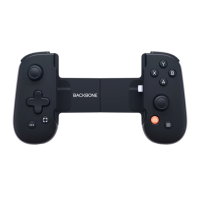
Press the orange Backbone button on the controller to go to the
Backbone app
If the game is compatible, it will be added for quick and easy
access to the Backbone app home screen.
Play almost any game anywhere
On iOS, only remote play apps can be launched from the app. Cloud
gaming services will have to be launched manually with a browser.
For cloud gaming services
On the Backbone app home screen, scroll to the “Getting
started” section
Find and select the service you want to connect
Follow the on-screen instructions to start playing.
For Steam Link
Open the Steam Link ap
Allow all Bluetooth connection prompt
Connect the Backbone to your phon
Map the Backbone buttons by pressing the button shown
on scree
Select “Other Computer
Pair your computer to the app
For PS
R
emote Play
Open the remote play ap
Log in with your PlayStation accoun
Allow the app to connect to devices on your local networ
Select the console you want to connect to and follow the on
screen instructions
For
X
bo
x
R
emote Play
Open the
X
bo
x
ap
Go to the Library tab and select “Consoles
Select “Connect” beneath the console you want to connect to
W
orks with
Apple
Arcade Google
Stadia Nvidia
Geforce
now Amazon
Luna Xbox
Game
Pass PS
Remote
Play Steam
Link
W
orks with all iPhone models running the latest so
f
tware
•
Scan the App Clip on the top of the bo
x
to check if your phone is compatible


 To Previous Page
 Loading...