1. Windows device update
Confirm your stylus driver is up to date.
Go to: www.wacom.com/inkplusgo
2.
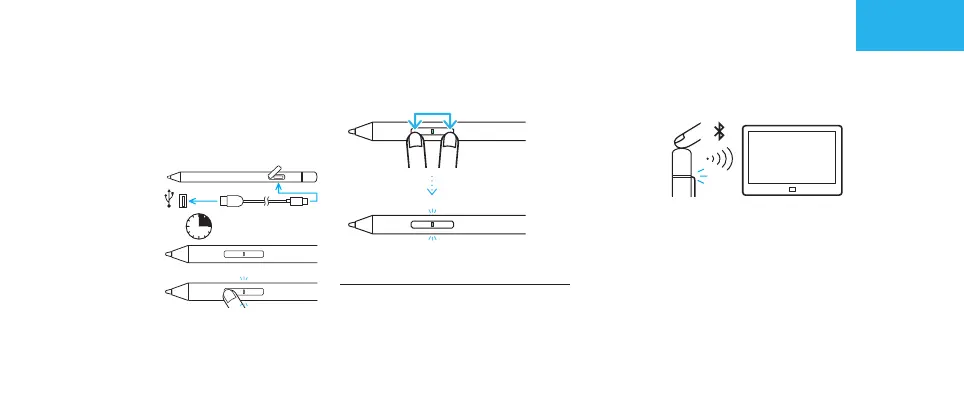
To get started with your Bamboo Ink Plus
a. Connect your
stylus to your
computer or
USB charger
with the
included cable.
b. Turn on your
stylus by
pressing the
tip-side switch.
3h
Get started with your Bamboo Ink Plus
3. Changing the protocol setting
Press 2 seconds
If the stylus does not work on your device,
press and hold both side-switches at the
same time for 2 seconds to change the
setting.
4.
Pair your Bamboo Ink Plus with your device
6 seconds
a. From the Windows Start menu, select
Settings > Devices > Bluetooth® and
other devices. Make sure Bluetooth is
“On”.
b. Hold the Bluetooth button for 6
seconds. The LED starts blinking.
c. Select “+ Add Bluetooth or other
devices”. From the list of devices, select
“Bamboo Ink Plus” and click on “Pair”.
English


 To Next Page