EasyManua.ls Logo

B&D MPC3 - User Manual

B&D MPC3
2 pages
Print Icon
To Next Page IconTo Next Page
Loading...
B&D MPC3 & MPC4 Coding Instructions
Step 1: Erasing Factory Code
1. Press and hold the top two buttons at the same time (unlock and lock) on the
remote we have supplied you. The LED light will flash 3 times. Continue holding
both buttons.
2. While still holding LOCK, release the UNLOCK button and then press it 3 times.
The LED light will flash constantly to indicate that the factory code has successfully
been deleted.
3. Release all buttons.
4. Test: press a button on the remote. If the deletion of the factory code has been
successful, the LED should not work when you press any button.
Please note: during the deletion procedure, make sure to keep the “up” button
pressed the whole time.
Step 2: Copying the Code from an Existing Operational Remote
1. Place your new remote we have supplied, and your existing operational remote
back to back
2. Press and hold one button on your new duplicator remote you wish to operate
your door. The LED should flash 3 times quickly to indicate that your duplicator
remote is in the “learn-code” mode. Do not release this button.
Question and Answer IconNeed help?

Do you have a question about the B&D MPC3 and is the answer not in the manual?

Overview

This document provides instructions for coding B&D MPC3 and MPC4 remote controls, specifically focusing on how to erase existing codes and copy codes from an operational remote. It also includes troubleshooting tips and instructions for restoring an accidentally erased remote.

Function Description:

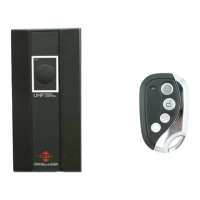
The primary function of these instructions is to guide users through the process of programming a new duplicator remote control to operate a garage door or similar device. This involves two main steps: first, erasing any pre-existing factory code on the new remote, and second, copying the code from an existing, operational remote. The new remote, once programmed, will then mimic the functionality of the original remote, allowing it to operate the associated device.

Usage Features:

  1. Erasing Factory Code (Step 1):

    • Initiation: Press and hold the top two buttons (unlock and lock) on the new remote simultaneously. The LED light will flash 3 times.
    • Continuation: While still holding the LOCK button, release the UNLOCK button and then press it 3 times.
    • Confirmation: The LED light will flash constantly, indicating successful deletion of the factory code.
    • Verification: After releasing all buttons, press any button on the remote. If the LED does not light up, the factory code has been successfully deleted.
    • Important Note: During the deletion procedure, it is crucial to keep the "up" button (presumably the LOCK button) pressed throughout the process.
  2. Copying Code from an Existing Operational Remote (Step 2):

    • Positioning: Place the new duplicator remote and the existing operational remote back-to-back. This physical proximity is essential for the signal transfer.
    • Initiating Learn Mode: Press and hold one button on the new duplicator remote that you intend to use to operate your door. The LED should flash 3 times quickly, indicating that the duplicator remote is in "learn-code" mode. Do not release this button.
    • Transmitting Code: While still holding the button on the new remote, press and hold the corresponding button on your original remote that operates your door. This action sends out the signal for the duplicator remote to learn.
    • Confirmation: The LED light on your duplicator remote will start flashing constantly once the coding has been successful.
    • Verification: Release all buttons. Test your new remote to ensure it is working correctly with your door.

Troubleshooting Tips (TIPS):

  • Pre-copy Erase: It is absolutely necessary to erase any existing code on the new remote before attempting the copying procedure. This prevents conflicts and ensures a clean learning process.
  • Remote Positioning: If coding fails during "Step 2," try alternative positions for the remotes, such as "head to head" or "side by side." This is because the antenna on the existing remote might not transmit the signal strongly enough or in the optimal direction for the new remote to pick it up effectively in the initial back-to-back position. The document explicitly shows a "Head to Head" diagram as an alternative.
  • Battery Check: If all other troubleshooting steps fail, consider changing the batteries in both your existing operational remote and the new duplicator remote. Weak batteries can impede signal transmission and reception, leading to failed coding attempts. After replacing batteries, repeat the entire process starting from "Step 1."

Maintenance Features:

  • Restoring Accidentally Erased Remote Control: If you accidentally erase the code on your new remote, it can be restored. To do this, press and hold the bottom two buttons on your new remote for 5 seconds. This feature provides a quick recovery option without needing to recopy from the original remote if the code was only recently erased.

Important Technical Specifications (Implied):

  • Compatibility: The instructions are specifically for B&D MPC3 & MPC4 remote controls, implying a certain frequency and coding protocol.
  • LED Indicator: The remote controls feature an LED light that serves as a crucial visual indicator for various stages of the coding process, including successful deletion, learn mode activation, and successful code copying.
  • Multi-button Design: The remotes have multiple buttons (at least "unlock" and "lock," and likely others) which are utilized for specific programming sequences.
  • Duplicator Functionality: The new remote is described as a "duplicator remote," indicating its capability to learn and replicate codes from existing remotes.

In summary, this manual provides a clear, step-by-step guide for programming B&D MPC3 and MPC4 duplicator remotes, emphasizing user-friendly instructions, visual feedback through an LED, and practical troubleshooting advice to ensure successful operation.

B&D MPC3 Specifications

General IconGeneral
BrandB&D
ModelMPC3
CategoryRemote Control
LanguageEnglish