EasyManua.ls Logo

Barco Event Master EC-50 Series - User Manual

Barco Event Master EC-50 Series
2 pages
Print Icon
To Next Page IconTo Next Page
Loading...
System Setup
For detailed installation instructions, refer to the Event
Master devices User’s Guide.
USB
DVI-D
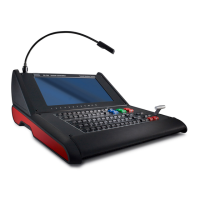
EC-50 Event Controller
Eventsmaster Toolset
Host computer
EC-50 Rear
Panel
Event Master Series EC-50
Quick Start Guide - Setup
Visibly yours
P/N 60600332, Rev 00
Power Up and Status Check Power up the
EC-50 control panel, Host computer and peripherals.
1
Connections Connect the external screen and USB
communication from the host computer to the DVI and USB
B connector on the EC-50. Necessary cables are provided in
a new system. In the case that the original cables are
missing, simply use standard computer cabling to make
these connections.
2
3
4
5
6
System setup is comprised of sequences,
each of which includes many steps.
For error-free setup, always refer to the
associated sections in the Event Master devices User’s
Guide.
Event Master Series Controller Installation: System Connections
Touch Screen Calibration (Optional) The operating
system on the host computer provides this capability as it
would for any standard touchscreen. Refer to the OS manual
for the correct procedure.
USB B to Host
AC
Communications Setup During the Event Master Toolset
installation you are asked to add a driver, be sure to answer yes
to this question in order to use the EC-50 with your host
computer. If the driver is not installed the EC-50 will not work.
Startup state of the desk Once the desk is connected and started it will retrive the
button assignment of the configuration. If there is none it will have to be assigned.
Script
Light
DVI-D Screen Input to Host
2 x USB A
The Red backlight on the EC indicates power is
on. This light does not turn off.
Back light
LEDs
Back
light
White light under the hand rest is for reading show
scripts. Light can be turned on and off.
Front light
One flexible scriptlight connection and a LED
powered light adapter is supplied. Light can be
adjusted for brightness.
Scriptlight
Indications
If the Blue LED´s of the Destination buttons chase
back and forth they indicate that the
communication with the host controller is not
establisched.
Blue LEDs in Destination
Assigning resources to the desk In the Event Master Toolset, click on the
icon to open the controller menu setup page. Drag and drop the resources from the right
side onto the buttons corresponding to the ones on the console.
Barco Technical Support:
USA: +1 (866) 374-7878
EMEA : +32 (56) 36 8019
CHINA : 40088 22726 www.barco.com/support/eSupport.aspx
Question and Answer IconNeed help?

Do you have a question about the Barco Event Master EC-50 Series and is the answer not in the manual?

Summary

Event Master EC-50 Setup and Connections

System Setup Procedures

Outlines the sequential steps for controller setup, including connections, power, calibration, and driver installation.

Controller Connectivity

Details the necessary physical connections for the EC-50 controller, such as DVI, USB, and AC power inputs.

EC-50 Controller Indicators and Lighting

LED Status Indicators

Explains the meaning of various LED indicators, including blue LEDs for communication status and indicator lights.

Operational Lighting Features

Describes the back light, scriptlight, and front light functions and their use on the EC-50 controller.

Event Master EC-50 Operation Overview

Destination and Layer Selection

Explains how to select destinations and layers using dedicated buttons, noting LED feedback for selected states.

Resource Assignment

Details the assignment of resources such as Presets, UserKeys, Sources, and Background Sources to controller buttons.

Navigation and Control Buttons

Covers page navigation, contextual display buttons, T-Bar functionality, and layer function buttons for operation.

Transition Execution

Describes the execution of transitions using the Cut & All Trans buttons based on the GUI setup.

EC-50 Controller LED and Backlight Feedback

LED Color Indications

Explains the meaning of LED colors: blue for selected/active, green for preview, and red for program or transitioning.

Backlight Color Mapping

Details how the button backlight color changes based on assigned resources like Presets, UserKeys, and Sources.

Summary

Event Master EC-50 Setup and Connections

System Setup Procedures

Outlines the sequential steps for controller setup, including connections, power, calibration, and driver installation.

Controller Connectivity

Details the necessary physical connections for the EC-50 controller, such as DVI, USB, and AC power inputs.

EC-50 Controller Indicators and Lighting

LED Status Indicators

Explains the meaning of various LED indicators, including blue LEDs for communication status and indicator lights.

Operational Lighting Features

Describes the back light, scriptlight, and front light functions and their use on the EC-50 controller.

Event Master EC-50 Operation Overview

Destination and Layer Selection

Explains how to select destinations and layers using dedicated buttons, noting LED feedback for selected states.

Resource Assignment

Details the assignment of resources such as Presets, UserKeys, Sources, and Background Sources to controller buttons.

Navigation and Control Buttons

Covers page navigation, contextual display buttons, T-Bar functionality, and layer function buttons for operation.

Transition Execution

Describes the execution of transitions using the Cut & All Trans buttons based on the GUI setup.

EC-50 Controller LED and Backlight Feedback

LED Color Indications

Explains the meaning of LED colors: blue for selected/active, green for preview, and red for program or transitioning.

Backlight Color Mapping

Details how the button backlight color changes based on assigned resources like Presets, UserKeys, and Sources.

Barco Event Master EC-50 Series Specifications

General IconGeneral
Power Supply100-240 VAC, 50/60 Hz
Control InterfaceEthernet, USB
Network ProtocolsTCP/IP
Operating Temperature0°C to 40°C
Storage Temperature-20°C to 60°C
Rack Units1U

Related product manuals