EasyManua.ls Logo

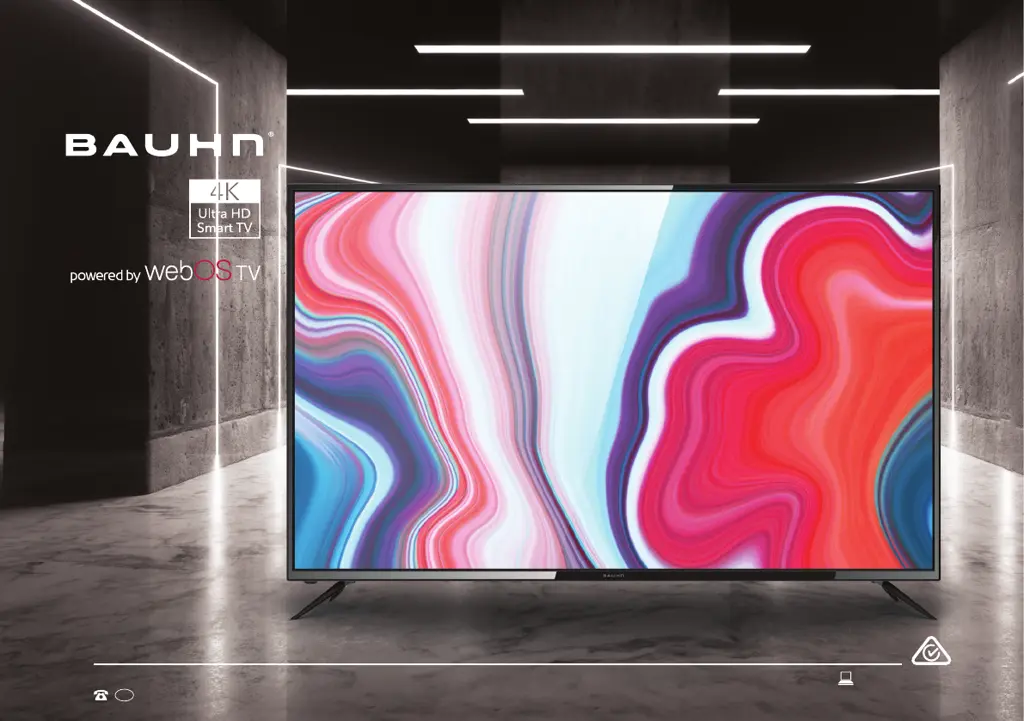
Bauhn ATV60UHDW-1122 - User Manual

Bauhn ATV60UHDW-1122
56 pages
Print Icon
To Next Page IconTo Next Page
Loading...
User Manual
AFTER SALES SUPPORT
1300 002 534
tempo.org/support
MODEL: ATV60UHDW-1122 PRODUCT CODE: 710512 11/2022
AUS
MODEL: ATV60UHDW-1122
60
ā€

Questions and Answers

  • J
    Joseph AcostaAug 5, 2025
    Why won't my Bauhn UHD TV turn on?
    • D
      David CraigAug 5, 2025
      If your Bauhn UHD TV won't turn on, ensure the AC power cord is securely plugged into the wall outlet. Check that the wall outlet is turned on and the power indicator at the bottom of the TV is lit. If you're using a multi-outlet, verify it's working properly. To check a power strip, plug the TV directly into a wall outlet. You can also try powering on the TV using the power button on the TV itself.
  • J
    janicepotterAug 10, 2025
    What to do if Bauhn UHD TV remote control does not work?
    • M
      Michael BellAug 10, 2025
      If your Bauhn UHD TV remote isn't working, first ensure the batteries are correctly installed with the proper polarity (+/–). Then, remove any obstructions between the remote and the TV's remote control sensor. Check if the power indicator on the TV blinks when you press the remote's power button; if not, replace the batteries. Finally, try pointing the remote directly at the sensor from about 1.5-1.8 meters away.
  • P
    pamela12Aug 14, 2025
    What to do if there is no sound on Bauhn UHD TV?
    • S
      steven34Aug 15, 2025
      If you're experiencing a lack of sound or distorted sound on your Bauhn UHD TV, make sure the volume isn't muted and increase it with the VOL+ button if necessary. Unplug any connected earphones. Also, ensure that the connection to any external audio device is correct and all cables are fully inserted. Check that the correct input source and audio settings have been selected on the external audio device. Moving the TV away from other electronic devices might help. If using HDMI, ensure the external device supports HDMI-ARC and ARC is enabled. For optical cables, check that the Menu > Sound > Sound Out > Select Optical and then Menu > Sound > Additional Settings > Digital Sound Out is set to PCM.
  • E
    Eric ToddAug 20, 2025
    What to do if my Bauhn ATV60UHDW-1122 has no internet connection?
    • L
      Lindsey PeckAug 20, 2025
      If your Bauhn UHD TV has no or intermittent internet: - If using Wi-Fi, verify the password is correct. - Turn off the access point, wait two minutes, and turn it back on. - Ensure there are no obstacles between the TV and the access point. - Reduce interference by turning off other wireless devices. - If Wi-Fi fails, use a LAN cable. - If a wired connection works, the Wi-Fi access point may be the issue; try a different one. - For LAN, use a CAT 5 or higher cable, ensuring it's plugged in at both ends. - If using a static IP, verify network addresses are correct. If problems persist, contact your Internet Service Provider or modem manufacturer.
  • J
    Jose DoughertyAug 26, 2025
    What to do if there is no picture on Bauhn ATV60UHDW-1122 UHD TV from external device?
    • J
      jason65Aug 26, 2025
      If you're not getting a picture or sound, or the picture/sound is distorted from an external device on your Bauhn UHD TV, make sure the connection to the device is correct and all cables are fully inserted. Try removing and reconnecting all cables connected to both the TV and the external devices, and if possible, try new cables. Restart the connected devices by unplugging and then re-plugging their power cords. If "No Signal" is displayed, ensure the correct input source is selected. When using a 4K playback device, use a High-Speed HDMI cable.
  • L
    Leslie MaciasAug 29, 2025
    Why is my USB storage device not recognised by Bauhn UHD TV?
    • K
      kathydanielsAug 29, 2025
      If your USB storage device isn't recognized or media files aren't playing properly on your Bauhn UHD TV: - The TV may not be compatible with all devices, even though it has been tested with many flash memory-based devices and hard disks. - If the external hard drive has its own power adapter, make sure to use it. - Only use USB storage devices formatted in the FAT32 file system provided with Windows. - Devices formatted by unsupported utility programs may not be recognized. - Avoid using USB extension cables. - Files using unsupported codecs or containers will not play. - Files with errors in the content or container may not play correctly. - Certain files, depending on their encoding, may not play.

Summary

Welcome

Unpack and Prepare

Whats in the Box

Lists all items included in the TV packaging for verification before setup.

Required Tools and Assistance

Lists essential tools and assistance required for TV installation, not supplied.

Important Safety and Usage Tips

Attaching the TV Stand

Wall-Mounting the TV

Connecting Power and Antenna

Controls and Connections Overview

Identifying TV Controls

Overview of the TV's physical features, including the on/standby light and remote sensor.

TV Buttons Functions

Details the function of each physical button located on the TV set itself.

TV Input;Output Ports

Remote Control Setup and Use

Installing Remote Batteries

Guide on how to correctly insert AA batteries into the remote control for operation.

Battery Handling Precautions

Important safety guidelines for handling and disposing of batteries used with the remote.

Operating the Remote Control

Pairing the Remote Control

Explains the process of pairing the remote control with the TV for advanced functions.

Magic Remote Features

On-Screen Setup Guide

Initial TV Setup Menu

Guide to the initial setup process when turning the TV on for the first time.

Internet Connection Setup

Steps for connecting the TV to a wired or wireless network for internet access.

LG ThinQ App Integration

Advanced TV Settings Menus

Menu Navigation Instructions

Explains how to navigate through the TV's various settings menus using the remote.

Picture Settings Overview

Introduces the picture settings menu for adjusting visual display parameters.

Sound Settings

Programme Management

Network and Device Connection

General TV Configuration

Smart TV Features

Netflix App Usage

Information about the Netflix streaming service and its use on the TV.

Web Browser Functionality

TV Guide and Program Information

Recording TV Content

Recording Tips and Warnings

Key advice and warnings regarding the recording function and USB storage usage.

USB Media Playback Modes

USB Mode Setup

Instructions for inserting a USB device and selecting 'USB' mode for media playback.

Viewing Photos and Videos

Photo Player Features

Details on using the photo player, including slide shows, zoom, and rotation features.

Video Player Operations

Music Playback and Player

Troubleshooting Common Issues

Remote Control Issues

Solutions for issues where the TV remote control is unresponsive or not functioning correctly.

Power and Signal Problems

Solutions for TV not turning on or experiencing picture/sound issues.

External Device and Sound Issues

Troubleshooting steps for problems with connected devices and audio output.

Smart App Connectivity Issues

Advice for resolving issues with the TV's smart applications and internet connectivity.

Internet Connectivity Problems

USB Device Recognition Issues

Troubleshooting steps when USB devices or media files are not recognized or played correctly.

Product Specifications

Display and Multimedia Specs

Details screen size, resolution, aspect ratio, and supported media formats.

Technical and Physical Specs

Information on USB output, power, dimensions, and weight of the TV.

Compliance and Responsible Disposal

Packaging and Product Disposal

Guidance on environmentally friendly disposal of packaging and the TV itself.

Recycling Information

Details about the National Television and Computer Recycling Scheme and e-waste disposal.

Warranty Information

Repair and Refurbished Goods Notice

Support and Contact Information

Online Support and Updates

Resources for software updates, user manuals, and online product information.

Product Not Working Assistance

Contact information for seeking help when the product is not functioning as expected.

Bauhn ATV60UHDW-1122 Specifications

General IconGeneral
Screen Size60 inches
Display TypeLED
Smart TVYes
HDMI Ports3
USB Ports2
Wi-FiYes
Ethernet PortYes
Audio Output20W
Operating SystemAndroid TV
BluetoothYes
Resolution3840 x 2160

Related product manuals