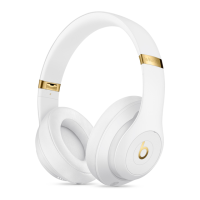
Set up and use your Studio
3
Wireless
headphones
Here's everything you need to know to make the most of your Studio
3
Wireless headphones.
1. Turn on
Press and hold the power button for 1 second to turn your headphones on or off.
2. Set up
If the indicator light on your earphones turns on but doesn't flash, your earphones have
already been set up with a device. In that case, follow the steps to connect to a different
device.
If you have an iPhone using iOS 11, follow these steps. When you set up your
headphones in this way, they pair with your other devices that are signed in to iCloud and
using iOS 11, macOS Sierra or later, or watchOS 3 or later.
1. Hold your headphones next to your unlocked iPhone.
2. Press the power button on your headphones for 1 second.
3. After a few seconds, your iPhone asks you to connect. If it doesn't, press the power
button on your headphones for 5 seconds.
4. Follow the instructions on your iPhone.
If you have some other Bluetooth device, follow these steps to pair your headphones with
that device.
5. Press the power button for 5 seconds. When the Fuel Gauge flashes, your headphones
are discoverable.
6. Go to Bluetooth settings on your device.
7. Select your headphones from the list of discovered Bluetooth devices.
3. Connect to a different Apple device
Your headphones automatically reconnect to the last device you used with them. To
connect to a different device, follow these steps.
For iPhone, iPad, or iPod touch using iOS 10 or later:
1. Open Control Center by swiping up from the bottom edge of the screen.
2. Swipe to the side in Control Center to show the Now Playing card.


 To Next Page