EasyManua.ls Logo

Beats X - User Manual

Beats X
7 pages
Print Icon
To Next Page IconTo Next Page
Loading...
QUICK START GUIDE
Question and Answer IconNeed help?

Do you have a question about the Beats X and is the answer not in the manual?

Summary

Beats Studio Getting Started

Charge Your Beats Studio Headphones

Connect the micro USB cable to the charging port to charge the headphones.

Check Battery Level

Tap the power button to view the battery fuel gauge status.

Power On Using Audio Cable

Plug in the audio cable to power on the Beats Studio headphones.

Power Off Using Audio Cable

Remove the audio cable to power off the Beats Studio headphones.

Mute Audio with Beats Logo

Press and hold the Beats logo to mute the audio.

Activate ANC Without Music

Press the power button without a cable to activate ANC.

Beats Studio Remote Talk Control

Music Playback and Navigation Controls

Control music playback, skip tracks, and scan backward using the remote.

Call Management and Voice Commands

Answer/end calls and activate voice commands via the remote.

Volume Adjustment

Use the remote buttons to control the volume level.

Beats Studio Additional Resources

Product Care and Maintenance

Learn how to properly maintain and care for your Beats Studio headphones.

Product Registration Information

Find instructions for registering your Beats Studio product.

User Guide Access

Get more detailed information by accessing the full user guide.

Helpful Usage Tips

Discover useful tips for optimizing your Beats Studio experience.

Overview

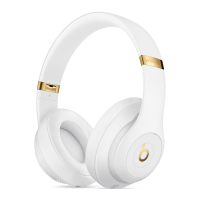
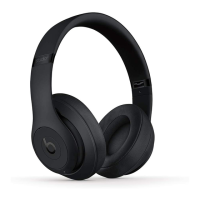
The Beats Studio headphones are a premium audio device designed for an immersive listening experience, featuring advanced noise-canceling technology and a comfortable, ergonomic design. These headphones are engineered to deliver high-fidelity sound, making them suitable for a wide range of audio content, from music to podcasts and calls. The device emphasizes ease of use, offering intuitive controls and straightforward connectivity options.

Function Description

The primary function of the Beats Studio headphones is to provide high-quality audio playback. They are equipped with Adaptive Noise Canceling (ANC) technology, which actively blocks out ambient noise, allowing users to focus on their audio without distractions. This feature is particularly useful in noisy environments such as airplanes, busy offices, or public transportation. The headphones are designed to deliver a balanced sound profile with deep bass, clear mids, and crisp highs, ensuring a rich and dynamic listening experience.

In addition to audio playback, the Beats Studio headphones include a built-in microphone and remote talk control features, enabling users to manage phone calls and interact with voice commands. This functionality makes them a versatile accessory for communication as well as entertainment. The remote talk control is compatible with various devices, including iPod, iPhone, iPad, Android, BlackBerry, and Windows devices, though specific functionality may vary depending on the device.

The headphones operate on an internal battery, which powers both the audio playback and the ANC feature. The battery status can be easily checked using the integrated fuel gauge, ensuring users are aware of the remaining power. Charging is facilitated via a micro USB port, providing a convenient way to replenish the battery.

Usage Features

The Beats Studio headphones are designed for user-friendly operation, incorporating several features that enhance the listening experience.

  • Powering On/Off: The headphones can be turned on by plugging in the audio cable. Conversely, removing the audio cable will turn them off. This automatic power management helps conserve battery life when the headphones are not actively in use for wired listening.
  • Charging: To charge the headphones, users simply connect a micro USB cable to the designated port. This allows for convenient charging from various power sources, such as a computer USB port or a wall adapter.
  • Battery Fuel Gauge: A quick tap of the power button activates the battery fuel gauge, which provides an indication of the remaining battery life. This feature is crucial for managing usage and ensuring the headphones are charged before extended listening sessions.
  • Adaptive Noise Canceling (ANC): The ANC feature can be enabled even without music playback by pressing the power button when no audio cable is connected. This allows users to enjoy the noise-canceling benefits for peace and quiet without needing to play audio. When an audio cable is connected, ANC works in conjunction with music playback to enhance the listening experience by minimizing external distractions.
  • Mute Function: The headphones feature a mute function, activated by pressing and holding the Beats logo. This allows users to quickly silence their audio without having to adjust volume controls, which can be useful for brief interruptions or conversations.
  • Remote Talk Control: The inline remote on the audio cable provides comprehensive control over audio playback and calls.
    • Play/Pause: Users can play or pause audio playback.
    • Skip Forward/Backward: The remote allows for skipping to the next or previous track.
    • Scan Backward: This function enables fast-rewinding through audio.
    • Volume Control: Users can adjust the volume up or down.
    • Answer/End Call: The remote facilitates answering incoming calls and ending ongoing calls.
    • Voice Command: It also supports activating voice commands on compatible devices, offering hands-free control.

The design of the headphones prioritizes comfort, with soft earcups and an adjustable headband, making them suitable for extended wear. The foldable design allows for easy storage and portability, making them a convenient travel companion.

Maintenance Features

Maintaining the Beats Studio headphones is straightforward, focusing on proper care to ensure longevity and optimal performance.

  • Product Care: General product care involves keeping the headphones clean and protected from extreme conditions. Users are advised to refer to the product care guidelines to ensure proper handling and cleaning methods. This typically includes wiping down the earcups and headband with a soft, dry cloth and avoiding exposure to moisture or harsh chemicals.
  • User Guide: A comprehensive user guide is provided to assist users with all aspects of the headphones, from initial setup to advanced features and troubleshooting. This resource is invaluable for understanding the device's capabilities and ensuring correct usage.
  • Helpful Tips: The manufacturer often provides helpful tips for maximizing the user experience and extending the life of the headphones. These tips might cover battery optimization, storage recommendations, or best practices for using the ANC feature.
  • Product Registration: Registering the product is recommended as it can provide access to customer support, warranty information, and updates from the manufacturer. This ensures that users can receive assistance if any issues arise and stay informed about their device.

By following these usage and maintenance guidelines, users can ensure their Beats Studio headphones continue to deliver a premium audio experience for a long time. The emphasis on intuitive controls, effective noise cancellation, and durable design makes these headphones a reliable choice for audio enthusiasts.

Beats X Specifications

General IconGeneral
TypeIn-ear
Battery LifeUp to 8 hours
MicrophoneYes
RemoteTalkYes
Water ResistanceNo
ColorsBlack, White, Blue, Gray
ConnectivityBluetooth
Fast Fuel5-minute charge gives 2 hours of playback

Videos

How to Pair the Beats X Wireless Earbuds to an Android Phone

Related product manuals