Page
2
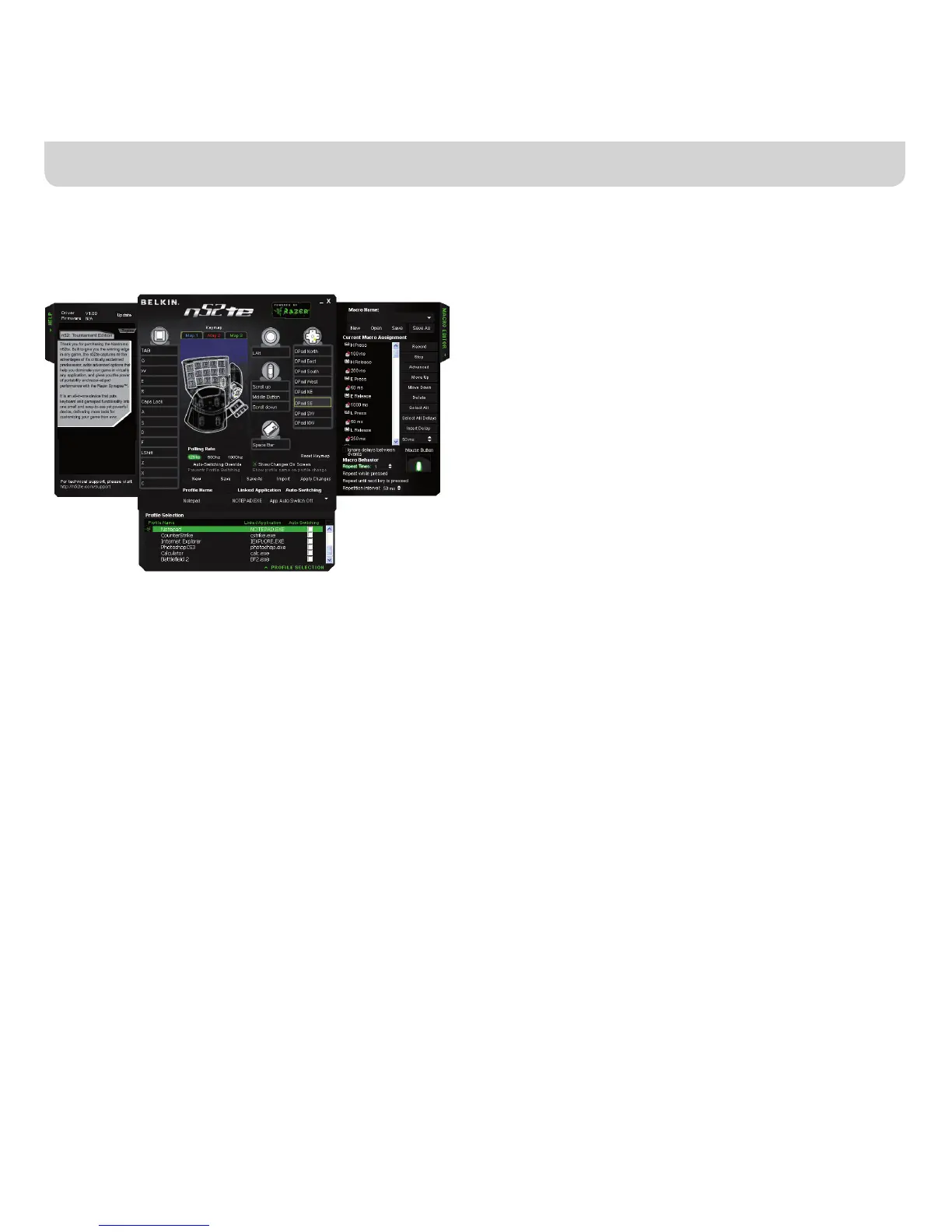
Main Screen of the n52te Editor
This figure shows the n52te Editor screen for the Nostromo n52 Tournament
Edition.
The main screen consists of:
View of the Device – This makes clear which keys you are programming.
Macro Editor – This pane allows you to define and edit sequences of key-
board keystrokes, and/or mouse-button presses to create your own custom
macros.
Profile Selection – This pane allows you to select which profile the n52te is
currently using.
Help – This pane displays the Help menu for the n52te Editor.
CREATING A PROFILE
A profile is a set of remapped button and/or programmable functions for a
specific application that can be saved and recalled at a later time.
This section will explain how to create a profile using the n52te Editor. In
general, creating a profile consists of remapping button functions for the
three Keymaps, configuring Auto-Switching options, then naming and saving
your profile.
Remapping Single-Key Assignments
1. For the corresponding n52te button you wish to program, left click on it to
bring up the context menu.
2. Select “Single Key” from the context menu. This will bring up the “Single
Key” assignment dialog box. This screen is used to select a single key
to assign to the selected n52te button. When a single key is assigned
to a button, pushing the button is the same as pressing that key on the
keyboard.
3. At this point, press a key on the keyboard. The screen will display the
name of the key you pressed.
4. Now you can click “OK” if you are happy with the current assignment, or
you can click “Cancel” to abort the key assignment.



 To Next Page