EasyManua.ls Logo

Belkin Pre-N - User Manual

Belkin Pre-N
92 pages
Print Icon
To Next Page IconTo Next Page
Loading...
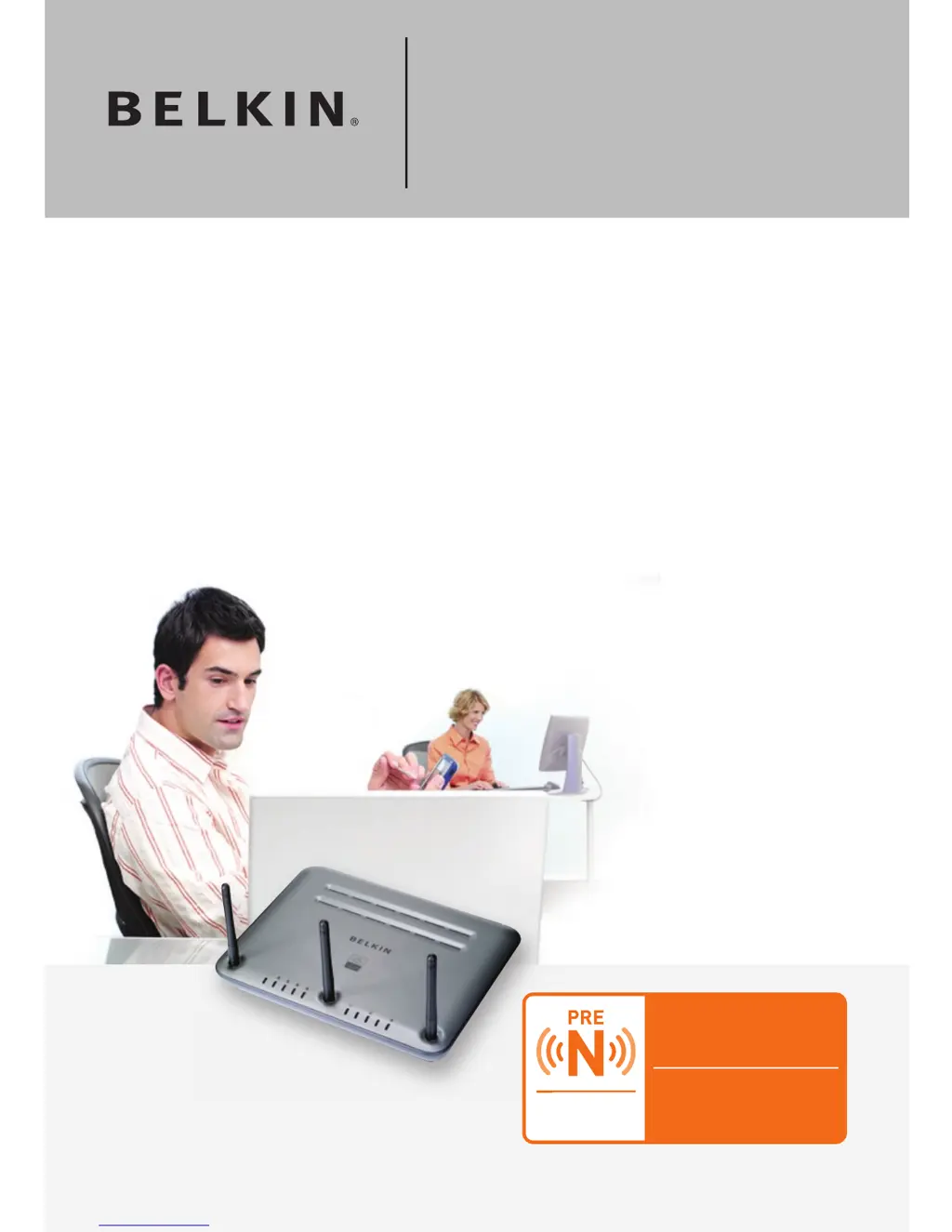
F5D8630-4A
User Manual
Network your
computers and
share your ADSL
Internet access
ADSL Modem
with wireless
Pre-N Router






Questions and Answers

  • S
    Stephen LiAug 15, 2025
    How to setup Wired Equivalent Privacy (WEP) security on a Belkin Router?
    • C
      Christina HoganAug 15, 2025
      To set up WEP security, log into your Belkin Wireless Router or access point by opening your web browser and typing in the IP address (default is 192.168.2.1 for Routers, 192.168.2.254 for access points). Click the 'Wireless' tab, then select the 'Encryption' or 'Security' tab. Select '128-bit WEP' from the drop-down menu. Type in your hex WEP key manually, or enter a passphrase in the 'Passphrase' field and click 'Generate'. Click 'Apply Changes' to finish, and set all clients to match these settings.
  • R
    Rachel LeonAug 18, 2025
    What to do if I forgot my Belkin Pre-N password?
    • T
      Thomas LoweAug 18, 2025
      If you've forgotten or lost your Belkin Modem password, press and hold the “Reset” button on the rear panel for at least 10 seconds. This will restore the modem to its factory default settings.
  • M
    Matthew McgeeAug 21, 2025
    Why my wireless PC cannot connect to Belkin Pre-N?
    • P
      pfrederickAug 21, 2025
      If your wireless PC cannot connect to the Belkin Modem, ensure that the wireless PC has the same SSID settings as the modem. Also, verify that you have the same security settings on the clients, such as WPA or WEP encryption. Ensure that the distance between the modem and wireless PC are not too far away.
  • J
    Jane RasmussenAug 25, 2025
    What to do if the Internet LED is not on Belkin Pre-N Modem?
    • L
      Larry MoyerAug 25, 2025
      If the Internet LED on your Belkin Modem is not illuminated, first, ensure that the cable from the ADSL line is connected to the port labeled “DSL Line” and that the ADSL LED is on. Secondly, verify that you have the correct VPI/VCI, username, and password from your ISP provider.
  • B
    Brandon CombsAug 27, 2025
    How to fix ADSL LED when it's not on Belkin Pre-N?
    • C
      chadbennettAug 27, 2025
      If the ADSL LED is not on, check the connection between the Belkin Modem and the ADSL line, ensuring the cable from the ADSL line is connected to the port labeled “DSL Line”. Also, make sure the modem has power and that the Power LED on the front panel is illuminated.
  • D
    Dana MasseyAug 30, 2025
    Why is the Belkin Pre-N Modem wireless network often interrupted?
    • E
      Eric McfarlandAug 30, 2025
      If your Belkin Modem wireless network is often interrupted, try moving your wireless PC closer to the modem to improve the signal. Interference from devices like microwave ovens or 2.4GHz cordless phones may also be the cause. Consider changing the location of the modem or using a different wireless channel.
  • Z
    zcostaSep 2, 2025
    Why is my Belkin Pre-N Modem wireless network performance inconsistent?
    • S
      stevensdianaSep 2, 2025
      Wireless technology is radio-based, so connectivity and throughput decrease as distance increases. To see if range is the issue, temporarily move the computer five to 10 feet from the Belkin Modem. Also, changing the wireless channel of your network can improve performance and reliability.
  • J
    Joan MillerSep 5, 2025
    What to do if I can’t connect to the Internet wirelessly, but my Belkin Modem network name is listed?
    • G
      Gregory EricksonSep 5, 2025
      If your network name is listed in the “Available Networks” list, click on the correct network name. If the network has security (encryption) enabled, you will need to enter the network key. Within a few seconds, the tray icon should turn green, indicating a successful connection to the Belkin Modem network.
  • E
    elaine41Sep 8, 2025
    What to do if I can’t connect to the Internet wirelessly, and my Belkin Pre-N network name is not listed?
    • M
      Michele DiazSep 8, 2025
      If you cannot connect to the Internet wirelessly and your Belkin Modem network name is not listed, temporarily move your computer five to 10 feet from the modem, if possible. Close the wireless utility, and re-open it. Using a computer connected to the modem via a network cable, ensure that 'Broadcast SSID' is enabled in the modem's wireless 'Channel and SSID' configuration page.
  • T
    turnerdeborahSep 12, 2025
    What to do if my connection type is static IP address and I can’t connect to the Internet using Belkin Pre-N Modem?
    • C
      Christina OliverSep 12, 2025
      Since your connection type is static IP address, your ISP must assign you the IP address, subnet mask, and gateway address. Instead of using the Wizard, go to “Connection Type”, and then select your connection type. Click “Next”, select “Static IP”, and enter your IP address, subnet mask, and default gateway information for your Belkin Modem.

Summary

Introduction

Benefits of a Home Network

Explains advantages of using a Belkin home network for sharing resources and internet.

Advantages of a Belkin Wireless Network

Lists key benefits of Belkin wireless networking, such as mobility and ease of setup.

Getting Started

Package Contents and System Requirements

Lists all items included in the package and the necessary hardware/software for setup.

Internet Connection Settings

Details the information required from your ISP to configure the internet connection.

Understanding Your Router

Front Panel Indicators

Describes the router's front panel, including Power, LAN Status, WLAN, ADSL, and Internet LEDs.

Status LEDs Explained

Explains the function and meaning of the WLAN, ADSL, and Internet status indicator lights.

Back Panel Ports and Buttons

Details the router's back panel, including DSL, Ethernet ports, Reset Button, and Power Plug.

Connecting Your Router

Positioning for Optimal Wireless Range

Provides guidelines for optimal router placement to maximize wireless signal coverage and performance.

Connecting Computers via Ethernet

Step-by-step instructions for connecting computers to the router using Ethernet cables.

Connecting the ADSL Line

Guides on properly connecting the router to your ADSL internet service line.

Setting Up Your Computers

Powering Up the Router

Steps for powering on the router and verifying its startup status.

Manual Network Configuration (Windows;Mac)

Instructions for manually configuring TCP/IP settings on Windows and Mac computers.

Recommended Web Browser Settings

Configuration settings for Internet Explorer and Netscape Navigator to access the router interface.

Configuring with Setup Wizard

Running the Setup Wizard

Step-by-step guide to using the router's built-in setup wizard for express configuration.

Manual Router Configuration

Web Interface Overview

Explanation of the router's web-based user interface, navigation, and key sections.

Changing LAN Settings

Details on configuring internal network settings like IP address, DHCP server, and IP pool.

Internet WAN Configuration

Steps to configure WAN connection types (PPPoE, PPPoA, Static IP) and DNS settings.

Wireless Settings

How to configure wireless network name (SSID), channel, mode, and broadcast settings.

Security and Encryption

Explains WEP and WPA security standards and how to set them up for your Wi-Fi network.

Firewall and Advanced Features

Configuration of firewall, virtual servers, IP/MAC filtering, DMZ, and ICMP ping blocking.

Troubleshooting Common Issues

ADSL and Internet Connectivity Problems

Solutions for issues with ADSL, Internet LEDs, and static IP connection failures.

Wireless Connection Issues

Troubleshooting steps for wireless PC connection failures and network interruptions.

Wireless Performance Problems

Solutions for inconsistent wireless performance, slow speeds, and poor signal strength.

Security Setup Troubleshooting

Guidance for resolving difficulties in setting up WEP and WPA security on routers and clients.

Technical Support Information

Appendixes

Glossary of Networking Terms

Definitions of common networking terms like IP Address, DNS, PPPoE, and SSID.

Placement and Setup Factors

Important factors for optimal wireless router placement and avoiding interference.

Internet Connection Settings Table

A reference table of ISP settings for configuring ADSL internet connections by region.

Information and Compliance

FCC, Canada, and EU Notices

Regulatory compliance statements for FCC, Canada (IC), and European Union (CE).

Product Warranty Information

Details of the Belkin Corporation Limited Lifetime Product Warranty.

Belkin Pre-N Specifications

General IconGeneral
Frequency Band2.4 GHz
SecurityWEP, WPA, WPA2
Wireless Standards802.11b, 802.11g
Data RatesUp to 108 Mbps
Ports4 x 10/100 Ethernet
Antennas2 external antennas