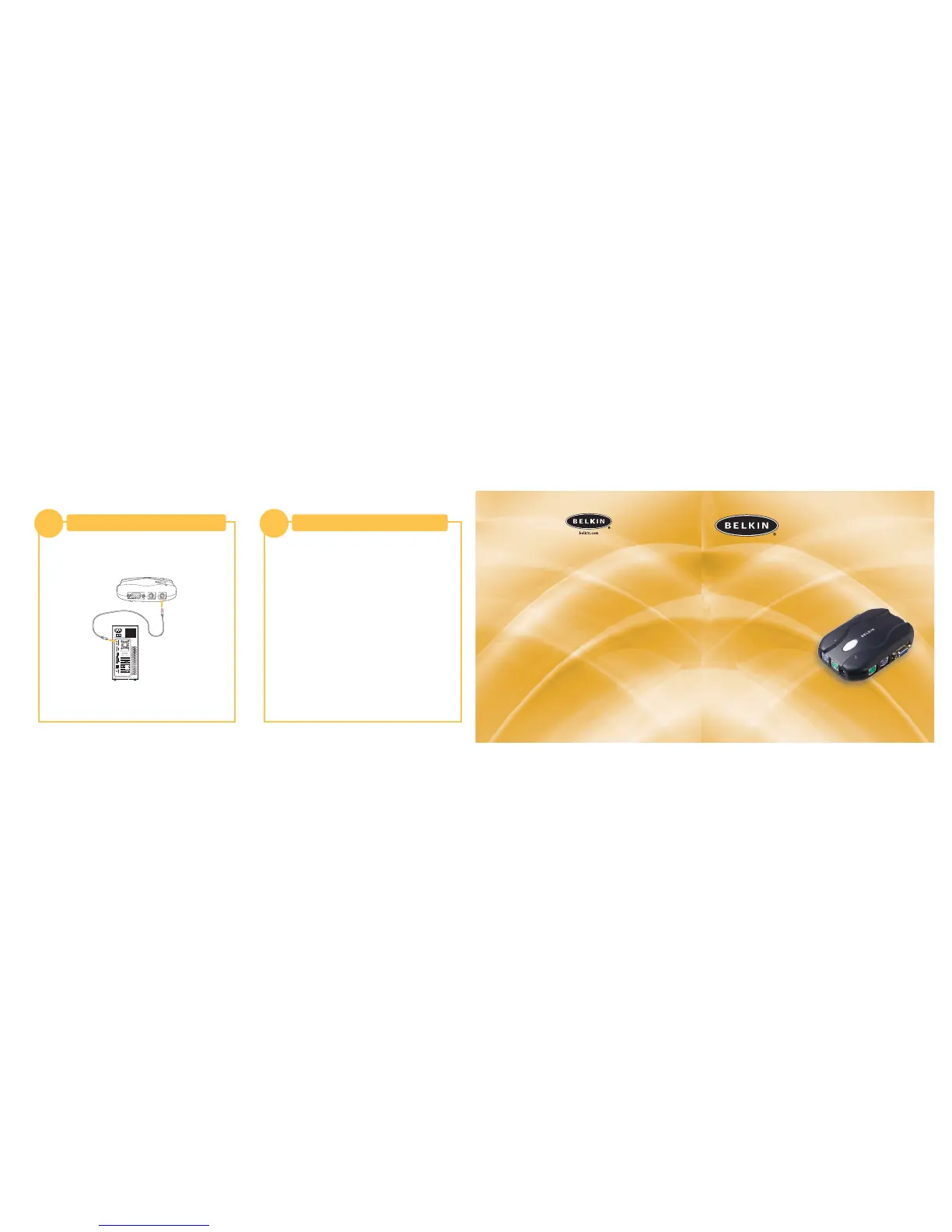
You are now ready to use your Switch.
Please refer to your User Manual for additional information.
Connecting Computers to the KVM Switch
2
3. Connect one end of the PS/2 mouse KVM cable to the mouse port on
your computer and the other end to the MOUSE 1 port on the side of
the Switch.
Repeat Steps 1 through 3 for each additional computer to be
connected to the Switch, connecting them to the corresponding
CPU ports on the side.
Power on your Computers
3
Belkin Corporation
501 West Walnut Street
Compton • CA • 90220 • USA
Tel: 310.898.1100
Fax: 310.898.1111
Belkin Components, Ltd.
Express Business Park • Shipton Way • Rushden
NN10 6GL • United Kingdom
Tel: +44 (0) 1933 35 2000
Fax: +44 (0) 1933 31 2000
Belkin Components B.V.
Starparc Building • Boeing Avenue 333
1119 PH Schiphol-Rijk • The Netherlands
Tel: +31 (0) 20 654 7300
Fax: +31 (0) 20 654 7349
Belkin Components, Ltd.
7 Bowen Crescent • West Gosford
NSW 2250 • Australia
Tel: +61 (0) 2 4372 8600
Fax: +61 (0) 2 4372 8603
Belkin Tech Support
US: 310.898.1100 ext. 2263
800.223.5546 ext. 2263
Europe: 00 800 223 55 460
Australia: 1800 666 040
P74226
© 2003 Belkin Corporation. All rights reserved. All trade names are
registered trademarks of respective manufacturers listed.
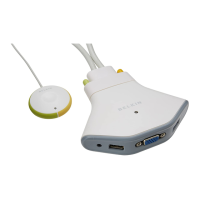
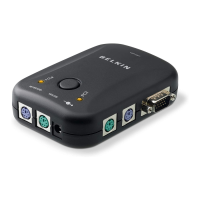
Control two computers using one video monitor,
and a PS/2 keyboard and mouse
2-Port KVM Switch
Quick Installation Guide
F1DJ102P-B



 To Previous Page