The Bell+Howell Smart Photo Frame (Model: BHDPF101) is a 10.1" wireless photo and video sharing station designed to display and share digital memories with friends and family. It operates as a smart device, connecting to Wi-Fi to receive photos and videos directly from a dedicated Frameo app on iOS or Android smartphones.
Function Description
The primary function of the Smart Photo Frame is to act as a digital display for photos and videos. It receives content wirelessly through the Frameo app, allowing users to share moments instantly with connected friends and family. The frame can display photos in a slideshow format, and it also supports video playback. It features a touch screen for easy navigation and interaction with its various settings and content. The frame can be oriented in either portrait or landscape mode, with a removable stand for flexible placement. It also includes keyhole mounting ports for wall installation.
Usage Features
- Getting Started: Upon first power-up, the frame guides the user through a quick setup process, including language selection, Wi-Fi connection, firmware updates, entering a name for the frame, and setting its location and time zone.
- Frameo App Integration: The core of the frame's functionality lies in its integration with the Frameo app. Users can download the app from the App Store or Google Play and connect it to the frame using a unique connection code generated by the frame. This allows for seamless sending of photos and videos from a smartphone to the frame.
- Connecting Friends: The frame allows users to connect with friends and family by sharing a unique, time-limited connection code. Once a friend adds this code to their Frameo app, they can send photos and videos to the frame. The frame owner has control over who can share content and can manage these connections, including allowing or disallowing friends to share the connection code further, and deleting friends from the list.
- Navigating Photos and Videos: Users can swipe left or right on the touch screen to browse through photos and videos. Tapping the screen once brings up a menu with various options.
- Display Options:
- Fit to Frame/Fill Frame: This feature allows users to choose how photos are displayed. "Fill frame" scales the photo to fill the entire screen, centering on the most important part. "Fit to frame" ensures the entire photo is shown, potentially adding blurred bars on the sides or top/bottom.
- Adjust Photo: Users can adjust the position of a photo within the frame for a better fit and can also rotate photos.
- Show Caption: Captions sent with photos can be displayed or hidden.
- Brightness Level: The screen brightness can be adjusted to suit the environment.
- Slideshow Customization:
- Timer: Users can set the duration each photo is displayed before the next one appears in the slideshow.
- Photo Display Order: Photos can be displayed by date (newest to latest) or in a shuffled, random order.
- Autoplay Videos: This setting enables or disables automatic playback of videos within the slideshow.
- Video Playback Options: For autoplayed videos, users can choose to loop videos until the slideshow timer is up, play them once and show the thumbnail, or play them once and then continue to the next photo or video.
- Video Interaction: When a video is playing, controls appear on the screen to play/pause the video and adjust its volume. Users can mute or unmute the video.
- Gallery View: A dedicated gallery feature allows for quick and easy navigation through all stored photos.
- Hide Photo: Individual photos can be hidden from the slideshow without being deleted, and can be unhidden later through the settings.
- Sleep Mode: The frame offers a sleep mode to reduce power consumption, automatically turning off the screen during specified hours (e.g., 11:00 PM to 7:00 AM). During sleep mode, the frame remains powered on and can still receive photos.
- Notifications: The frame provides notifications for various events, such as new photos received, low storage space, failed automatic backups, network connection status, new friends added, software updates, and new features. Notification sounds and display can be managed.
Maintenance Features
- Power Management: The frame should always be powered off using the dedicated power off button on the device or through the power menu on the screen. It is crucial not to disconnect the power while the frame is running to prevent damage. The power menu also offers options to restart the frame or enter sleep mode.
- Storage Management:
- Manage Photos: Users can view the number of photos stored, the storage space they consume, and the remaining available storage.
- Delete Photos: Photos can be permanently deleted from the frame, with options to select multiple photos for deletion.
- Import Photos: The frame supports importing photos from an external MicroSD card. Users can select specific photos to import.
- Export Photos: All photos on the frame, including profile pictures, can be exported to an external MicroSD card.
- Backup and Restore:
- Backup Frame to External Storage: Users can create a backup of their photos, friends, and settings to a MicroSD card. The time of the last successful backup is displayed. Existing backups on the external storage will be overwritten.
- Automatic Backup: The frame can be set to automatically back up within 30 hours of receiving new photos or changes.
- Restore from Backup: If a frame needs to be restored, users must first reset the frame to its setup screen. Then, they can restore from a backup on a MicroSD card. It's important to ensure both the old and new frames are updated to the latest software version for optimal restoration.
- Reset Frame: This option permanently removes all data from the frame, including photos, friends/connections, and settings, resetting Frameo to its initial setup screen.
- Software Updates: The frame can check for and install software updates. Users can also opt into a Beta Program to receive updates more frequently.
- Cleaning: Periodically, the power cord should be unplugged, and a dry cloth used to wipe away dust or dirt from the plug, power outlet, and surrounding area. The product should not come into contact with water or other liquids, and organic solvents should not be used for cleaning.
- Troubleshooting and Support: The manual provides information on how to access help, including open-source libraries, anonymous analytics data sharing settings, and a quick start guide. It also lists the Android version, Peer ID (for support inquiries), MAC address, Frameo version, and uptime.
- Safety Precautions: Users are advised to use only the included power supply, avoid disassembling or altering the frame, prevent dropping or severe impact, and keep it away from extreme temperatures, humidity, dust, and strong vibrations. It should be kept out of reach of children, and the power cord should be placed safely to prevent tripping.

 Need help?
 General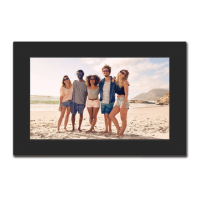

 To Next Page