QPresenter 9
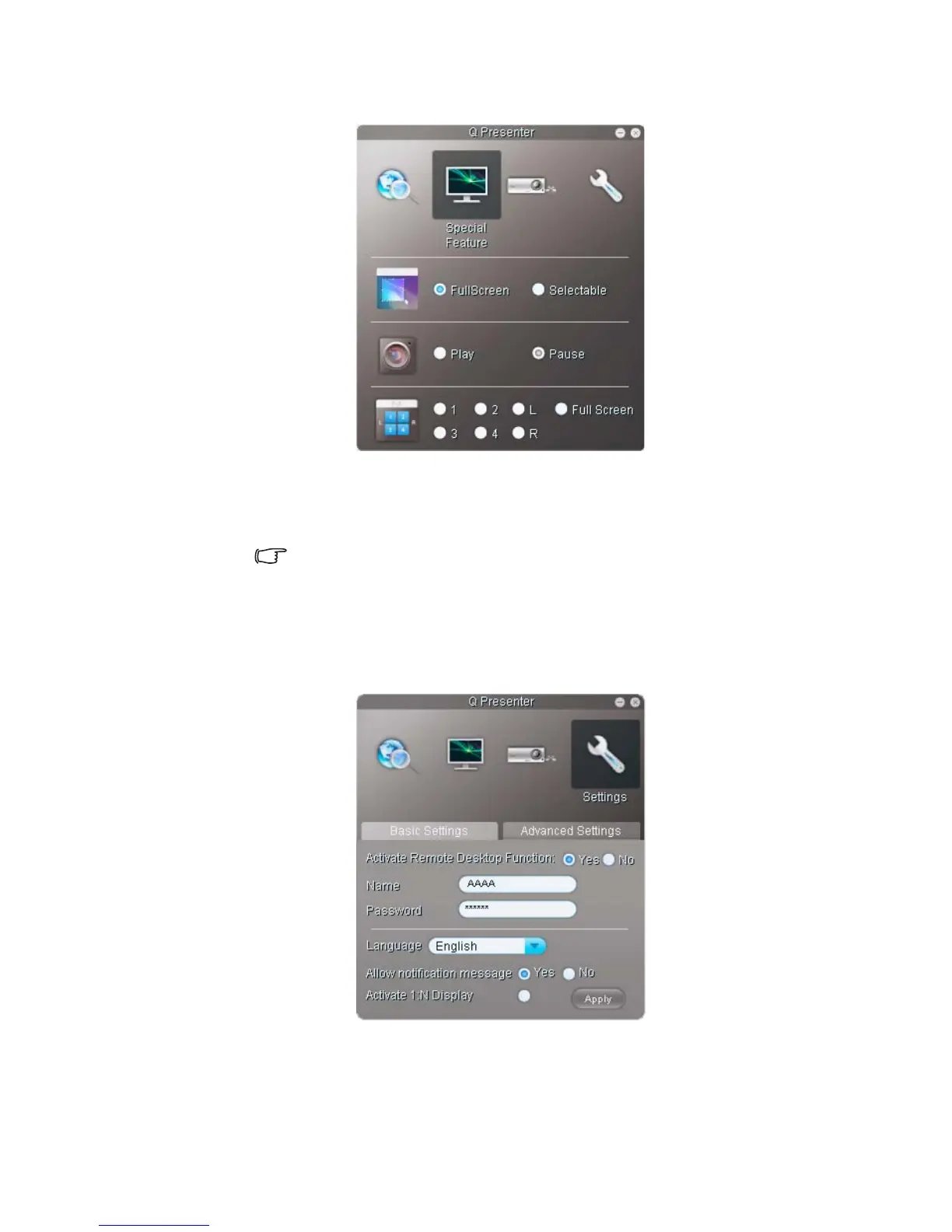
2. The Special Feature page provides some advanced functions to manage the projected
images.
• To display a full screen, click Full Screen.
• To display a partial screen, click Selectable. A square appears on your screen.
You can adjust its size and place it where you want to project.
This function is not available when audio out is activated.
• To pause projection, click Pause.
• If there are multiple computers connected to the projector, you can decide a
display location by clicking 1, 2, 3, 4, L, R, or Full Screen.
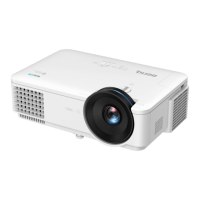
3. The Basic Settings page allows you to configure QPresenter.
• To activate Remote Desktop function, cl ick Ye s . Ty p e t h e n a m e a n d p a s sw o r d
for your computer. Go to the projector OSD menu SYSTEM SETUP:
Advanced > Network Settings > Remote Desktop, and enter Account
(the name for your computer) and Password, and highlight Connect, press
MODE/ENTER.


 To Next Page