14
operating instructions TC75
Firmware update
The features of our controllers are continuously im-
proved and expanded. To take advantage of this period-
ically check the latest firmware on www.bentrup.de/
service and proceed as follows for an update. Unpack
it onto a FAT32 formatted stick. You will then see several
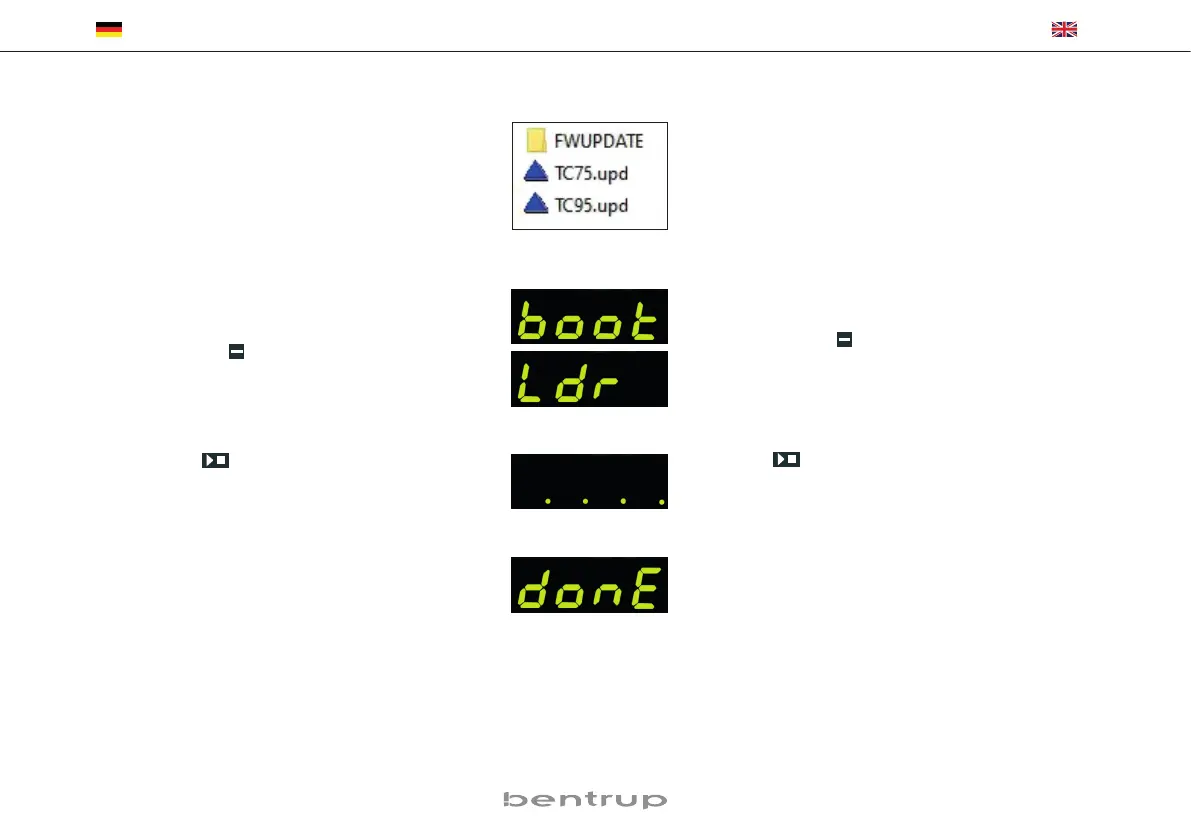
*.upd files and a FWUPDATE folder (fig. A).
Insert the USB stick into the TC 75 and switch it on while
holding down the
key. The display shows “boot”
followed by “Ldr”. The firmware installed on the stick is
read and its version is displayed.
Press the
key to start the installation of the update
“uPd.” During installation, the display shows moving
dots “....” and “uPd.“ alternately.
If the update has been installed successfully, “donE“
appears in the display. The USB stick can be removed.
Firmware-Update
Die Funktionen unserer Regler werden kontinuierlich ver-
bessert und erweitert. Profitieren Sie davon und bringen
Ihren TC75 wie folgt auf den neuesten Stand: Laden Sie
die neueste Firmware von www.bentrup.de/ service.
Entpacken Sie diese auf einen FAT32-formatierten
Stick. Es sind dann mehrere *.upd Dateien sowie ein
FWUPDATE Ordner sichtbar (Bild A).
Stecken Sie den USB-Stick in den TC 75 und schalten Sie
ihn mit gedrückter
Taste ein. Im Display erscheint
„boot“ gefolgt von „Ldr“. Die auf dem Stick installierte
Firmware wird gelesen und deren Version angezeigt.
Mit Drücken der Taste starten Sie die Installation des
Updates „uPd.“. Während der Installation zeigt das Dis-
play wandernde Punkte „....“ und „uPd.“ im Wechsel an.
Ist das Update erfolgreich installiert, erscheint im Display
„donE“. Der USB-Stick kann nun entfernt werden.
(A)


 To Next Page
 Loading...