
 Need help?
Do you have a question about the BEP Marine 600-ACSM and is the answer not in the manual?
Important safety precautions and warnings for installation and operation.
Key features, capabilities, and technical specifications of the 600-ACSM monitor.
Hardware layout, buttons, status pages, and onscreen keyboard usage.
Procedures for saving settings and locking/unlocking the device screen.
Physical dimensions of the 600-ACSM unit.
Details of the input/output pin connections and their functions.
Schematic illustrating the electrical connections for the monitor.
How to calibrate and set AC voltage input parameters.
How to calibrate and set AC current input parameters.
Setting up the loadshed relay operation based on current levels.
Setting up high/low alarms for inputs and managing alarm responses.
Adjusting backlight levels, timeout, and display modes.
Setting up how status pages scroll and display information.
Configuring individual inputs, labels, display types, and alarms.
Configuring beep on press, power down, passwords, and units.
Managing settings backup, firmware updates, and factory resets.
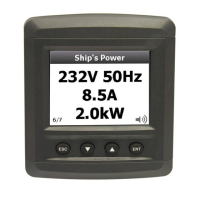
The BEP 600-ACSM is an AC Systems Monitor designed to provide comprehensive monitoring and control of AC electrical systems, particularly in marine environments. It features a 2.8" TFT LCD 16-bit color screen and a 4-button user interface with white backlighting, making it easy to read and operate. The device is designed for either surface mounting or recessing into a 2.5mm panel, offering flexibility in installation. Its splash-proof design ensures durability in challenging conditions.
The 600-ACSM primarily functions as an AC monitoring and control unit. It offers voltage monitoring for up to three AC voltage inputs, ranging from 0-300V AC RMS, and measures the frequency of each AC voltage input. Additionally, it provides current monitoring for up to three AC current inputs, from 0-120A AC RMS. This allows users to keep track of critical AC parameters across different sources.
A key feature of the 600-ACSM is its alarm system. It supports Hi/Low Voltage, Current, and Power alarms, which can be configured with adjustable set points and snooze timers. When an alarm is active, a visual warning appears on the screen, and an audible buzzer/external alarm sounds. The alarm icon on the status page provides a global warning, with different colors indicating the alarm status: green for no alarm, red for active alarm, grey for disabled alarms, and red or green for muted alarms. Users can disable individual alarms or mute them, and the device offers a default snooze time that can be customized.
The monitor also incorporates a load shedding relay output, which is crucial for managing AC loads. This feature allows the operator to automatically disconnect non-essential AC loads to prevent current surges that could overload generators or trip circuit breakers. The load shedding relay output is driven by the 'Current' status pages, and each page can be set at a different level. The output becomes active from the first 'Loadshed' event until the last one clears. Two timers are associated with the load shed current, activating the relay output based on current levels exceeding 120% or 100% of the maximum current.
The 600-ACSM's user interface is straightforward, utilizing four buttons: Escape, Down, Up, and Enter. The Escape button exits the current page or menu, returning to the previous one. The Down and Up buttons navigate through pages or menu lists, and also move the cursor left or right when inputting text. The Enter button brings up the 'Main menu' from status pages, confirms selections, and enters characters on calibration pages.
The device's status pages are the primary display screens, showing real-time AC system information. Users can navigate through enabled status pages using the Up or Down buttons. Each input displayed on a status page has a label for identification, which can be selected from a preset list or customized using an onscreen keyboard. The page numbers indicate the current status page being viewed.
For text and numeric input, the 600-ACSM provides onscreen keyboards. The text/numeric keyboard is used for custom labels, while the numeric keyboard is for setting numerical values like high/low limits, current, and voltage. The selection box on the keyboard can be moved using the Up and Down buttons, and characters are accepted with the Enter button. There's also a toggle button to switch between upper and lower case text.
The screen can be locked to prevent accidental changes to settings or the system. When locked, "Locked" is displayed in the bottom left corner of the screen, and all functionality is disabled. The screen can be locked or unlocked by pressing and holding the Down or Up button for 20 seconds, respectively.
Display settings are highly customizable. Users can adjust the backlight level for Day Mode, Night Mode, and Timeout Mode as a percentage (0-100%). The Backlight Timeout setting determines how long after the last user input the backlight dims to the Timeout Level, helping to reduce current draw. The display mode can be toggled between Day and Night, and a "Night Mode Invert" option allows for color inversion in Night Mode.
The status page configuration offers a "Scroll mode" that can be set to Manual or Automatic. In Manual mode, users press buttons to navigate pages, while in Automatic mode, pages change automatically after a predetermined "Hold time."
Input settings allow users to configure each AC input. Inputs can be enabled or disabled, and their display type can be set to Text or Gauge, depending on the input type.
The 600-ACSM includes several features for maintenance and system management. Calibration for AC Voltage and AC Current is factory set but can be adjusted if needed. The calibration process involves specific steps, such as inserting a ground wire for zero calibration and using a calibrated voltmeter or ammeter to set actual values.
The device allows for saving user settings. When exiting to the main screen after making changes, a prompt appears to save the settings. Choosing "yes" overwrites the user settings file, while "no" reverts to the last saved settings on power-up.
Utilities include options for importing and exporting settings via a USB memory stick. This allows users to back up their configurations or transfer them to other meters. The device prompts for a filename when exporting, with 'user.ini' as the default. When importing, all stored settings will be lost, so caution is advised.
Firmware updates can be performed by inserting a memory stick with the 'application.tar.gz' file into the USB socket. The device will guide the user through the update process, and it's critical not to disconnect the power supply during this time to avoid rendering the meter unusable.
Other utilities include a "Shutdown" option to power off the meter completely, a "Color Test" for the LCD screen, and a "Factory Reset" to restore the meter to its original state. A factory reset can be performed from the 'Utilities' menu, which can be accessed by holding the Down button during reboot if the meter fails to boot to a status page or settings are corrupted. Users are warned that all stored settings will be erased during a factory reset. An "Input Debug" function provides a technical overview of all inputs for troubleshooting.
The system settings also include a "Setup Password" feature to protect the meter from unauthorized modifications. A password can be set or disabled, requiring confirmation. "Simulation Mode" is available for demonstration purposes, displaying random values with moving gauge needles and bar graphs. The "Units" setting allows users to choose between Metric (Litres), English (Gallons), and US (Gallons) for tank value displays.
 General
| AC Input | 85-265V AC |
|---|---|
| Communication Protocol | NMEA 2000 |
| Voltage | 12V/24V |
| Frequency | 50-60Hz |
| Output Voltage | 12V DC |
| Operating Temperature | -20°C to +60°C |

 To Next Page
