S-757003UK / 2024.01.23 / v1
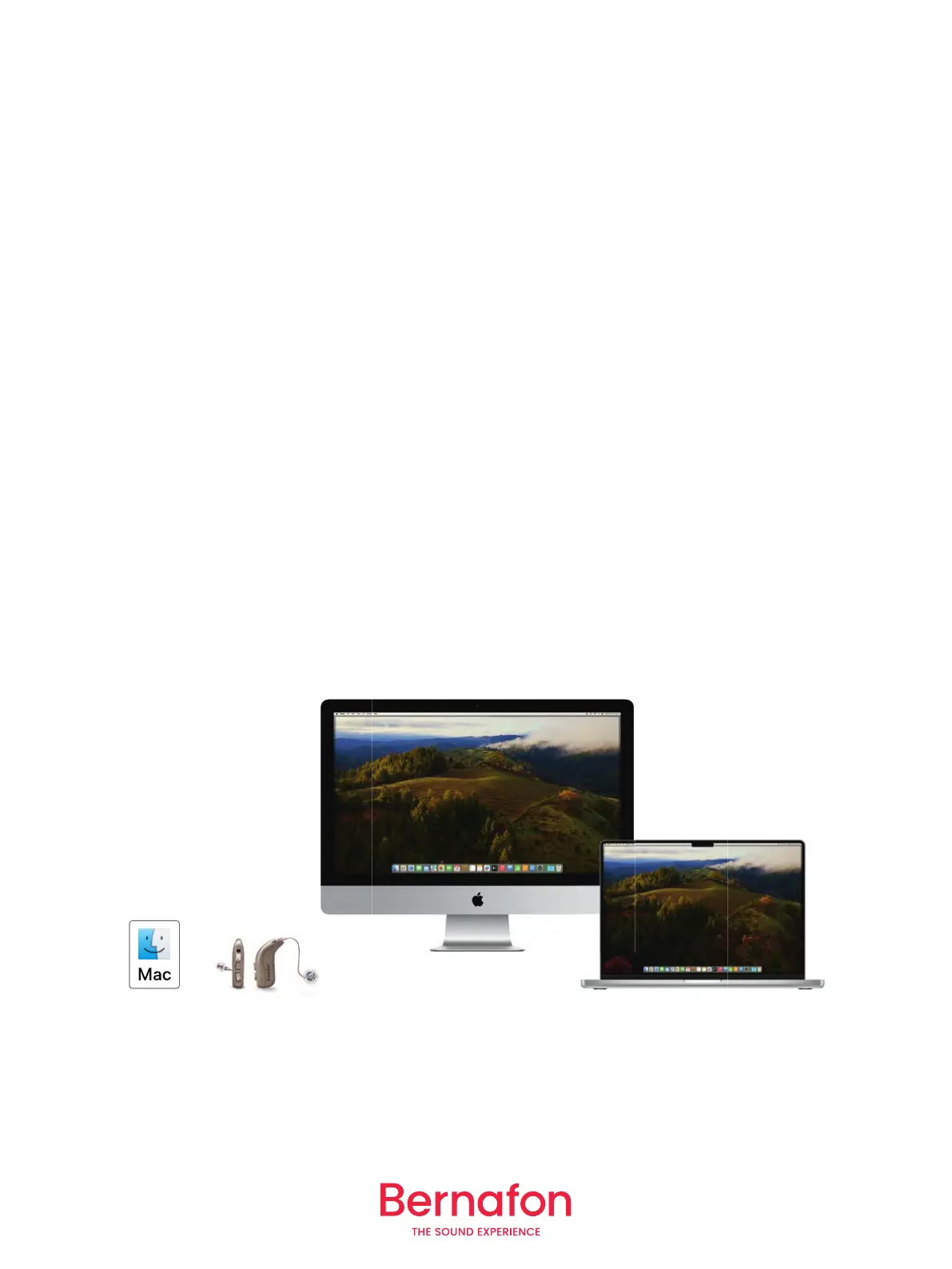
To refresh the connection with your hearing aids,
turn the Airplay button off and then on again.
Go to the Control Center.
Press the round Airplay button next to the slider
under Sound.
Turn the Airplay button off and then on again.
More connectivity options
For older Mac computers and some older Bernafon
hearing aids you can connect using a SoundClip-A.
It also offers two-way audio, meaning it can stream
your voice back to your computer, so that you can
enjoy hands-free communication.
Pairing with your computer via SoundClip-A
1. Ensure that SoundClip-A is powered off. Press
and hold the multi-button for approximately six
seconds, until the power indicator is off.
2. Restart hearing aids
• For hearing aids with disposable batteries,
open and close the battery drawer.
• For rechargeable hearing aids, put the hearing
aids in the charger and take them out.
Alternatively, press the lower button on hearing
aids for 3s to turn them off and then for 2s to
turn them on.
3. Turn SoundClip-A on. Press and hold the
multi-button for approximately ten seconds,
until the power indicator shows steady green.
SoundClip-A will now search for your hearing
aids. The status indicator will blink yellow.
4. Establish a connection. Place SoundClip-A close
to your hearing aids, at a maximum distance of
20 cm. A successful connection is achieved
when the status indicator shows steady yellow.
Next, connect the SoundClip-A to
your computer
1. On your ConnectClip-A hold down both the On/
Off button and the Volume Up button at the
same time for about 6 seconds until you see the
LED blinking with a blue color. This will activate
“pairing mode”.
2. Establish a connection. Go to the Bluetooth
menu on your computer. Select SoundClip-A
and connect.
Apple, the Apple logo, Mac and the Mac logo are trademarks of Apple Inc., registered in the U.S. and other countries.






 To Previous Page