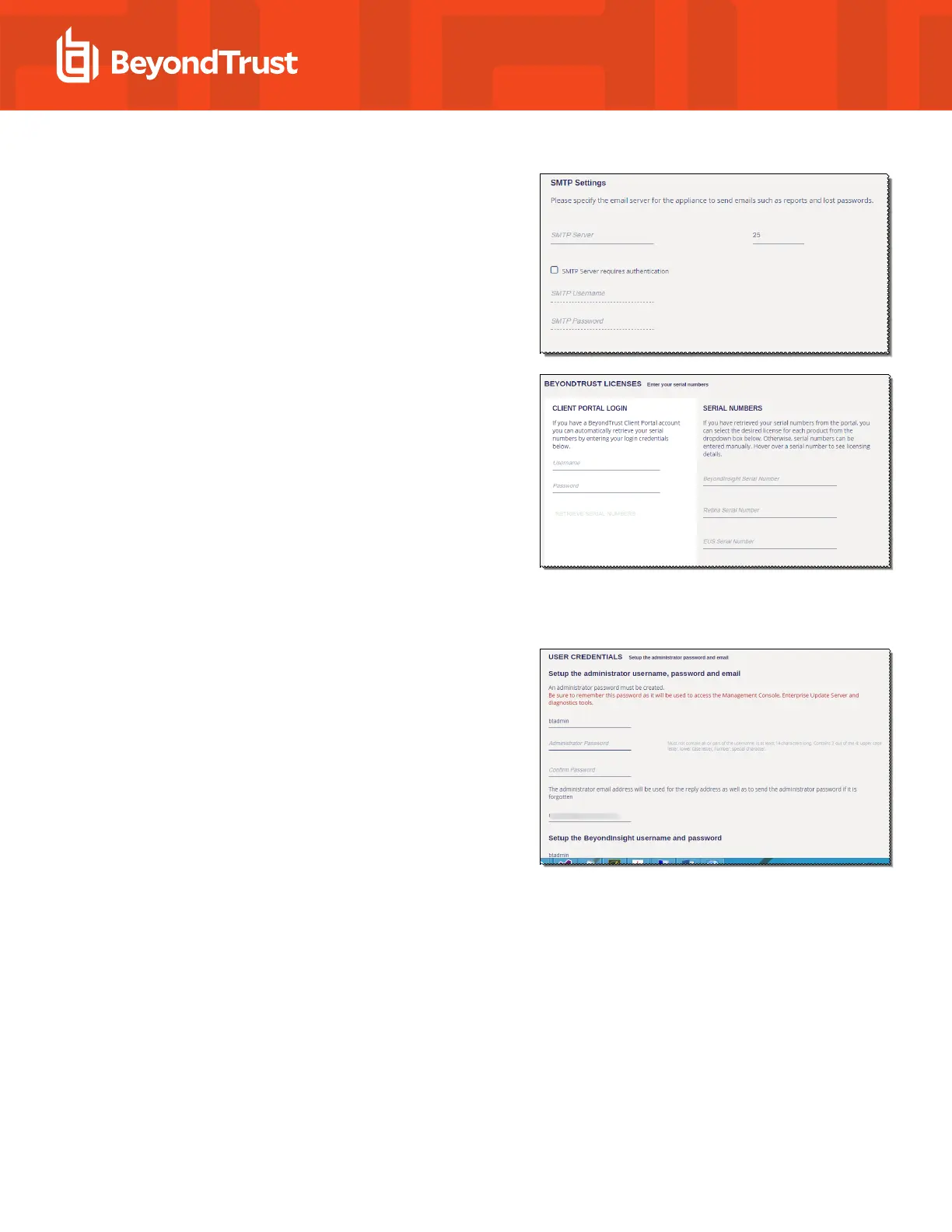
9. On the SMTP Settings page:
l Enter the SMTP server IP address and port.
l Select the SMTP Server requires authentication check
box to use credentials to access the server.
l Click Next.
10. On the Registration Information page, enter the name,
organization, and address information. Click Next.
11. On the BeyondTrust Licenses page, enter the license keys.
l Client Portal Login: You can choose to retrieve license
keys automatically from the BeyondTrust client portal.
Enter your user name and password, then click Retrieve
Serial Numbers.
l Serial Numbers: Enter the serial number provided when
you purchased the product. To access your serial number,
log on to the client portal, and select Product Licensing >
Managing Your Serial Numbers. Click Get Offline
License and follow the instructions on obtaining the
license key offline. Manually enter the license key once it
is received.
Click Next.
12. On the User Credentials page, enter the following passwords:
l Administrator password: This password enables you to
access the appliance. The email address will receive
UVM reports, alerts, and alerts on hardware events.
l Central Policy Server password: This password is used
by Central Policy, to deploy Network Security Scanner
Protection agents, and to run scans.
l BeyondInsight: User name and password.
Click Next.
SALES: www.beyondtrust.com/contact SUPPORT: www.beyondtrust.com/support DOCUMENTATION: www.beyondtrust.com/docs 16
©2003-2019 BeyondTrust Corporation. All Rights Reserved. Other trademarks identified on this page are owned by their respective owners. BeyondTrust Corporation is not a chartered bank or trust company,
or depository institution. It is not authorized to accept deposits or trust accounts and is not licensed or regulated by any state or federal banking authority.
TC: 6/19/2019
UNIFIED VULNERABILITY MANAGEMENT APPLIANCE
INSTALLATION GUIDE


 To Next Page