Access Features from the UVM LCD Panel
You can access the following features from the UVM LCD panel.
Access Settings Menu
To access the settings:
The LCD panel displays Please wait. Once the appliance completes the powering procedures, UVM displays the following actions.
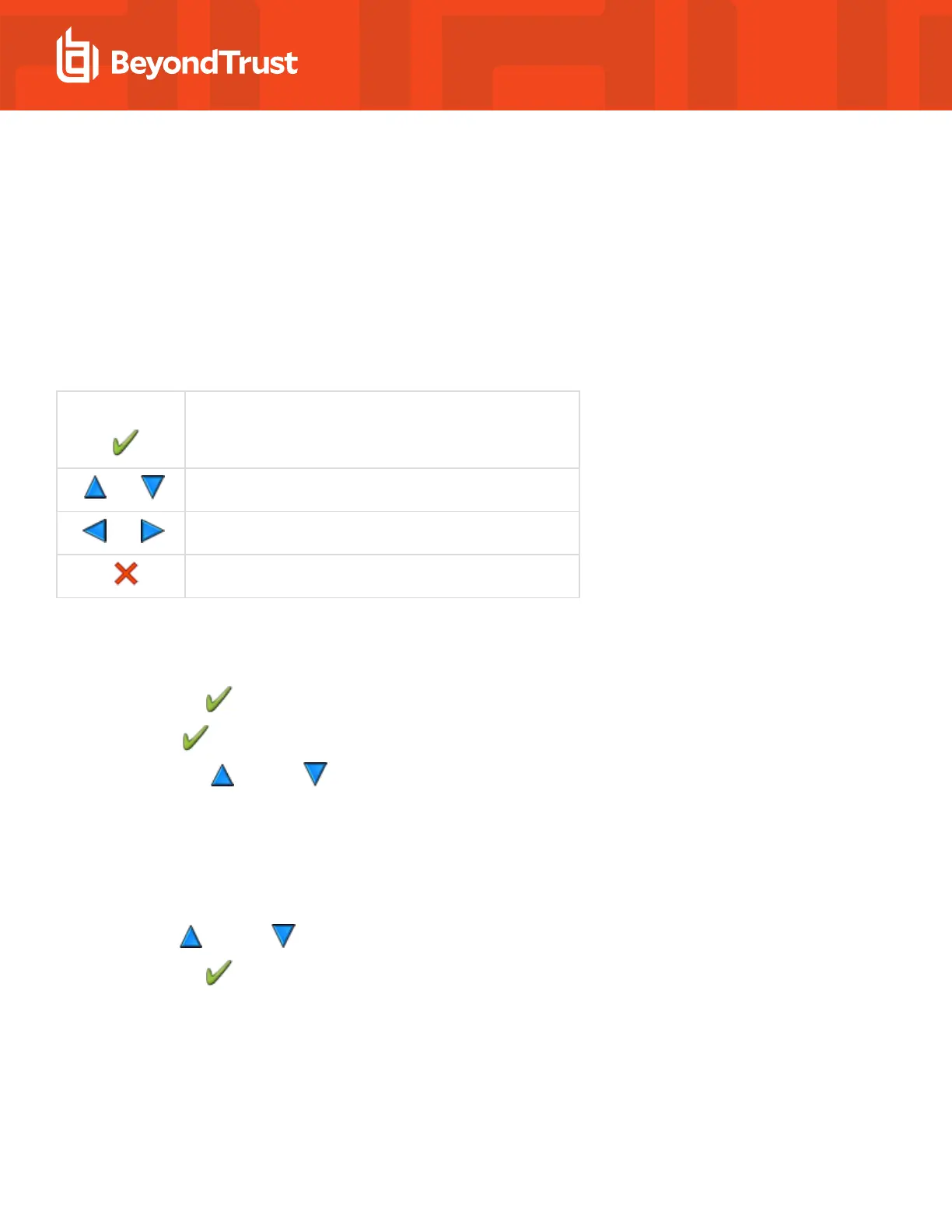
LCD Panel Description
Press the check to enter or accept the setting.
Press the up or down arrow to navigate through the menus.
Press the right or left arrow to access settings in the menu.
Press the X to cancel the setting.
LCD Panel Functionality
Enable RDP
From the LCD panel, start where UVM 20 Ready is displayed.
1.
Press the check to enter Settings / Show IP.
2.
Press check . The IP address of the appliance is displayed.
3.
Hold both the up and down button for four seconds. Do not do anything else between the previous step and this one.
Reset Administrator Password
1. Check the Allow LCD Panel to Reset Administrator Password box.
2. If needed, go to the appliance to reset the administrator password.
3. Select Show IP to view the IP address.
4.
Hold the up and down buttons simultaneously on the UVM LCD panel. A random password is generated.
5.
Press the check to accept the changed password.
SALES: www.beyondtrust.com/contact SUPPORT: www.beyondtrust.com/support DOCUMENTATION: www.beyondtrust.com/docs 9
©2003-2019 BeyondTrust Corporation. All Rights Reserved. Other trademarks identified on this page are owned by their respective owners. BeyondTrust Corporation is not a chartered bank or trust company,
or depository institution. It is not authorized to accept deposits or trust accounts and is not licensed or regulated by any state or federal banking authority.
TC: 6/19/2019
UNIFIED VULNERABILITY MANAGEMENT APPLIANCE
INSTALLATION GUIDE


 To Next Page