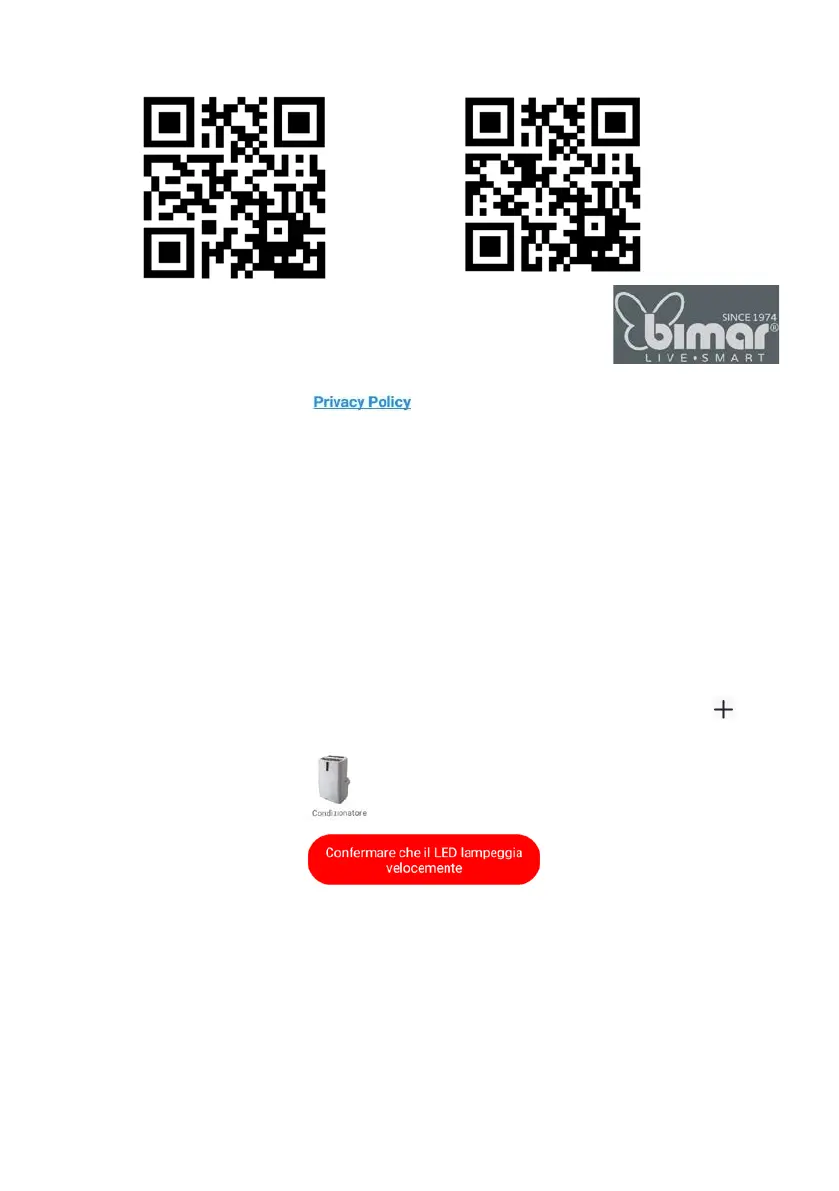
1.2 Once installed, the app icon appears.
Click the “Bimar Live Smart” icon to run the app.
1.3 At the first access, register and fill in your credentials:
o click on "Create a new account", confirm "I agree" for the data relating to the
Privacy Policy (by pressing: " " the text of the informative report
pursuant to Article 13 of the 2016/679 European Regulation appears, while by
selecting "
User Agreement" the Bimar srl Service Agreement appears)
o enter your email address (select the desired country)
o click on the writing "Get the verification code", wait for a few seconds and then
enter the code received in the "Verification code" part using your registration
email address (possibly also check the Junk e-mail folder, if you don't receive it
in the inbox folder).
1.4 Enter your personalized password and click “Done”.
If the procedure is carried out correctly, the control panel screen for using the application
appears.
2. To pair new devices with the smartphone
2.1 Connect the plug to the power socket; a "beep" will be heard. Press the "FAN" button
for about five seconds: a "beep" will be heard; release the button.
2.2 Open APP on the smartphone: in the first screen, click “ADD DEVICE” or click “ ” in
the top right corner.
2.3 In the next screen, click “ ”.
2.4 In the next screen, click” /Check that the LED flashes
quickly.
2.1
occurred ⇒ End.


 To Next Page