EasyManua.ls Logo

Biostar TP55 - User Manual

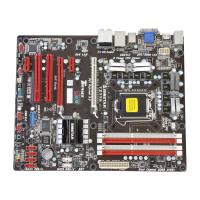
Biostar TP55
59 pages
Print Icon
To Next Page IconTo Next Page
Loading...
TP55 Setup Manual
FCC Information and Copyright
This equipment has been tested and found to comply with the limits of a Class
B digital device, pursuant to Part 15 of the FCC Rules. These limits are designed
to provide reasonable protection against harmful interference in a residential
installation. This equipment generates, uses, and can radiate radio frequency
energy and, if not installed and used in accordance with the instructions, may
cause harmful interference to radio communications. There is no guarantee
that interference will not occur in a particular installation.
The vendor makes no representations or warranties with respect to the
contents here and specially disclaims any implied warranties of merchantability
or fitness for any purpose. Further the vendor reserves the right to revise this
publication and to make changes to the contents here without obligation to
notify any party beforehand.
Duplication of this publication, in part or in whole, is not allowed without first
obtaining the vendor’s approval in writing.
The content of this user’s manual is subject to be changed without notice and
we will not be responsible for any mistakes found in this user’s manual. All the
brand and product names are trademarks of their respective companies.


Questions and Answers

  • J
    Joseph GonzalezJul 31, 2025
    How to troubleshoot no power issue on Biostar TP55?
    • R
      reginacarterJul 31, 2025
      If there's no power in your Biostar Motherboard system, ensure the power cable is securely plugged in. If the problem persists, try replacing the power cable. If neither solution works, it may indicate a more significant issue.
  • J
    John OlsenAug 7, 2025
    What to do if Biostar TP55 Motherboard won't boot after installing a second hard drive?
    • R
      rogeroneillAug 7, 2025
      If your Biostar Motherboard system fails to boot after installing a second hard drive, ensure that the master/slave jumpers are correctly set. Also, run the SETUP program and select the correct drive types. If issues persist, contact the drive manufacturers to verify compatibility with other drives.
  • T
    Travis SchneiderAug 15, 2025
    What to do if Biostar TP55 Motherboard shows “Invalid Configuration” or “CMOS Failure”?
    • C
      cprattAug 15, 2025
      If your Biostar Motherboard displays an “Invalid Configuration” or “CMOS Failure” message, review the system’s equipment and ensure the correct information is entered in the setup.
  • G
    Gabriel RoyAug 22, 2025
    What to do if Biostar TP55 system is inoperative but has power?
    • J
      Jessica BennettAug 22, 2025
      If your Biostar Motherboard system is inoperative but the keyboard lights are on, the power indicator lights are lit, and the hard drives are running, press down firmly on both ends of the DIMM until the module snaps into place, applying even pressure.

Summary

Chapter 1: Introduction

1.1 Before You Start

Provides essential instructions and precautions before installing the motherboard.

1.3 Motherboard Features

Details the key specifications and features of the motherboard, including CPU, Chipset, Memory, and I/O.

Chapter 2: Hardware Installation

2.1 Installing Central Processing Unit (CPU)

Step-by-step guide for safely installing the CPU onto the motherboard socket.

2.3 Installing System Memory

Instructions for installing memory modules (DIMMs) into the motherboard slots.

Chapter 3: Headers & Jumpers Setup

Chapter 4: T-Series BIOS & Software

4.1 T-Series BIOS

Covers BIOS features like Overclocking Navigator, memory tests, BIOS flashing, and fan control.

Chapter 5: Useful Help

5.1 Driver Installation Note

Instructions for installing drivers and software from the Setup CD for optimal system performance.

5.4 Troubleshooting

Offers solutions for common system issues like no power, boot failures, and configuration errors.

Biostar TP55 Specifications

General IconGeneral
BrandBiostar
ModelTP55
CategoryMotherboard
LanguageEnglish

Related product manuals