This document describes the Bitmore 4K Ultra Cam, a compact action camera designed for capturing high-resolution video and photos. The camera emphasizes eco-friendliness, being made from 100% recycled plastic.
Function Description:
The Bitmore 4K Ultra Cam is primarily used for recording video and taking still photographs. It can also function as a PC webcam when connected to a computer via USB. The camera is designed for versatility, with a waterproof casing allowing for underwater use down to 30 meters. It supports various resolutions for both video and photos, making it suitable for different recording needs.
Important Technical Specifications:
- Sensor: 5MP Ultra HD sensor
- LCD Screen: 2.0 Inch HD LCD screen
- Photo Resolutions: 16MP, 12MP, 10MP, 8MP, 5MP, 3MP, 2M, VGA
- Photo Format: JPEG
- Video Resolutions:
- 4K 30FPS
- 2.7K 30FPS
- 1080FHD (1920x1080)
- 1080P (1440x1080)
- 720P (1280x720)
- WVGA (848x480)
- VGA (640x480)
- Video Format: AVI
- Storage: Micro SD (up to 32GB) - No internal memory
- Waterproof Casing: Down to 30 meters
- Field of View: 120°
- Lens: F2.5/f=3.53mm
- Light Frequency: Automatic, 50 Hz-60 Hz
- PC Cam Functionality: YES via Micro USB
- Battery: Removable 900mAh re-chargeable lithium battery
- Battery Charge Time: Approximately 3 hours
- Language Options: English, French, German, Italian, Spanish, Portuguese, Japanese, Simplified Chinese, Traditional Chinese.
- Size / Weight: 60 x 40 x 29 mm / 38g (without battery & case)
Usage Features:
The camera features a straightforward interface with dedicated buttons for operation.
- Switching On/Off: Press and hold the POWER button on the front of the camera.
- Mode Selection: The "Mode Selector" button allows switching between video recording, photo shooting, playback, and system settings.
- Video Recording: In video recording mode, an icon appears on the upper left corner of the screen. Press the "OK" button to start recording (the icon will flash) and press it again to stop.
- Photo Shooting: In photo shooting mode, an icon appears on the upper left corner of the screen. Press the "OK" button to take photos. A blue indicator light will show when the camera is busy recording or taking photos.
- Playback Mode: This mode allows viewing recorded videos and photos. Use the side "Up" and "Down" buttons to scroll through recordings. Tapping the top "OK" button will start playing back video recordings.
- System Setup: Access settings by pressing the "Mode Selector" button. Use the side "Up" and "Down" buttons to navigate highlighted settings and the top "OK" button to select and confirm choices.
- Memory Card: A Micro SD card (max 32GB) is required as there is no built-in memory. The card should be formatted before use. To insert, gently push the Micro SD card into the slot. To remove, gently push it in again, and it will pop out. Ensure the camera is switched off and not connected to a power source when inserting or removing the card.
- Charging: The battery icon on the screen indicates charge level. Charge the battery when the icon is empty and flashing, or if the camera powers off or won't power on. Connect the Micro USB cable to the camera's Micro USB port and the other end to a USB port (mains adaptors are recommended but not included). The battery can be removed by inserting a slim, blunt object into the battery door slot and gently prying it open.
- PC Connection: When connected to a computer via USB, two options are displayed:
- Mass Storage: Allows viewing and copying files from the memory card using the computer's file manager.
- PC Cam Mode: The LCD will display a lens icon, enabling the camera to function as a webcam through an application.
- Waterproof Case Usage:
- Push along the arrow direction and lift the latch.
- Open the waterproof casing.
- Insert the camera and securely fasten the casing.
- Note: Ensure the camera is inside the waterproof case and securely sealed before submerging in water. Take care when connecting the charging cable to the camera.
Maintenance Features:
- General Care:
- Keep the camera away from direct sunlight to prevent damage to the image sensor.
- Avoid water, sand, dust, or salt particles from entering the camera, as they can cause damage.
- Store in a cool, dry place with good ventilation.
- Do not place in areas with high temperature, humidity, or dust.
- Cleaning:
- Clean the camera or case with a clean, soft, and dry cloth.
- Regularly clean the camera lens. Gently blow off sand or debris to avoid scratching, then wipe with a soft material cloth suitable for optical instruments. Use an appropriate cleanser if needed. Do NOT use organic solutions.
- Battery Care:
- Lithium-ion batteries naturally decrease in charge over time, especially during transit or if left unused in cold environments or fluctuating temperatures. For best performance, charge the device fully upon receipt.
- Frequent charging and discharging, even when not in use, can help maintain battery health.
- Memory Card Care:
- Avoid improper use, bending, dropping, or any impact on the memory card.
- Keep away from high temperatures, humidity, direct sunlight, static fields, or electromagnetic fields.
- Avoid contact with the metal surface of the memory card with fingers or sharp objects.
- DO NOT unplug the camera during formatting or data transfer operations to prevent damage to the camera software, memory card, and data.
- Safety Information:
- DO NOT place metal objects on the device while in use or connected to a power source to avoid electrical shocks or fire.
- DO NOT leave the device connected when not in use or when charging.
- DO NOT cover the product or device when in use.
- DO NOT expose to heat sources (fire, direct sunlight).
- DO NOT use or expose to high humidity, liquids, gels, aerosols, or heavy dust. If liquid enters, unplug immediately.
- DO NOT disassemble or modify the product.
- Use and store in an ambient environment between 0-45 °C.
- Avoid dropping the product.
- Only use attachments/accessories supplied by Bitmore or certified by your device manufacturer.
- This product is not a toy; keep children unsupervised.
- Use a genuine certified wall adaptor (e.g., one supplied with your device manufacturer).
- DO NOT use a wall adaptor with fast charge or high AMP output.
- DO NOT leave your device unattended for charging overnight.
- DO NOT use faulty, damaged, or non-certified plugs.
- DO NOT use a plug with more than a 5W output.
- DO NOT operate where aerosols are or have been used, or where oxygen is being administered.
- DO NOT operate in a closed environment (pocket, handbag, backpack, under a pillow, etc.).
Guarantee:
The Bitmore 4K Ultra Cam comes with a 24-month Limited Guarantee. Users must register their device at bitmore.co.uk within 30 days of purchase for the guarantee to be valid. Registration also grants access to exclusive product giveaways, membership rewards, and discounts. The guarantee covers defects in manufacture and workmanship under normal use and service. It does not cover damage caused by misuse, abuse, accidents, unauthorized accessories, alterations, improper installation, unauthorized repairs, improper use of electrical/power supply, power loss, dropped product, malfunction due to lack of maintenance, transportation damage, theft, neglect, vandalism, environmental conditions, loss of use, or any other conditions beyond Bitmore's control. The guarantee is the sole and exclusive warranty, with no other express or implied warranties. Bitmore is not liable for incidental, consequential, or special damages. The guarantee is limited to replacement of defective parts. Refunds are given if replacement parts are unavailable. Bitmore reserves the right to substitute products in lieu of repair or replacement. Failure to follow manual instructions voids the manufacturing guarantee. Wear and tear are not covered. Submersion in liquids voids the guarantee. Devices connected to the product or app are not covered.

 Need help?
 General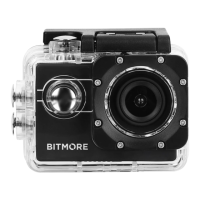

 To Next Page