English
15
English
14
ranges from a very subtle amount of ‘shimmer’ (often used to lift the bass sound
in a live or recorded mix) to a fully effected ‘swell’ for a more atmospheric sound.
31. Octave Blend
This control adjusts the mix of the octave down and octave up effects when Octave
is selected on the Effect Select switch (12). With this knob set to minimum only
the octave down will be blended with your original signal. Set to maximum, only
the octave up will be blended with your original signal. A proportional mix of both
octave down and octave up can be blended with your original signal as this control
is moved towards the centre position.
32. Cabinet Link
Extend your setup by connecting a Blackstar Unity Pro Bass U250ACT Active
Cabinet (sold separately) to the Cabinet Link output using an XLR cable. Multiple
U250ACT Active Cabinets can be linked together to create a modular setup with
near-limitless power, where each U250ACT adds up to 250W of additional power
through a custom-designed 15" Eminence speaker.
The Cabinet Link output level is controlled by the Master Volume (16), and creates a
true stereo setup when connected to a Blackstar U250ACT with the Chorus effect
engaged.
Footcontrollers
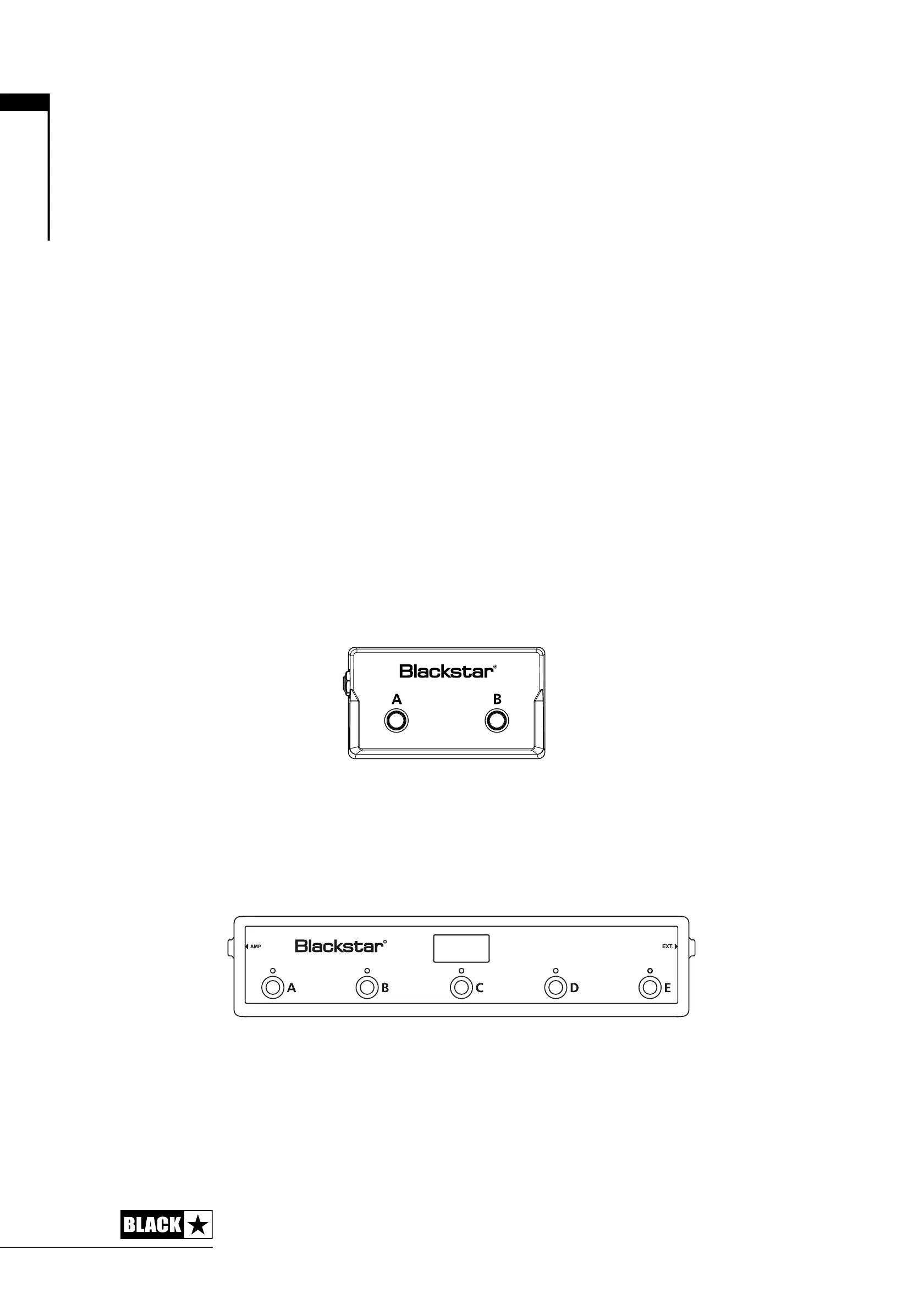
FS-13 2-way footswitch (supplied)
Connect this footcontroller to the Footswitch socket (20) on the rear of your amplier
using any standard mono guitar cable or speaker cable (supplied).
Pressing button ‘A’ on your FS-13 will toggle the current Drive selection on/o.
Pressing button ‘B’ will toggle the current Eect selection on/o.
FS-12 5-way footcontroller (not supplied)
Connect this footcontroller to the Footswitch socket (20) on the rear of your amplier
using any standard mono guitar cable or speaker cable.
Pressing button ‘A’ on your FS-12 will scroll through each of the three Voices. The
LED above button ‘A’ will indicate the currently selected Voice, where Green =
CLASSIC, Orange = MODERN and Red = FLAT.
Button ‘B’ will toggle your selected Drive on/o. You can select which Drive is
currently active with a single press of buttons ‘A’ and ‘B’ simultaneously (scroll
‘down’) or a single press of buttons and ‘B’ and ‘C’ simultaneously (scroll ‘up’). The
LED above Button ‘B’ will indicate the currently selected Drive, where Green = OD,
Orange = DIST and Red = FUZZ. The currently selected Drive is also shown on the
display in the centre of the FS-12. When the Drive knob (5) on the top panel is at
zero the Drive blend will be OFF and the FS-12 display will be blank.
Pressing button ‘C’ will toggle the Chorus eect on/o and button ‘D’ will toggle the
Octave eect on/o. Using the optional FS-12 footcontroller the Chorus and Octave
eects can be used simultaneously.
Pressing button ‘E’ will engage the chromatic tuner. This will also mute all sound
output from your Unity Pro Bass amplier.
The press of any button will be accompanied by a scrolling message of the
corresponding action on the FS-12 central display.
FS-12 + FS-13 7-Way Switching
Connect the FS-12 5-way footcontroller to your Unity Pro Bass amplier as detailed
above, then connect your supplied FS-13 2-way footswitch to the ‘EXT’ socket of
your FS-12 using any standard mono instrument or speaker cable.
In this conguration, Button ‘A’ on your FS-13 will toggle the Compressor on/o,
and button ‘B’ will toggle the Eects Loop on/o. When using this 7-way switching
conguration the two markers at the right side of the display on the FS-12 will show
the on/o state for the function of each FS-13 switch, as shown below.
ABCDE
AMP EXT.
FS-12 FS-13 (supplied)
A
FS-13 Ef


 To Next Page
 Loading...