The Grand Chelem Racing Wheel is a versatile steering wheel designed for an immersive driving simulation experience across multiple platforms. It is compatible with PS4™, Xbox™ Series X|S, Xbox™ One, Nintendo Switch, and PC (Windows 10, version 1809 or higher). The wheel is engineered to provide zero dead zone and no latency in steering response, ensuring precise and immediate feedback during gameplay.
Function Description:
The Grand Chelem Racing Wheel is primarily designed for driving simulation games, offering a realistic and responsive control method. It features a 270-degree turning angle, allowing for a wide range of motion suitable for various racing scenarios. The wheel base is equipped with clamps for easy and secure installation on a table. The ergonomic design, coupled with a rubberized handwheel, ensures a comfortable and firm grip, reducing fatigue during extended play sessions.
The pedal set is a key component, offering full adjustability in position and resistance, thanks to built-in springs. This allows users to fine-tune the feel of the accelerator, brake, and clutch to match their preferences and driving style. The system also includes a 2-in-1 gear shifter, which can be configured for either an H-pattern shift (traditional manual) or a sequential gear shift, providing flexibility for different game types and player preferences.
For connectivity, the steering wheel base features multiple ports:
- RJ11-6P6C Input Port (Gear Shifter Connection): For connecting the included gear shifter.
- RJ11-6P6C Input Port (Foot Pedal): For connecting the pedal set.
- 3.5 mm Audio Port (Mini-Jack Connection): For headphones, allowing for in-game audio directly through the wheel.
- USB Port (Original Controller Connection): This port is crucial for connecting an original PS4™ (Dual Shock 4) controller, Xbox One™ controller, or USB-C for Xbox Series controllers, which is required for console authentication. The controller must be switched off before connecting.
- USB Cable (Console/PC Connection): A dedicated USB cable connects the steering wheel base to the gaming console (PS4™, Xbox™ Series X|S, Xbox™ One, Nintendo Switch) or PC.
Important Technical Specifications:
- Compatibility: PS4™, Xbox™ Series X|S, Xbox™ One, Nintendo Switch, PC (Windows 10, version 1809 or higher).
- Steering Angle: 270 degrees.
- Steering Response: Zero dead zone, no latency.
- Audio Output: 3.5mm jack for headphones.
- Buttons: 15 buttons, D-Pad, and joystick.
- Left Cam (L1)
- Right Cam (R1)
- Up, Down, L3, R3, L2, R2
- Action Buttons: /A, /B, /Y, /X (corresponding to console button layouts)
- Functional Buttons: Options/Menu, Share/View, PS/Home, Start/Accueil/Inicio/Home, Back/Retour/Atrás, +/-
- Gear Shifter: 2-in-1 (H-pattern and sequential modes).
- Pedals: Fully adjustable position and resistance with built-in springs. The central pedal has 3 RJ connections for connecting side pedals.
- Connectivity Ports: 2x RJ11-6P6C, 1x 3.5mm audio, 1x USB (for controller), 1x USB (for console/PC).
Usage Features:
Pedal Assembly and Adjustment:
- Attach the pedals to the base and metal guide using the provided screws and spanners.
- Secure the footrest to the pedal base with three nuts and bolts from the rear.
- Install the long metal bar by fixing six screws from the bottom of the three individual pedals.
- Connect the three assembled pedals to the footrest by attaching three nuts and bolts.
- The pedal base position can be adjusted in width, and the pedal contact plates can be adjusted vertically and horizontally for optimal ergonomics.
- Adjust the resistance force of the pedals using the lower spring thread.
- Connect the side pedals to the central pedal using the provided cables. The central pedal is identified by its three RJ connections.
- Connect the RJ11 cable from the central pedal to the steering wheel base.
- Configure the pedals within the game settings.
Gear Shifter Operation:
The 2-in-1 gear shifter supports both sequential and 6+1 H-pattern shifting (including 1st to 6th gear and reverse).
- Plug the RJ11 6P4C connector into the gear shifter.
- Use the male-to-male RJ11 cable to connect the shifter to the steering wheel base.
- The shifter has two switches:
- Left switch "P" (handbrake): ON activates the handbrake, OFF releases it.
- Right switch: Toggles between sequential and H-mode shifting.
- To assemble for sequential mode:
- Remove the Allen key and cover.
- Loosen the screw and pull the knob upwards.
- Loosen the four bolts and remove the H-shift cover.
- Place the sequential shifter cover and secure it with the hexagon socket screws.
- Replace the knob and screw it down.
- Replace the cover and store the Allen key at the bottom of the gear shifter.
Connecting to Consoles (PS4, Xbox One, Xbox Series X/S):
- Important: Ensure the controller and console are switched off before connecting the steering wheel.
- Turn off the controller and console.
- Connect the gas and clutch pedals to the central pedal with RJ cables.
- Connect the central pedal cable to the steering wheel base.
- Connect the gear shifter cable to the steering wheel base.
- Connect the original console controller (PS4 Dual Shock 4, Xbox One, or Xbox Series USB-C) to the steering wheel's USB port. The controller must be off.
- Turn on the console, then connect the steering wheel's USB cable to the console's USB port.
- A successful connection is indicated by the central light on the steering wheel turning blue (PS4) or green (Xbox), and the console/controller lights remaining on.
- To play as a host on PS4, press the HOME button on the steering wheel to return to the main screen, then long-press to access shutdown settings.
- Note for Xbox: The Xbox platform does not support audio output or the left "P" (handbrake) switch.
Connecting to PC:
- Note: Xinput mode does not support audio output.
- Connect the gas and clutch pedals to the central pedal with RJ cables.
- Connect the central pedal cable to the steering wheel base.
- Connect the gear shifter cable to the steering wheel base.
- Connect the steering wheel's USB cable to the PC's USB port.
Game Mode (PC):
- Check if your game requires X-INPUT or DIRECT-INPUT mode.
- D-INPUT is the default mode. In D-INPUT, the pedal is Y-axis (accelerator R2, brake L2).
- When connected to PC, the LED will light RED.
- To switch to X-INPUT, press and hold the PS/MODE button for 2 seconds until the RED LED flashes. It turns orange upon successful switch.
Connecting to Nintendo Switch:
- Switch off the console and place it in the dock.
- Connect pedals and gear shifter as described above.
- Connect the steering wheel base to the USB port of the console dock.
- Turn on the Switch console.
- Press the HOME button on the steering wheel to start playing.
- During gameplay, press PS/HOME to open the Switch's main menu.
- Press HOME + "-" for screenshots.
Maintenance Features:
Desktop Use:
No special tools are required to fix the handwheel base to a table. Simply tighten the clamps by screwing in the rear hexagonal tubes.
Allen Keys:
The included Allen keys are used to connect the pedals and make necessary ergonomic adjustments. Exercise caution not to overtighten the screws to prevent damage.
Troubleshooting:
- Always ensure the controller is switched off when connecting it to the steering wheel to avoid connection failures.
- If the T-shape light does not illuminate upon connecting the steering wheel, reconnect it or verify the controller's functionality.
- If the steering wheel malfunctions, restart the game platform and follow the connection steps outlined in the manual.
Precautions:
- Avoid impacts or dropping the steering wheel. Do not disassemble, modify, or repair the steering wheel yourself.
- Do not store the steering wheel in damp places, high temperatures, or dusty/dirty environments.
- Prevent water or other liquids from entering the steering wheel, as this may affect its operation.
- Children should use this product under adult supervision.

 Need help?
 General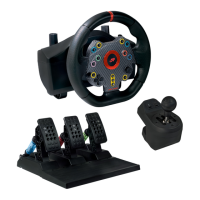

 To Next Page