EasyManua.ls Logo

BleBox airsensor - User Manual

BleBox airsensor
3 pages
Print Icon
To Next Page IconTo Next Page
Loading...
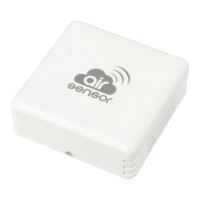
airsensor
AIR QUALITY INDICATOR
air quality sensor with μWiFi technology
        


        


        


2

1

3

4

You can also set the con guraon using the web browser
of your phone / tablet. Aer connecng to the wireless
network of the controller, turn on the browser and go
to: www.blebox.eu
Disconnect supply voltage circuit before installing the controller. Remember
that any mounng works should be carried out when the main voltage is
disconnected (switch o the mains fuse or disconnect the power supply from
the socket).
The device should be mounted in a place protected from direct adverse
environmental condions, in parcular atmospheric precipitaon. At the
same me, should be paid aenon to ensuring a good air exchange around
the device. Remember that metallic elements (wires, housing parts) have a
negave inuence on the range of the device, and consequently the comfort
of use. It is recommended that the device be mounted in a stable and 
xed posion, correctly oriented (according to the inscripons on the casing),
fastened with screws, wall plugs or by means of a doublesided assembly
tape.
Remove the cover of the device by liing it. Choose a power supply a 5V
USB connector located on the le side of the device or a 1224V AC / DC
mains adapter connected via wires to a plugin connector located in the right
part of the PCB (polarizaon is irrelevant). Connect the power wire to the
USB connector or plugin connector. Bringing in the power wire outside the
housing through the aperture in the inferior part, replace the housing.
At the boom of the screen there is a table with numerical values of
parculate maer concentraons. Fields with concentraon values PM2.5
and PM10 change its color in relaon to the degree of exceeding the
standard in the color scale presented before, moreover, the percentage value
in relaon to the value of the standard is presented in brackets. For example,
a reading (50%) means that the current air polluon concentraons is only
half of the acceptable value, while the indicaon (300%) means a 3fold
exceedance of the standard. Next to the percentage, the change trend is
also calculated, compared to the average of the last hour of measurements.
The trend is indicated by an up, down arrow or a horizontal line in the case
that no changes have been registered, it is only displayed aer the sensor’s
working one hour.
At the very boom of the screen is presented the status of measurements
on the device. “”Last measurement”” means that the device displays
a measurement taken within a me not exceeding 10 minutes.
The device automacally performs another measurement every 10
minutes and displays the last air polluon concentraons value. This
behavior is dictated by the care of the sensor’s lifeme due to the fact the
air polluon slowly changes over the me. It is also possible to manually
force the measurement. To do this, press the “”Refresh”” icon (two arrows)
in the upper right part of the screen. Within the rst 20 seconds shows
the status “”Measurement in progress””, which next will be change to
“”Current measurement”” and the concentraon values will be updated.
To switch the device into connuous measurement mode, in which
measurements are taken every 1 second, hold down the “”Refresh”” icon for
over 3 seconds. The icon background will turn gray and the device will start a
connuous measurement, the device will start the connuous measurement,
which will last unl the moment it returns to the main screen of the
applicaon or the browser page is closed. Leaving the device in connuous
measurement mode, should remember about the lifeme of the measuring
system, esmated at approx. 8000 hours.
Historical measurement data are only available for sensors mounted outside,
congured in remote access mode, with a correctly set locaon and they are
stored only on BleBox servers. They are available by clicking on the diagram
icon in the upper right corner of the screen.They are also presented on the
map available on blebox.eu
Go to „Sengs” (icon in the upper right corner of the screen). In the “Main
sengs” secon, you can change the device name which is visible in the
wBox applicaon. The opon “Signal LED on” allows you to turn on the LEDs
built into the device.
In order to communicate with a device being out of the local WiFi network,
from anyplace in the World, via wBox applicaons, must be set to “”Yes”” the
opon “”Enable remote access””. Seng this opon to “”Yes”” also means
giving consent for the sending of the measurement data to a public map of
the air polluon available on the web page blebox.eu and the archiving of
this data together with its locaon. Seng the “”No”” opon will result in the
lack of the access to the controller when it is out of the local network and
the lack of access to historical data only the current values will be visible.
Seng the “Enable event log” opon to “Yes” will cause the device to record
events (e.g. sending the nocaon set in the Acons” secon) in the
BleBox cloud system. This allows the history of the events to be viewed later
also when the controller is oine.
Turn on the device by switching on the power supply voltage (switching on
the main power supply circuit fuse or connecng the power supply to the
socket). The device will turn on the LEDs on white color for a few seconds
and then will change into a color depending on the air quality. Connuous
lighng in white color indicates the sensor error, which is also signaled by the
red status visible in the wBox applicaon (more informaon about the wBox
applicaon later in the manual). In this case, check the wire connected to the
sensor circuit board.
Download thIf you have an Android mobile device,
you will  nd the applicaon in the Play Store. For iOS devices the applicaon
is in the App Store.
By using your mobile phone or tablet, connect it to the device wireless
network. To do this, enter to your smartphone or tablet sengs, then go
to seng of the WiFi network and nd the network named „airSensor
xxxxxxxxxx” where xxxxxxxxxx is the serial number of the device. Connect
to this network.
Open the wBox applicaon. A device will appear at the top of the screen. To
add it to the applicaon, click on “+” on the right side of the name. To pre
congure the controller, click on the default device name.
The main controller screen shows current informaon from the air quality
sensor. Air quality is determined based on the measurement of parculate
maer concentraons PM2.5 and PM10 and is shown the worst value of
both. The current state of air quality is displayed in the upper part of the
screen in a colored icon and also in word status, and is signaled by colored
LEDs built into the device and it shows in the following way:
WARNING!
Never connect at the same me power to the USB
connector and to the plugin connector. It may cause
damage to the device.
very good (intense green color)
good (light green)
moderate (light yellow)
sucient (orange color)
bad (bright red)
very bad (intensive red)
user manual
very good
good
moderate
sucient
bad
very bad
Question and Answer IconNeed help?

Do you have a question about the BleBox airsensor and is the answer not in the manual?

Overview

The BleBox airSensor is a smart air quality sensor designed to monitor particulate matter concentrations (PM2.5 and PM10) and provide real-time air quality information. It integrates with the BleBox wBox application, allowing users to monitor air quality, receive notifications, and even trigger actions on other BleBox devices based on air quality levels.

Function Description

The primary function of the airSensor is to continuously measure and report the concentration of particulate matter in the air. It classifies these particles into PM1, PM2.5, and PM10, with the air quality status determined by the worst value among PM2.5 and PM10. The device provides both a visual indication through colored LEDs and a detailed numerical display within the wBox application.

The airSensor offers a comprehensive air quality monitoring experience. It displays the current air quality status using a colored icon and a descriptive word (e.g., "very good," "bad"). The corresponding LED colors on the device itself provide a quick visual cue: intense green for "very good," light green for "good," light yellow for "moderate," orange for "sufficient," bright red for "bad," and intense red for "very bad."

Beyond real-time monitoring, the device provides numerical values for PM2.5 and PM10 concentrations, along with a percentage indicating the degree of exceedance relative to acceptable standards. For instance, a 50% reading means the current pollution is half the acceptable value, while 300% indicates a threefold exceedance. The wBox application also calculates and displays a change trend, comparing current measurements to the average of the last hour, indicated by up, down, or horizontal arrows. This trend information becomes available after the sensor has been operating for at least one hour.

The airSensor operates by taking measurements every 10 minutes, displaying the most recent air pollution values. This interval is chosen to prolong the sensor's lifespan, as air pollution levels typically change slowly. However, users can manually force a measurement at any time by pressing the "Refresh" icon in the wBox application. During the first 20 seconds of a manual refresh, the status will show "Measurement in progress" before updating to "Current measurement" with new concentration values. For situations requiring more frequent updates, the device can be switched to a continuous measurement mode by holding the "Refresh" icon for over 3 seconds. In this mode, measurements are taken every second until the user returns to the main screen of the application or closes the browser page. It's important to note that continuous measurement mode can significantly reduce the lifespan of the measuring system, estimated at approximately 8000 hours.

For users who enable remote access and correctly set the device's location, historical measurement data is stored on BleBox servers. This data can be accessed through the diagram icon in the wBox application or viewed on the public air pollution map available on blebox.eu.

Usage Features

The airSensor is designed for ease of use and integration into a smart home ecosystem.

  • Installation: The device can be powered either via a 5V USB connector or a 12-24V AC/DC mains adapter. It should be mounted in a location protected from direct adverse environmental conditions, especially atmospheric precipitation, while ensuring good air exchange around the device. Metallic elements should be avoided nearby as they can negatively impact the device's range.
  • Initial Setup: Users download the free wBox application (available on Android and iOS). After connecting their mobile device to the airSensor's wireless network (named "airSensor-XXXXXXXXXX"), the device appears in the wBox application. It can then be added and configured. Alternatively, configuration can be done via a web browser by navigating to www.blebox.eu after connecting to the device's network.
  • Customization: Within the wBox application's "Settings," users can change the device name, toggle the signal LED on/off, and configure remote access. Enabling remote access allows control from anywhere in the world and facilitates the storage of historical data on BleBox servers for the public air pollution map. Users can also choose to make their geolocation coarse for privacy. The "Sensor settings" allow specifying whether the device is installed outside or inside for indoor air quality measurement. A "Detailed view" option can hide the numerical values, showing only the air quality icon and description.
  • Actions and Notifications: A key feature of the airSensor is its ability to trigger actions on other BleBox controllers or send system notifications based on air quality changes. Users can define triggers such as "Value greater/worse than or equal to," "Value less/better than or equal to," or "Air quality level change" for specific particulate matter values (PM1, PM2.5, PM10) or overall air quality levels. For example, if air quality drops below a certain threshold, the airSensor can be configured to open a window (via a shutterBox) or change the color of an LED strip (via a wLightBox). Notifications can be set up to alert users on their phone when specific air quality conditions are met.
  • Network Connectivity: The device can be connected to a home WiFi network, enabling remote access and synchronization with time servers. Users can also customize the name and password of the WiFi network emitted by the device itself.
  • Location and Time: To enable historical air quality data, it's essential to set the device's clock and location within the wBox application. This involves selecting the region and location, allowing the device to synchronize its time and record coordinates for accurate data logging.

Maintenance Features

The airSensor is designed for minimal maintenance, but some aspects ensure optimal performance and longevity.

  • Power Connection: It is crucial never to connect power simultaneously to both the USB connector and the plug-in connector, as this can damage the device. All assembly work should be performed with the power circuit disconnected.
  • Sensor Error Indication: If the device continuously lights up in white, it indicates a sensor error. This is also signaled by a red status in the wBox application. In such cases, users should check the wire connected to the sensor circuit board.
  • Software Updates: The device's software can be updated through the wBox application. By connecting the airSensor to a home WiFi network with Internet access, users can navigate to "Settings" and click "Get new firmware." The update process takes approximately one minute, during which the interface should not be closed, and no other actions should be performed. The software version, hardware version, and device identifier are displayed at the bottom of the settings screen.
  • Lifetime Considerations: While the device is designed for continuous operation, using the continuous measurement mode (taking measurements every second) will significantly reduce the lifespan of the measuring system. It is recommended to use this mode sparingly to preserve the sensor's longevity.

BleBox airsensor Specifications

General IconGeneral
CommunicationWi-Fi
Power consumptionLess than 1W
Housing materialPlastic
Product typeAir quality sensor
BrandBleBox
ConnectivityWi-Fi
Power supply5V DC
Operating temperature-10°C to 50°C
CompatibilityiOS, Android
Humidity range0% to 95% RH
Measurement range0-1000 µg/m³
AccuracyTemperature: ±0.5°C, Humidity: ±3% RH
Response time<10s
Measured parametersAir temperature, humidity, air pressure, air quality (PM2.5 and PM10)