Functional requirements
▷ The functional requirements for Assisted
Driving Mode have been met.
Assisted Driving Mode, refer to page 234.
▷ Driving on a road without pedestrians or cy-
clists and with physical barriers to oncom-
ing traffic such as crash barriers.
▷ A vehicle has been detected at a sufficient
distance behind your own vehicle since be-
ginning the drive.
▷ Crossable lane boundaries are detected.
▷ Maximum speed approx.
110 mph/180 km/h.
▷ The minimum speed is country-specific.
▷ With trailer hitch: You must set on the con-
trol display that you are using a trailer or
rear carrier, respectively.
Driving with trailer or rear carrier, refer to
page 313.
Turning on/turning off Lane Change
Assistant
1.
Apps menu
2. "Vehicle"
3. "Driving settings"
4. "Driver Assistance"
5. "Driving"
6. "Assisted Driving"
7. "Automatic Lane Change"
The settings for the Automatic Lane Change
Assistant can be configured, depending on ve-
hicle equipment and national-market version.
Changing lanes
1.
Ensure that the traffic situation permits
changing lanes.
2. Start the lane change.
▷ To initiate the lane change, press the
indicator stalk in the desired direction to
the resistance point.
▷ Depending on the vehicle equipment,
the indicator/high-beam stalk can also
be pressed beyond the resistance point.
▷ Depending on the vehicle equipment,
the lane change can already be started
by the driver checking their field of vi-
sion to ensure that the traffic situation
permits a lane change. For this case,
Lane Change Assistant must clearly
recognize the driving situation and the
Driver Attention Camera must clearly
recognize the driver's line of sight. To
do so, it may be necessary to turn on
the Lane Change Assistant when route
guidance is on, or to configure this func-
tion on the control display.
After a short time, Lane Change Assistant ini-
tiates a lane change.
After the lane change, the system helps keep
the vehicle in the new lane.
Canceling a lane change
The lane change can be canceled by steering
movement into the opposite direction or by op-
erating the turn signal in the opposite direction.
Displays in the instrument cluster
Icon
Description
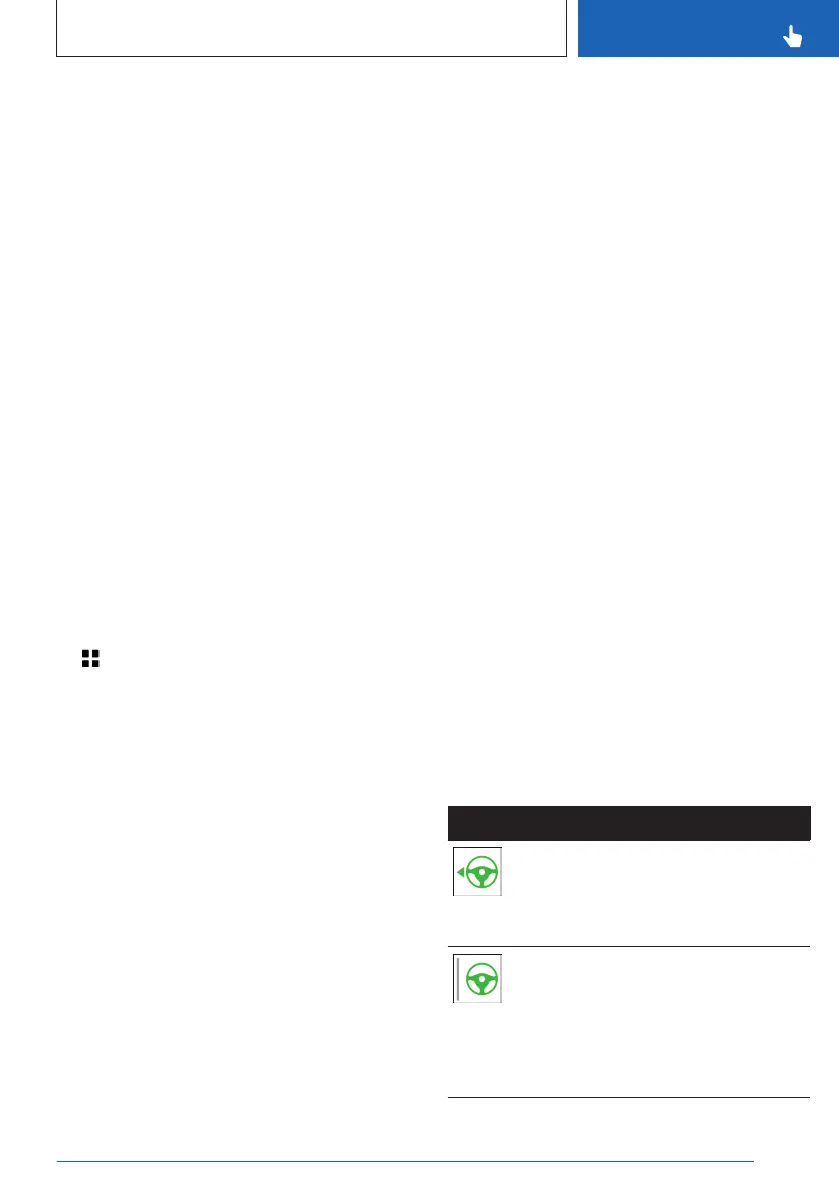
Steering wheel icon and lane change
arrow icon are green:
The system carries out a lane
change.
Steering wheel icon is green and line
for lane marking on respective side is
gray:
The system detected the lane change
request. Lane change not currently
possible.
Seite 239
Driver assistance systems
CONTROLS
239
Online Edition for Part no. 01405A8A608 - VI/23


 To Next Page