Note:
Synchronize data at least once a day to avoid data loss in the watch.
SYNCING YOUR SMARTWATCH TO THE APP
• Open the app on your phone.
• Make sure your Wave Call is connected to the app
• Synchronization will start automatically once you enter the app interface.
Data Synchronization
NAVIGATING THROUGH THE FUNCTIONS
SWIPE UP TO ACCESS ALL DATA
You can access daily activity and sports records, heart rate monitor, sleep monitor, weather,
music control from here.
Call Menu
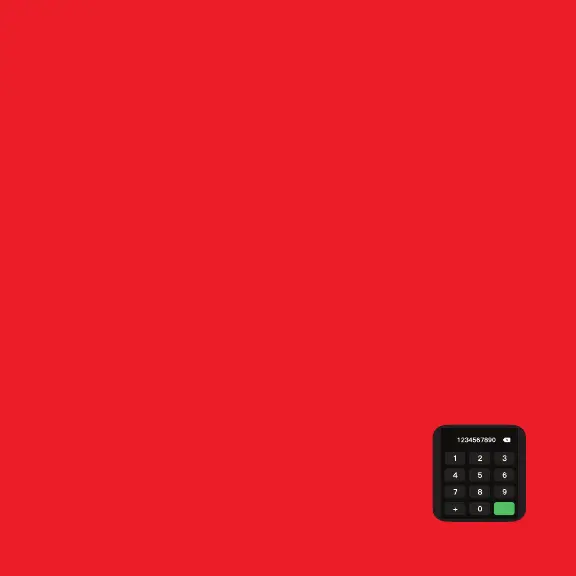
Add your contacts on the phonebook from the boAt Crests app.
Go to Device -> Bluetooth Calling -> Sync contacts -> Click on “+” sign from the top right
corner to add the contacts.
Up to 20 contacts can be saved in the phonebook.
Bluetooth calling
1) You will be able to access bluetooth calling feature once
you connect WAVE CALL BT in your phone’s Bluetooth
setting.
2) Alternatively, you can enable/disable this feature from
watch shortcut screen or calling screen in the menu.
3) This will be enabled automatically when the call comes
on the watch.
4) In idle mode, this option will be disabled to save the
battery from draining.
Note: Battery will drain out fast if you are using Bluetooth
calling feature.


 To Next Page