EasyManua.ls Logo

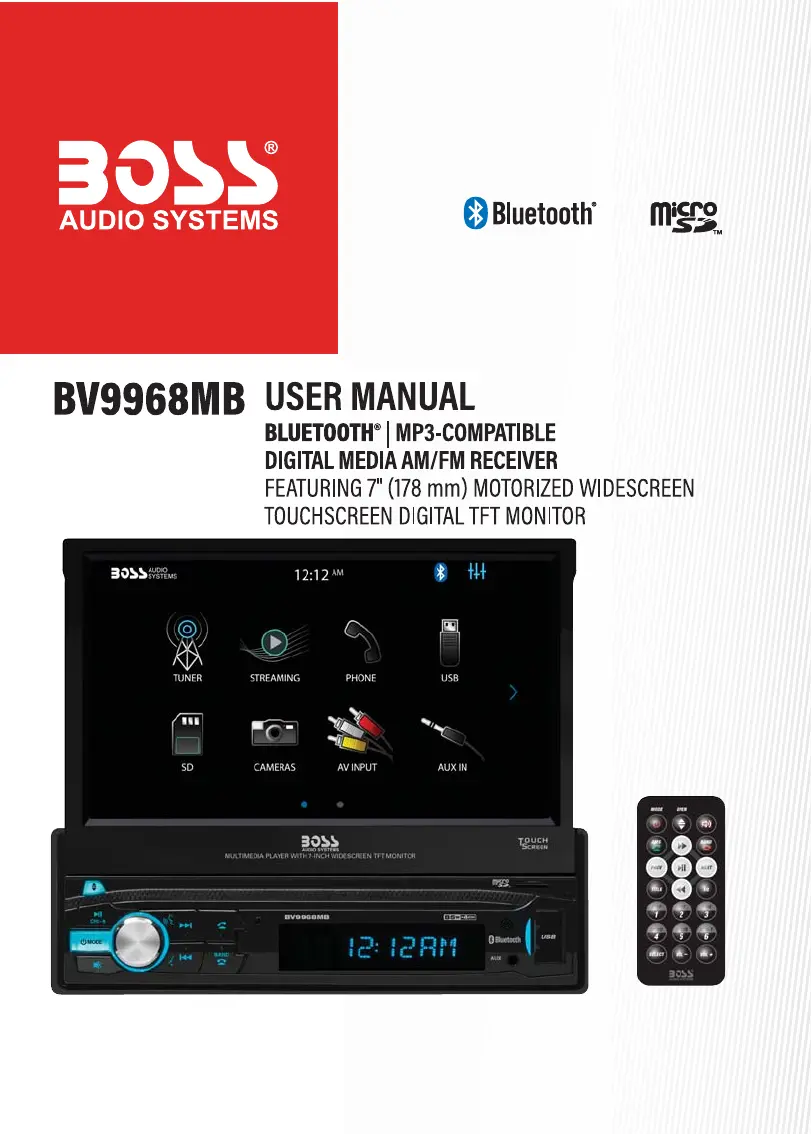
Boss Audio Systems BV9968MB - User Manual

Boss Audio Systems BV9968MB
20 pages
Print Icon
To Next Page IconTo Next Page
Loading...

Questions and Answers

  • J
    Jon PotterAug 12, 2025
    Why is my Boss Audio Systems BV9968MB Car Video System unit not powered on?
    • A
      Anthony StephensonAug 12, 2025
      If your Boss Audio Systems Car Video System isn't powering on, it could be due to a blown fuse, either in the unit itself or in your car's battery. Replace the blown fuse with a new one that has the correct rating. Also, an illegal operation might cause the unit to shut down. In this case, press the Reset button to reset the system.
  • T
    Taylor MurrayAug 16, 2025
    What to do if there is no audio output from Boss Audio Systems BV9968MB?
    • S
      Sarah FischerAug 16, 2025
      If there's no audio coming from your Boss Audio Systems Car Video System, first, check the wiring to ensure everything is connected correctly. If the connections are fine, make sure the volume isn't set to 0. If it is, simply turn up the volume.
  • D
    Daniel SmithAug 20, 2025
    What to do if there is no image on Boss Audio Systems BV9968MB?
    • J
      johnwalshAug 20, 2025
      If there is no image on your Boss Audio Systems Car Video System, check the parking wire connection and ensure it is properly wired. Also, the parking brake must be engaged. Stop the vehicle in a safe place and engage the parking brake.
  • G
    guerraandrewAug 23, 2025
    Why is the audio output so low on my Boss Audio Systems Car Video System?
    • R
      Rebecca MartinezAug 25, 2025
      If the audio output from your Boss Audio Systems Car Video System is low, first, increase the volume. If that doesn't solve the problem, check the audio balance and adjust it to the center position if it's heavily biased.
  • A
    Anna EspinozaAug 27, 2025
    How to fix bad sound or distortion on Boss Audio Systems Car Video System?
    • V
      Vanessa HamiltonAug 28, 2025
      If you're experiencing bad sound or distortion with your Boss Audio Systems Car Video System, it could be due to incompatible speakers. Ensure that the speaker power rating is compatible with the unit and connect proper speakers. Also, check the speaker wiring for any shorts.
  • L
    Leslie GarciaAug 31, 2025
    What causes image flashing or interference on Boss Audio Systems Car Video System?
    • N
      Natalie GonzalesAug 31, 2025
      If the image on your Boss Audio Systems Car Video System is flashing or experiencing interference, the video signal connection might not be properly made. Check the wiring and correct it.
  • A
    Angela MaySep 4, 2025
    How to improve poor reception on Boss Audio Systems Car Video System?
    • S
      Scott RossSep 4, 2025
      If you're experiencing poor reception on your Boss Audio Systems Car Video System, make sure the auto antenna is properly connected and extended. Also, if the Local function is activated, try activating the Distance (DX) function instead.
  • Y
    yvillaSep 7, 2025
    How to calibrate the screen on Boss Audio Systems Car Video System?
    • M
      Margaret BridgesSep 8, 2025
      If the screen touch on your Boss Audio Systems Car Video System is insensitive, it could be that the touch screen is offset. Calibrate the screen by going to SETTINGS > About > Screen Calibration.

Summary

Specifications

General Features

Lists key features including screen, radio, connectivity, power output, and compatibility.

Compatible Media

Details supported media formats for pictures, audio, and video files.

Safety Notice

Driving Safety and Operation

Emphasizes not operating the unit while driving and following traffic laws.

Installation Safety

Advises professional installation, avoiding moisture, and careful handling of the unit.

Safety Statement

Reinforces not watching video while driving and using backup camera as auxiliary view.

Battery Notes

Instructions for replacing remote control battery, polarity, and proper disposal.

Accessories and Installation

Included Accessories

Lists all items included in the package, such as remote control, microphone, and cables.

Unit Installation Steps

Provides a step-by-step guide for physically mounting the unit into the vehicle's dash.

Wire Connection Description

Input;Output Interface Overview

Details the rear panel connectors for audio/video, antenna, microphone, and power.

Audio;Video Connections

Explains the function of each audio and video input/output port.

Wire Harness Connections

Details the purpose of each wire in the main harness connector.

Camera Power Output

Describes the wiring for front and rear camera power supply.

Panel and Button Introduction

Screen Operation

How to slide out, tilt, and slide in the motorized touchscreen.

Playback and Radio Control

Controls for starting/pausing playback and selecting radio stations.

Power and Source Selection

How to turn the unit on/off and switch between different audio/video sources.

Volume Mute Function

Mutes or restores the audio volume.

Volume and Voice Assistant

Adjusts volume and accesses smartphone voice assistant via Bluetooth.

Radio Tuning

Short press to tune, long press for manual seeking in radio mode.

Band Selection and Call Control

Switches tuner bands or ends Bluetooth calls.

Bluetooth Call Handling

Dial or answer incoming Bluetooth phone calls.

Display Information

Shows current status information on the screen.

Remote Sensor

Receives signals from the remote control.

AUX Input Jack

Connects external audio devices for input.

USB Port

Connects a USB flash drive for media playback.

Reset Button

Resets the unit if it fails to operate correctly.

SD Card Slot

Connects a Micro SD card for media playback.

Remote Control Functions

Remote Screen Operation

Controls screen extension, tilting, and retraction.

Remote Power and Source

Turns unit on/off and selects input sources.

Remote Tuning and Seeking

Navigates radio stations and performs manual seeking.

Remote Radio Search & Bluetooth Call

Auto scans radio stations and handles Bluetooth calls.

Remote Playback Control

Starts, pauses, or resumes media playback.

Remote Track Navigation

Skips tracks or performs fast forward/backward search.

Remote Video Title List

Accesses the list of video titles for playback.

Remote Numeric & Mode Controls

Selects radio stations, controls playback modes (RPT, RDM).

Remote Sound Balance

Adjusts audio balance settings.

Remote Volume Control

Increases or decreases the audio volume.

Remote Equalizer Settings

Accesses sound equalizer settings.

Remote Band and Call End

Switches tuner bands or ends Bluetooth calls.

Remote Mute Control

Mutes or restores the audio volume.

Main Menu Operation

Main Menu 1 Overview

Shows icons for Tuner, Bluetooth, USB, SD, Camera, AV INPUT, AUX IN.

Main Menu 2 Overview

Shows icons for Settings and A-LINK (Screen Mirroring).

General Settings Menu

Configures wallpaper, retain ACC power, system tone, language, and screen angle.

Access Setup Interface

Camera Settings

Configures camera trigger, rear/front camera input, and power output, plus delay.

Clock Settings

Sets the clock mode (12/24 hour), hours, minutes, and AM/PM.

Audio Settings

Adjusts various audio levels including SD, Phone, Streaming, AUX, AV INPUT, and Voice.

Access Setup Interface (Continued)

Audio Equalizer and Position

Adjusts sound output, startup volume, balance, fader, subwoofer, and equalizer.

Tuner Settings

Configures tuner region, auto preset, local/distance reception, RBDS, and stereo/mono.

Control Panel Color Settings

Sets the illumination color for control panel backlights.

Illumination Settings

Configures illumination trigger, screen brightness, and gamma brightness.

Tuner Operation

About Settings Menu

Calibrates touchscreen, views version, resets unit, and manages EULA.

Tuner Operation Details

Guide to using the tuner, seeking stations, and saving presets.

RBDS Settings

Configures Clock Time (CT), Traffic Announcement (TA), and Alternative Frequencies (AF).

USB;Micro SD Playback

Video Operation Controls

Explains playback controls, track skipping, repeat modes, and aspect ratio for videos.

Video File Navigation

Lists and navigates video files, including selecting audio language.

Parking Brake Requirement

Notes that video display requires the parking brake to be engaged for safety.

USB;Micro SD Media Operation

Music Operation Controls

Details music playback controls, track skipping, play modes, and ID3 information.

Photo Operation Controls

Explains photo controls, navigation, image adjustment, and rotation.

Bluetooth Operation

Bluetooth Operation Menu

Guides on turning Bluetooth on/off, connecting, and accessing phone functions.

Bluetooth Dialing

Instructions for using the keypad to dial phone numbers.

Bluetooth Call Management

Describes how to view caller information, select audio output, and end calls.

Bluetooth Features

Bluetooth Phonebook

How to search, sync, and manage contacts from your phone.

Bluetooth Call History

Syncing and viewing missed, dialed, and received calls.

Bluetooth Paired Device

Viewing and disconnecting connected Bluetooth devices.

Bluetooth Music Streaming

Controls for playing music via Bluetooth, including track skipping and sound settings.

A-LINK (Screen Mirroring) Operation

A-LINK App Setup

Instructions for downloading and connecting the A-LINK app for smartphone mirroring.

PTT (Push-To-Talk) Operation

PTT Feature Usage

Enables direct access to smartphone voice assistants via Bluetooth.

Steering Wheel Control (SWC)

SWC Introduction and Interface

Explains SWC compatibility, the 3.5mm interface, and required adapters.

Programmable Controls

Lists radio and audio functions that can be programmed to steering wheel controls.

SWC Installation and Programming

Guide to installing and programming SWC adapters for custom control mapping.

Troubleshooting

General Unit Problems

Solutions for power issues, touchscreen sensitivity, and audio output problems.

Tuner Reception Issues

Addresses poor radio reception caused by antenna connection or activated functions.

Image Display Problems

Troubleshooting for no image, image interference, and incorrect aspect ratio.

Boss Audio Systems BV9968MB Specifications

General IconGeneral
Resolution800 x 480 Pixels
TouchscreenYes
BluetoothYes
USB PortYes
SD Card SlotYes
DVD PlayerYes
CD PlayerYes
Steering Wheel Control CompatibleYes
Rear Camera InputYes
RCA OutputsYes
Video PlaybackYes
AM/FM RadioYes
Built-in MicrophoneYes
Remote ControlYes
Video OutputYes
Pre-Amp OutputsFront, Rear, Subwoofer
Supported Media FormatsMP3, WMA, JPEG, MPEG

Related product manuals