24
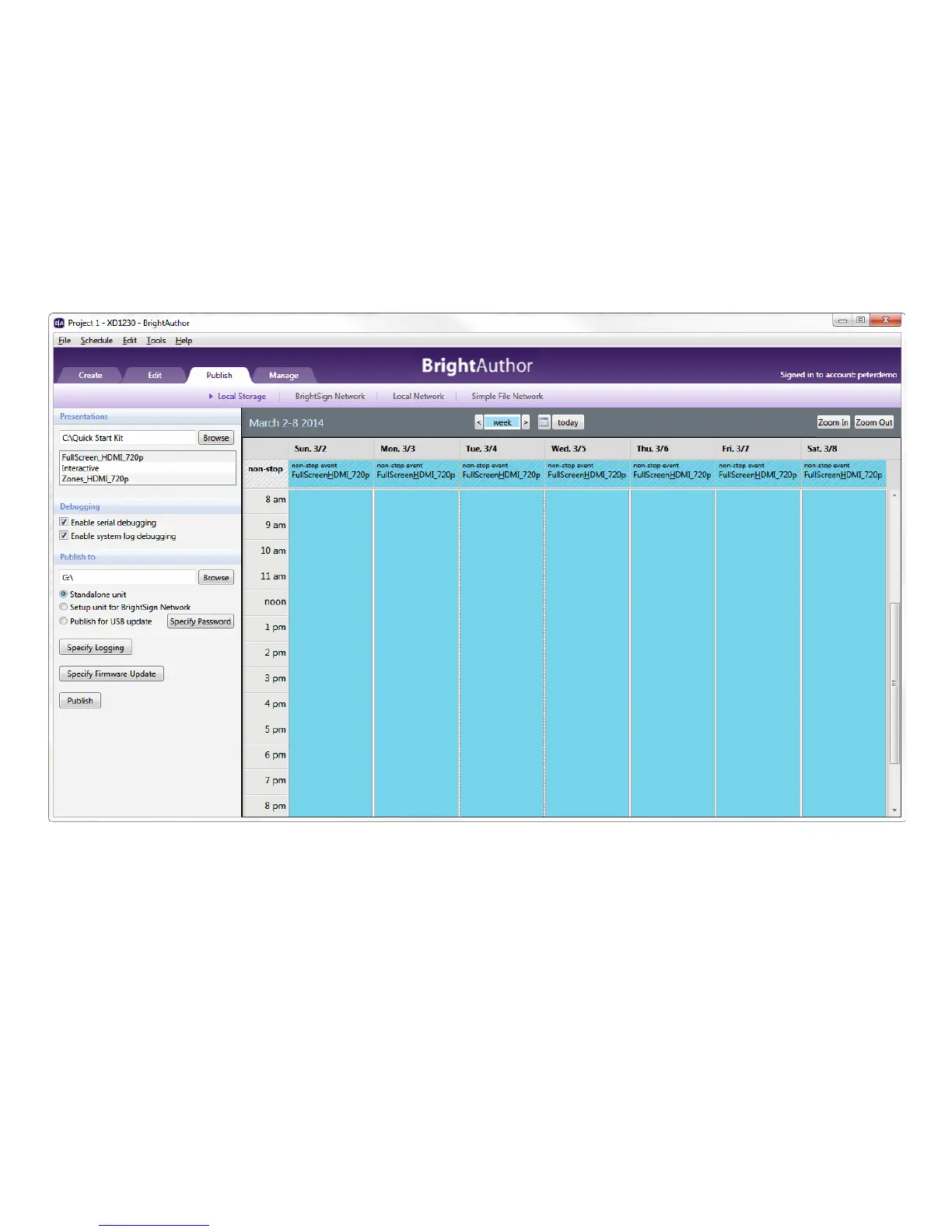
In the screen shot above, the presentation is set to “Active all day, every day”
7. In the Publish to section, click Browse, select the drive where your SD card is located, and then click OK.
8. Click Publish. When the Publish Complete notification appears, click OK.



 To Next Page