Need help?
Do you have a question about the BrightSign HD410 and is the answer not in the manual?
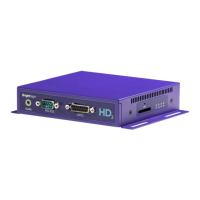
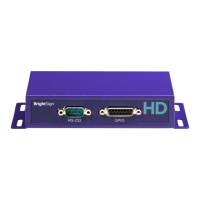
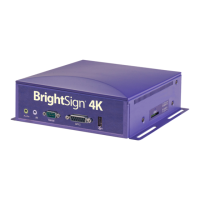
Defines BrightSign as a standalone digital sign or kiosk controller for playing content from flash memory cards.
Explains how to connect BrightSign to various devices for audio, video, and interactivity.
Details connecting BrightSign to a display for continuous video or image playback using various cables.
Describes adding audio and interactivity to displays using input devices like keyboards or touch screens.
Provides examples of BrightSign capabilities, including video looping, slideshows, and interactive presentations.
Lists essential hardware like displays, storage cards, and card readers needed to begin using BrightSign.
Guides users on downloading and installing the latest BrightSign software version from the official website.
Provides step-by-step instructions to set up and run a demo presentation on a BrightSign device.
Instructs users on adding content and following directions to play their presentations effectively.
Details various ways to play media, including automatic playback from SD cards and script-based playback.
Explains how BrightSign automatically sets video resolution and manual adjustments via playlist keywords.
Describes how to set up files for automatic playback in alphabetical order when the device powers on.
Covers creating and using playlist files (.BSP) for automatic playback upon device startup.
Explains how to create and use interactive playlists (.CSV) for sophisticated presentations on power-up.
Details how to autorun BrightScript files (.BRS) for controlling presentations upon device startup.
Guides on playing media at specific scheduled times using the AUTOSCHEDULE.TXT file.
Defines playlists as text files (.BSP) that specify media playback order sequentially.
Provides steps for creating a playlist using a text editor and saving it with a .BSP extension.
Lists and explains commands usable within playlist files for controlling playback and features.
Details keywords like VideoMode, ImageMode, SlideInterval, and Transition for playlist customization.
Explains how to create interactive presentations using playlists that respond to user input.
Defines event triggers like mouse clicks, button presses, and timeouts for interactive playlists.
Describes how states in an interactive playlist define media playback and transitions between events.
Guides on using playlist commands to control GPIO outputs for external device interaction.
Explains how to manage serial and UDP output from within interactive playlists.
Details methods for preloading images in playlists to ensure smooth transitions.
Covers creating presentations with multiple simultaneous states for complex media sequences.
Illustrates various interactive playlist configurations through practical examples.
Explains how to define clickable areas on screen for dynamic user interaction in playlists.
Details setting up rectangular or circular rollover regions to trigger events based on cursor movement.
Guides on using the AUTOSCHEDULE.TXT file to schedule playlist playback at specific times.
Defines zones as screen divisions for playing different content, supporting video, images, RSS, text, and clock.
Explains how to customize zones with background colors, fonts, text appearance, and colors.
Demonstrates how to incorporate zones into playlists using keywords like EnableZones and DefineZone.
Covers keywords for background bitmaps and color settings for text and backgrounds in zones.
Illustrates zone usage through a practical example of the Comix Tour demo playlist.
Defines scripts as programs controlling behaviors based on events, similar to Basic scripting.
Provides a simple 'hello world' example script and instructions for running it.
Explains Roku Objects as libraries for accessing hardware capabilities within BrightScript.
Shows how to test BrightScript commands and concepts using the shell.
Details the GPIO ports on BrightSign units and how to connect buttons or LEDs.
Lists available BrightSign documents, community forums, and custom project support options.
Answers common questions regarding video frame rates, portrait mode content, and device synchronization.
Offers a systematic approach to resolve playback issues, starting with basic checks and demos.
Addresses problems where the BrightSign powers on but no display appears, checking video connections and content.
Troubleshoots issues with the device not booting properly or flashing error lights.
Provides solutions for when the CF card is not recognized, checking pins, reformatting, or trying different cards.
Guides on resolving unresponsive USB keyboards and mice by checking connections and trying alternatives.
Offers solutions for reversed or flipped Elo touch screen coordinates by using the FLIPELO keyword.
Helps diagnose issues with files not playing automatically, checking formats and autoplay file presence.
Covers common playback errors, ensuring content meets specifications, and reformatting storage cards.
Addresses distorted video output by checking resolution settings and cable connections.
Troubleshoots issues with audio not playing, checking audio cables, volume, and codec compatibility.
Diagnoses why image or video files may not play, checking supported formats and resolutions.
Helps resolve poor video or audio quality by re-encoding files or checking stream packet distribution.
Guides on resolving issues with playlists not working, checking file names, formatting, and content.
Addresses problems with interactive playlists, ensuring correct file naming, event definition, and state listing.
Covers problems with BrightSign booting, software updates, and SD card compatibility.
Troubleshoots SD cards not being recognized or failing to update the BrightSign software.
Recommends industrial-rated CF/SD cards and discusses compatibility and reliability issues.
Explains how CF/SD card read fatigue can lead to corruption and the importance of industrial-rated cards.
Specifies recommended read speeds for CF/SD cards based on video resolution (SD vs. HD).
Discusses BrightSign's compatibility with CF/SD cards and recommends testing before deployment.
Details alternative methods for updating BrightSign software using specific filenames on CF/SD cards.
Guides on exporting HD content from Final Cut Pro and Compressor for BrightSign playback.
Introduces the BrightSign shell for executing commands, running scripts, and testing features.
Provides step-by-step instructions for connecting to and accessing the BrightSign shell via serial port.
Explains how to use shell commands for file management, playback, and changing settings.
Shows how to explicitly refer to CF or SD cards within scripts using specific prefixes.
Demonstrates using shell commands like 'dir' and 'readperf' to test CF/SD card compatibility.
Guides on testing scripts and playlists using the BrightSign shell and debug output.
Recommends adding print statements for easier troubleshooting of custom scripts.
Highlights limitations regarding resource freeing after script termination and the need for rebooting.
Explains how to access the Linux shell from the Roku prompt for advanced system management.
Details manually updating BrightSign software using the UPDATE.ROK file via the BrightSign shell.
Explains the BrightSign registry for storing persistent settings and usage statistics.
Shows how to use the ':counter' syntax to track state transitions and increment registry values.
Guides on displaying registry data or subsets within an interactive playlist.
Explains how to use the Execute(CopyRegistry) command to export registry data to CSV files.
Provides instructions for setting the real-time clock using the SETDATETIME script.
Details how to change the startup logo or add a custom boot script stored in internal FLASH.
Explains the process of saving, copying, and applying a custom logo file for the boot sequence.
Discusses aspect ratios and how BrightSign handles widescreen and 4x3 displays for content.
Explains how BrightSign treats video playback, scaling, and aspect ratio handling based on ViewMode.
Covers network connectivity options, including Ethernet ports and DHCP support.
Guides on connecting BrightSign to a network using DHCP for automatic IP address configuration.
Provides methods for manually setting IP addresses using system shell or configuration scripts.
Discusses methods for connecting BrightSign to servers via direction or proxy connections.
Describes Simple Networking and BrightSign Network Manager for managing devices and content.
Explains how to use NetworkTimer keywords for scheduled content downloads and RSS feed updates.
Details supported display resolutions, video compression standards, and picture formats for various models.
Lists supported MPEG-2 video, MP3 audio, WAV, and image file formats and their parameters.
Enumerate devices that can be connected to BrightSign, including touch screens, keyboards, and monitors.
Provides a list of USB mice tested for compatibility with BrightSign devices.
 General
| Category | Media Player |
|---|---|
| HDMI Version | 1.4 |
| Ethernet | 10/100 Mbps |
| Operating System | BrightSign OS |
| Video Engine | BrightSign Video Engine |
| Image Codecs | JPEG, PNG |
| IR | Yes |
| Real Time Clock | Yes |
| Video Outputs | HDMI |
| Audio Outputs | HDMI |
| Network Connectivity | Ethernet |
| Storage | MicroSD |
| Resolution | 1080p |
| Video Codecs | H.264, MPEG-2 |
| Audio Codecs | AAC, MP3, WAV |
| USB | USB 2.0 |
| Serial | RS-232 |
| Operating Temperature | 0° C |


 To Next Page