21
9. Now you will need to create touch screen events that transition back to the Home State:
Note: In an interactive presentation, it is key that every sequence of events eventually leads back to the Home State.
Otherwise, the presentation will eventually become trapped on a state it cannot transition away from. At this point,
rebooting the player will be the only way to return to the rest of the presentation.
a. Open the Rectangular Touch event that leads from “Products1.jpg” to “Products2.jpg”.
b. Click the Add Touch Region button.
c. Redraw the touch region so that it surrounds the home icon.
d. With the Transition to new state option selected, choose “MainScreen.jpg” as the next state.
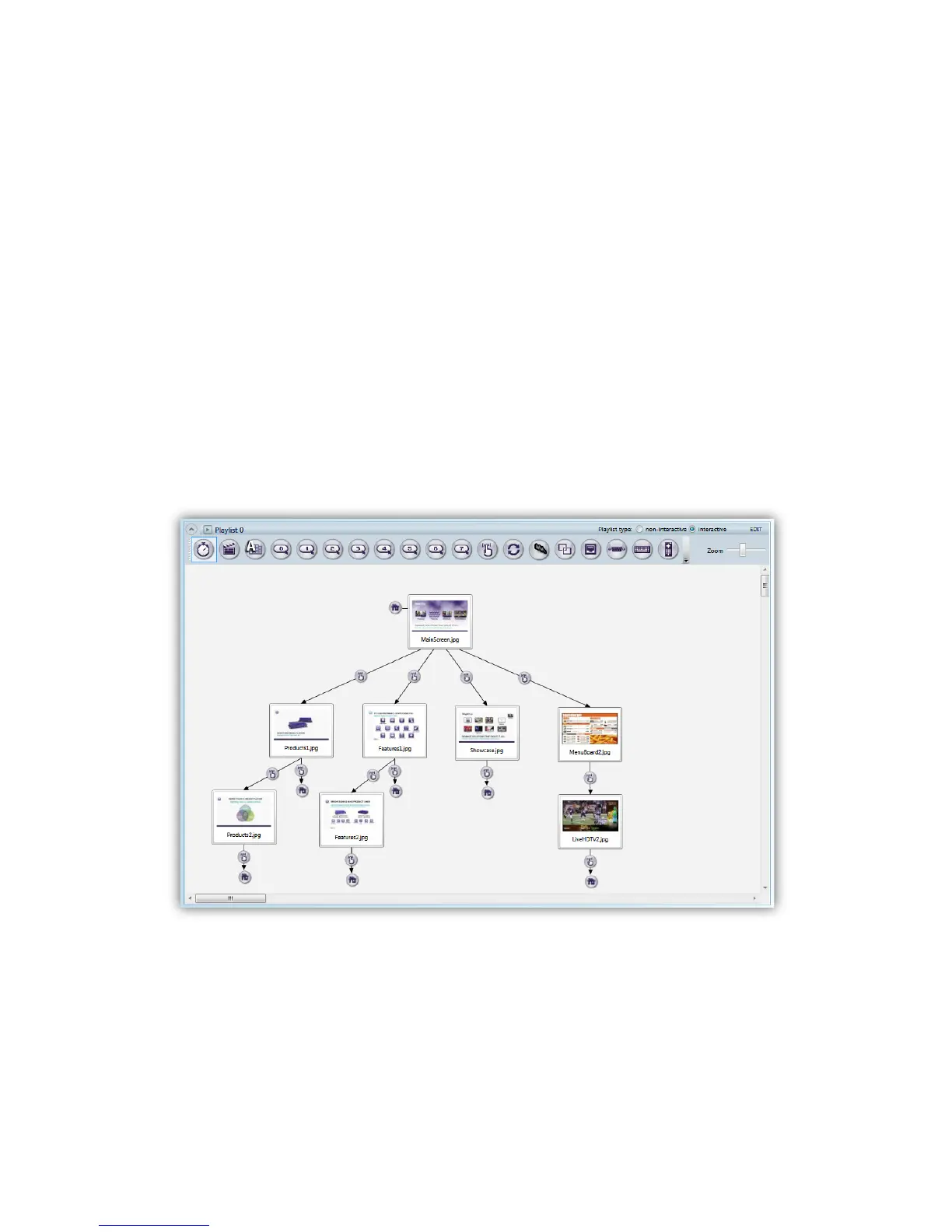
The complete interactive playlist, as shown in the “Interactive_HDMI_1080p60.bpf” presentation file


 To Next Page