18
a. Select the files tab in the Media Library section to the left.
b. Click the Browse button and locate the …\Quick Start Kit\Content folder.
c. Select the content folder and click OK. You should now see the sample image and video files in the Media
Library.
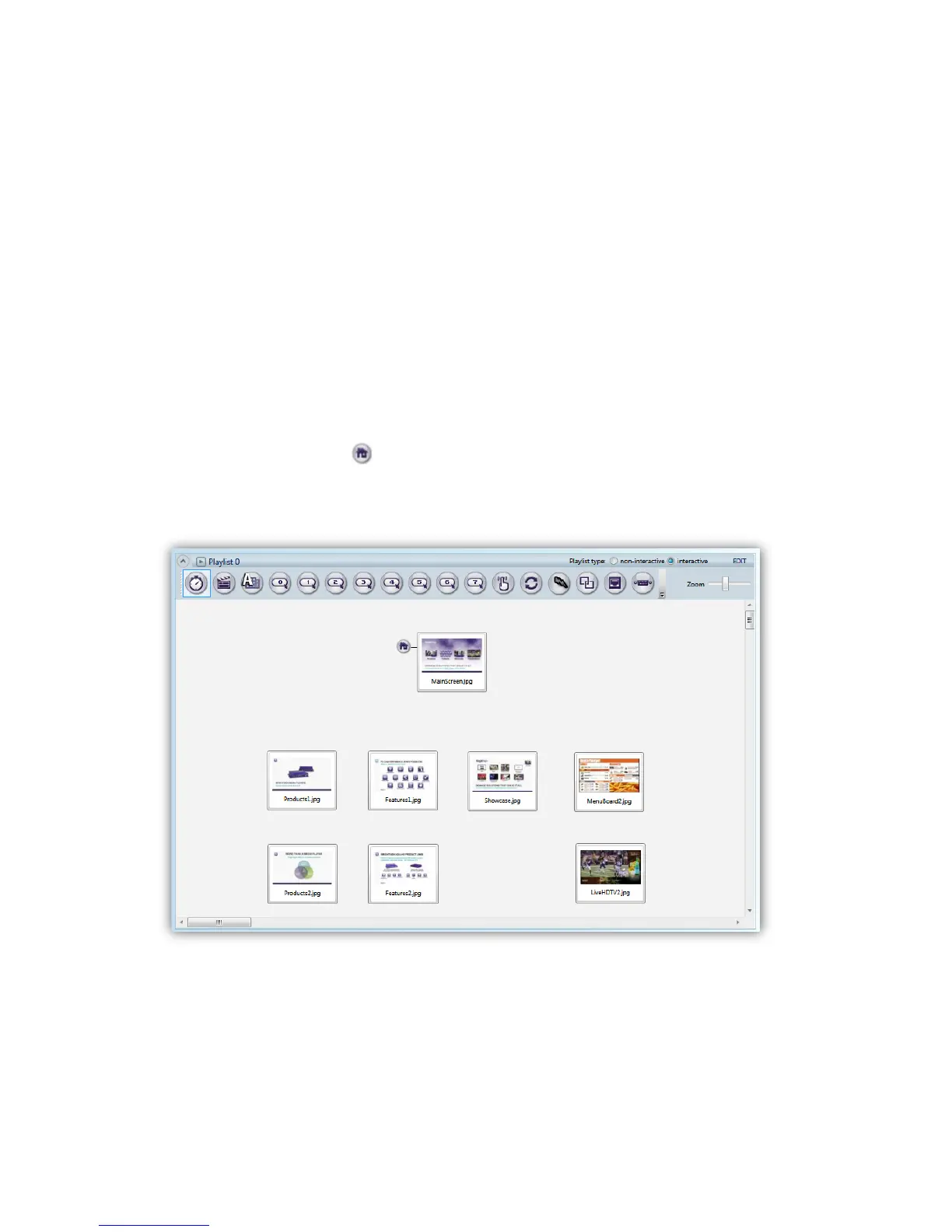
5. Drag the “MainScreen.jpg” file into the interactive playlist area. Adding this file to the presentation first will make it
the Home State (i.e. the media item or state that interactive presentation will always begin with). The Home State
will always be designated with the icon.
6. Add the following files to the interactive playlist area and arrange them approximately as shown below:
“Products1.jpg”, “Products2.jpg”, “Features1.jpg”, “Features2.jpg”, “Showcase.jpg”, “MenuBoard2.jpg”, and
“LiveHDTV2.jpg”.
Adding image files to the Interactive Playlist area



 To Next Page