This document is a user manual for the BrionVega BV6000 Security Camera, providing instructions and important information in both English and Turkish.
Function Description
The BrionVega BV6000 is a security camera designed for indoor use, offering a range of features for monitoring and surveillance. Key functions include:
- HD Display Quality: Provides clear visuals with a resolution of 1280x720.
- Remote Control: Allows users to control the camera remotely.
- Audible Alarm: Equipped with an alarm function for security alerts.
- Pan & Tilt Movement: The camera can pan horizontally and tilt vertically, offering a wide coverage area.
- WiFi Connectivity: Supports 2.4 GHz Wi-Fi networks for wireless operation.
- iOS and Android Support: Compatible with both iOS and Android mobile devices for app-based control.
- Talk Back (Two-Way Audio): Enables two-way communication through the camera.
- Remote Monitor: Allows for remote viewing of the camera feed.
- Micro SD Port: Supports Micro SD cards up to 128 GB for local storage.
- Panoramic Navigation: Generates a navigating panorama by combining multiple pictures, allowing quick access to desired points.
- Automatic Night Vision: Provides clear video in low-light conditions.
- Video Streaming: Streams live video to connected devices.
- Motion Detection: Detects movement and can trigger alerts.
Important Technical Specifications
- Model Number: BV6000
- Power Supply: 5V DC / 1A
- Wi-Fi Support: 2.4 GHz networks only (does not support 5 GHz).
- Video Resolution: 1280x720 (HD)
- Storage: Micro SD card up to 128 GB.
- 32GB: 3-4 days of video surveillance
- 64GB: 6-8 days of video surveillance
- 128GB: 12-16 days of video surveillance
- Operating Temperature Range: 10°C to 39°C
- Dimensions: Approximately 10 cm (height) x 7 cm (width).
Usage Features
The camera is operated through the "IPC360" mobile application, available on both Google Play Store and Apple App Store.
Setup and Connection:
- Power On: The camera performs a 30-second pan and tilt test upon power-up.
- Reset: A reset button (or needle) is used to reset the camera for installation, indicated by a "Di-Di" sound.
- App Registration: Users register an account on the IPC360 app by choosing a country, entering an email, receiving a verification code, and creating a password.
- Add Camera: After logging in, users tap "+" to add a new device.
- Smart Wireless Mode: The camera connects via "Smart Wireless Mode" (wired mode is not supported).
- Wi-Fi Connection: The phone must be connected to a 2.4 GHz Wi-Fi network before connecting the camera. The camera's indicator light should flash red slowly to confirm readiness for setup.
- Password Entry: Enter the Wi-Fi password in the app to complete the connection.
- Rename Camera: After successful configuration, the camera can be renamed (e.g., "Baby Room," "Kitchen").
- Panoramic Picture: The app can combine multiple pictures to create a navigating panorama, allowing quick access to specific points within the camera's view.
Application Functions:
The IPC360 app provides various icons for controlling and managing the camera:
- Add a camera: To add new devices.
- Cloud storage: For storing video recordings (not supported in Turkey).
- Turn on/off alert mode: To activate or deactivate motion detection alerts.
- Delete camera: To remove a camera from the account.
- Share the camera another account: To share camera access with other users.
- Camera setting: Accesses general settings.
- Change router and re-add camera: For reconfiguring network settings.
- Generate navigation panorama: To create a panoramic view.
- On/off audio: To control the camera's audio.
- Screenshot: To capture still images.
- Start/Stop local recording: To manage video recording to the Micro SD card.
- Intercom press to talk: For two-way audio communication.
- Streaming resolution: Allows selection of Adaptive, HD, or Fluency resolution.
- Multiple de-warp modes: Offers different viewing modes.
- Initialize parameter: To reset camera parameters.
- Search the video records: To access recorded footage.
- There's video in the blue: Indicates video availability.
- Turn to full screen: To view the feed in full screen.
- Stream status: Shows the current streaming status.
- Shooting angle setting: To adjust the camera's viewing angle.
- Automatic tracking: Enables the camera to track movement automatically.
- Back to previous page, stop live video: Navigation control.
- Camera encryption status: Shows if the camera feed is encrypted.
General Settings:
The "Camera setting" menu provides options for:
- Rename: Change the camera's name.
- Share Camera: Share access with others.
- ONVIF: (Open Network Video Interface Forum) related settings.
- Shooting angle: Adjust pan/tilt angles.
- Status Light: Control the LED indicator (not supported in this version).
- Alert: Configure motion detection.
- Volume: Adjust speaker and microphone volume.
- Language and Timezone: Set language and time zone.
- Encryption mode: Manage encryption settings.
- SD Card Record Settings: Configure Micro SD card recording.
- Cloud Storage Setting: (Not supported in Turkey).
- Change Router: For changing modem settings.
- Device Information: View product details.
- Memory Card Information: View Micro SD card details.
- Video Storage Location: Select storage method (Micro SD card; cloud storage not supported in Turkey).
- Firmware Upgrade: Update camera firmware.
- Reboot Camera: Restart the camera.
- Refresh Setting Information: Update settings.
- Delete device: Remove the camera.
Maintenance Features
- Cleaning: Unplug the device before cleaning. Do not use liquid or aerosol cleaners. For lens cleaning, use a blower or a soft, dry cloth.
- SD Card Formatting: The memory card must be formatted before insertion into the camera.
- Firmware Updates: The product may receive real-time updates; users should visit the official website for reference.
- Authorized Service: In case of any malfunction or problem, users should contact Brion Vega authorized service. User errors causing malfunctions will void the warranty.
- Safety Precautions:
- Follow all warnings and instructions.
- Adult installation is required.
- Not a medical monitoring tool.
- Keep the camera dry and away from water sources.
- Use only the included power supply.
- Ensure proper ventilation; do not cover or place near heat sources.
- Do not disassemble the device.
- Protect from falling and impact.
- Do not insert objects into voltage tips or spill liquids.
- Periodically check mechanical parts for damage.
- Keep parts and accessories out of children's reach.
- Keep adapter cables at least 1 meter away from babies.
- Store within 10°C to 39°C. Avoid extreme temperatures.
- Unplug during lightning storms or long periods of disuse.
- Keep away from impact, fall, moisture, liquid, dust, direct sunlight, and heat sources.
Frequently Asked Questions (Troubleshooting)
- Cannot add device: Ensure camera is reset, Wi-Fi is 2.4 GHz, GPS service is on (for Android), and the camera is not bound to another account.
- Video recording intervals: Video files have limited size; short intervals occur when one file ends and another begins.
- Micro SD card not identified: Check if the card meets quality requirements and if the Wi-Fi signal is strong.
- No phone notifications: Ensure the app has message push rights. Notifications are not sent when watching real-time video in the app.
- Camera disconnects: Check power and internet connections, restart the camera, or delete and re-add it in the app.
- Slow video speed/circle on screen: Indicates video loading; check network connection.
- Share video with others: Share the app account.
- Multiple users: No theoretical limit to the number of users simultaneously using the account.
- Cannot add camera to another account: A camera can only be used with one account at a time; delete it from the current account first.
- Connect camera to another Wi-Fi:
- Same location: Go to Settings >> Change Router in the app.
- New location: Start the camera, and when "Device disconnected" appears, tap "TROUBLESHOOT" to re-establish Wi-Fi connection.
Warranty and After-Sales Service (Turkey)
- Warranty Period: 2 years from the date of purchase, covering parts and labor.
- Warranty Proof: Requires a stamped and signed warranty certificate and sales receipt/invoice.
- Warranty Exclusions: Does not cover issues due to incorrect use or interventions by unauthorized service points.
- Malfunction Contact: Contact Brion Vega Customer Services or email info@brion-vega.com.
- Authorized Service: Only Brion Vega Authorized Services should perform interventions outside the legal warranty period.
- Central Service: Service records are managed centrally. For support, call 0212 465 79 01.
- Importer: Ulusal Elektronik Teknolojileri San. ve Tic. A.Ş., Istanbul.
- Manufacturer: Shenzhen Anboson Technology Co., Ltd., Shenzhen, China.
The BV6000 IP Camera conforms to essential requirements of EU directives:
- 2014/30/EU (EMC)
- 2014/53/EU (RED)
- 2014/35/EU (LVD)
It complies with standards including EN 301 489-1 V2.2.0, EN 301 489-17 V3.2.0, EN 300 328 V2.2.0, EN 55032:2015, EN 55024:2010+A1:2015, EN 60950-1:2006+A11:2009+A1:2010+A12:2011+A12:2013, and EN 62311:2008.
The declaration was signed by Blair Ma, Manager, on 25 December 2019.

 Need help?
 General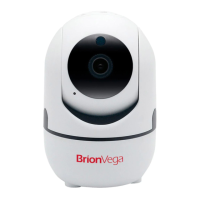

 To Next Page