25
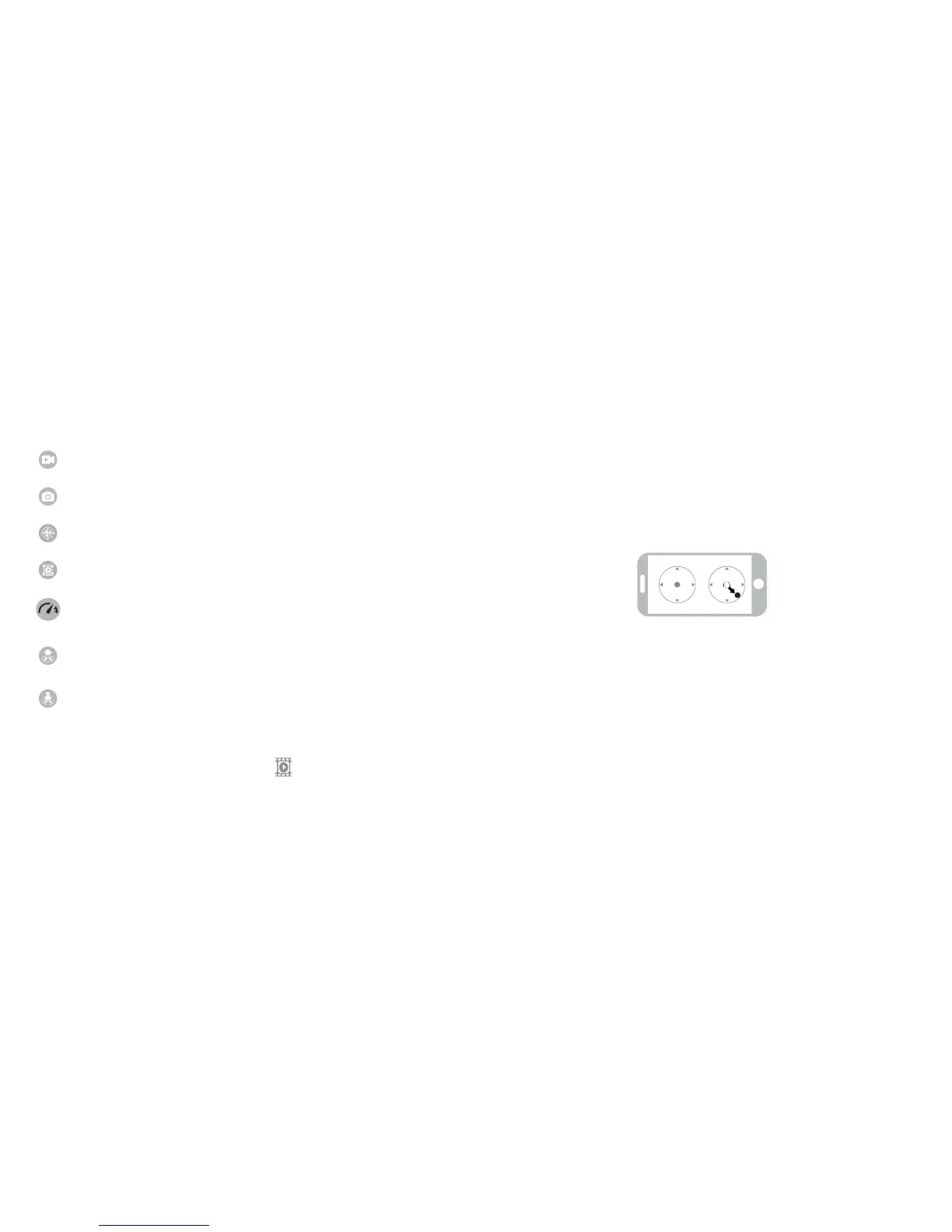
Record Video. Tap to record video. The recording time will display at the bottom of the screen.
Tap again to stop recording. (See Video and Photo Storage below.)
Take Photo. Tap to take a photo. (See Video and Photo Storage below.)
Headless Mode. Tap and it turns red, indicating that the drone has entered Headless Mode. Ta p
again to exit from Headless Mode. The icon turns white.
Access Media. Tap to view or delete the aerial video and photo. Tap the arrow to exit.
Speed Selection. By default, the drone is in Low Speed. Tap "H" to enter High Speed Mode.
Take Off. Tap and the icon turns red briefly. The drone will fly up automatically and continue
flying at an altitude of approximately 47 inches (1.2 meters).
One Button Landing. Tap and the icon turns red. The drone will fly down slowly and land on the
ground. All propellers will stop.
VIDEO AND PHOTO STORAGE
Videos and photos are stored in the device's gallery. You can display them on the device, or
you can display them in the app via the Media icon.
24
APP CALIBRATION
If the drone becomes difficult to operate, you will need to calibrate it again.
1. Refer to PAIRING YOUR DEVICE WITH THE DRONE on Page 21.
2. Do not push the left ball before successful calibration. Move the right ball as shown in
the following illustration. The drone body front light will flash, indicating that the drone
is calibrating. When the drone body front light is solid, calibration is complete and the
drone is ready to be controlled.


 To Next Page
 Loading...