Charging the Case
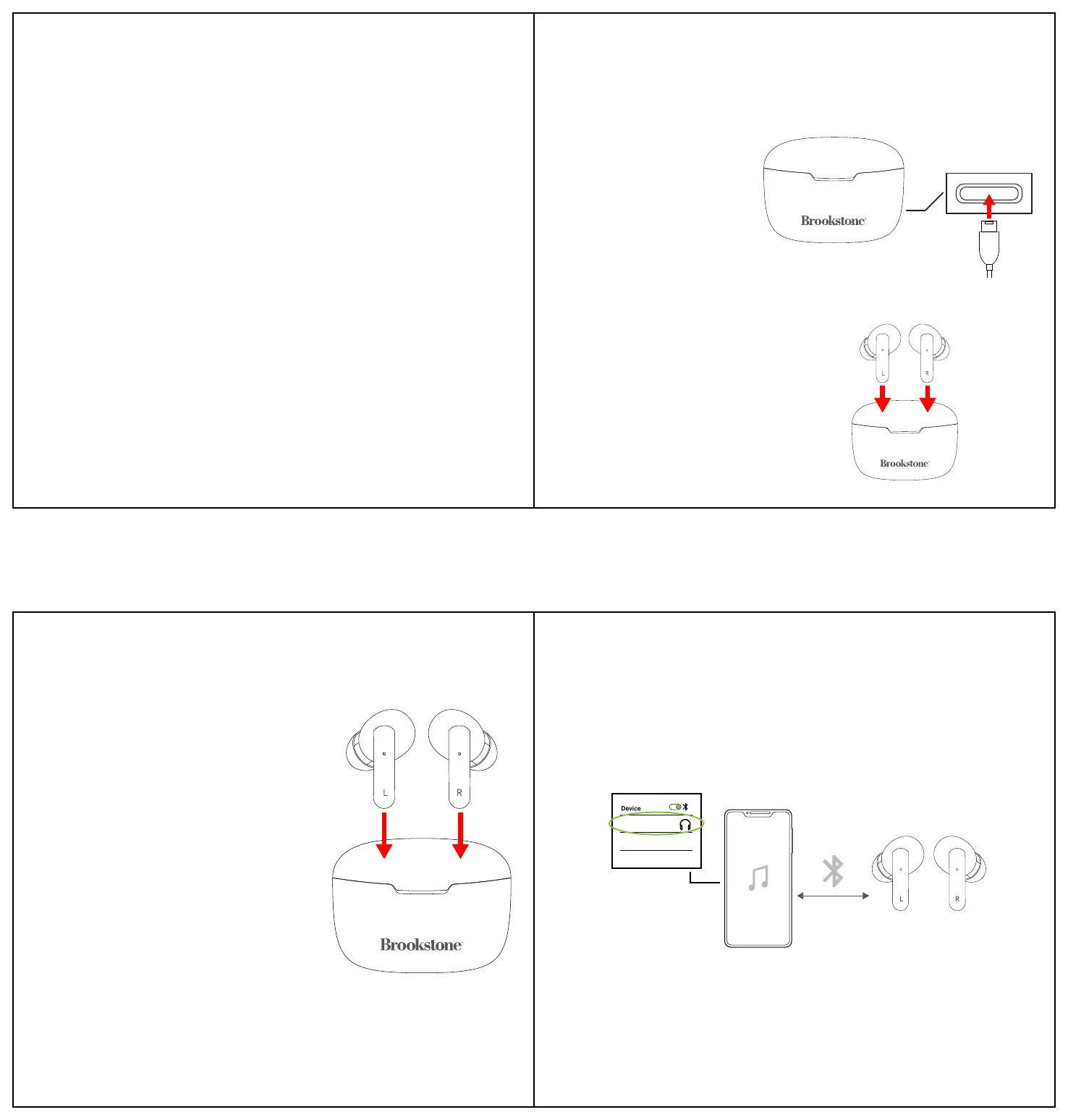
Insert the small connector of the included USB Type-C charging cable into the charging port on
the charging case. Insert the larger connector into the USB port on a computer, or into a 5V/1A
USB adapter (not included) and plug into an electrical outlet.
The LED indicator will flash RED while
the earbuds are charging and turn
solid RED when fully charged.
A tone will be heard when the
earbuds are low on battery,
indicating that they need to be
recharged.
Charging the Earbuds
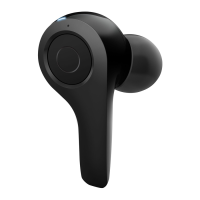
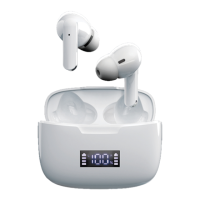
Use the included charging case to protect and charge your earbuds.
To charge the earbuds, open the case. Place the
earbuds into the correct earbud charging ports. The
earbuds will automatically power OFF and begin
charging.
Powering On/Off
Charge the case and earbuds fully before using.
• Remove the earbuds from the case to automatically power them ON. The earbuds’ LED
indicators will flash RED and BLUE. When both
earbuds are powered ON at the same time they will
automatically pair to each other after a few seconds,
and a voice will be heard indicating that they are
connected.
• Insert the earbuds into the case to automatically
power them OFF. The earbuds’ LED indicators will
quickly flash RED when they are powered OFF.
• The earbuds can also be powered ON and OFF by
touching + holding the earbuds’ [Multi] buttons for 2
seconds (power ON) or 4 seconds (power OFF).
Note: The earbuds will automatically power OFF if
they are not paired to a Bluetooth device after 3
minutes, or if the paired device is out of Bluetooth
range (10 m / 30 ft) for 3 minutes.
Note: Either earbud can be used independently.
Bluetooth Pairing
1. Power the earbuds ON at the same time. The LED indicators on both earbuds will flash RED
and BLUE. After a few seconds, a voice should be heard, indicating that the earbuds have
connected to each other. If the earbuds don’t connect to each other, see the
troubleshooting section at the bottom of this page.
2. Open your device’s Bluetooth menu and select BSTWS22 when it appears.
3. Another voice will be heard, indicating that the earbuds are successfully connected to your
device. The LED indicators on the earbuds will turn OFF.
Playing Music
Make sure the earbuds are charged and properly connected to your Bluetooth-enabled device.
Playback, volume and phone functions can be controlled with your paired device or with the
earbuds, as indicated below:
Controlling Playback
• Press the [Multi] button on either earbud to pause and resume audio playback.
• 3x Press the Left earbud to skip to the previous track.
• 3x Press the Right earbud to skip to the next track.
Adjusting the Volume
• Press + hold (2s) the Left earbud to decrease volume.
• Press + hold (2s) the Right earbud to increase volume.
Phone Calls
• Press the [Multi] button on either earbud to answer an incoming phone call. Press again to
end the phone call.
• 2x Press the [Multi] button on either earbud to reject an incoming phone call.
(Bottom of Case)
BSTWS22
Trouble Pairing the Earbuds to Each Other? Try placing the earbuds back into their charging
case, and then removing them again at the same time. They should automatically connect to
each other.
5
7
8
6





 To Previous Page