Need help?
Do you have a question about the BROSTREND AC1L and is the answer not in the manual?
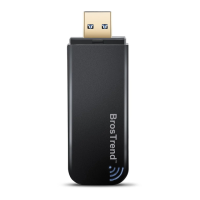
This document serves as a user manual for the BrosTrend AC Wireless Dual Band USB Adapter, covering models AC1, AC1L, AC3, and AC3L. It provides comprehensive instructions for installation, configuration, and troubleshooting on both Windows PCs and MAC OS X systems.
The BrosTrend AC Wireless Dual Band USB Adapter is designed to provide wireless internet connectivity to your computer. It supports dual-band Wi-Fi, meaning it can connect to both 2.4GHz and 5GHz Wi-Fi networks. The adapter allows your PC or MAC to join existing Wi-Fi broadband networks, enabling internet access and network communication. It functions as a client device, connecting to a wireless router or access point. Additionally, for Windows 8.1/8/7/Vista, the adapter supports working in Software AP (Access Point) mode, allowing your PC to act as a Wi-Fi Hotspot, provided the PC is connected to the internet via an Ethernet cable.
The adapter offers a straightforward installation process, starting with hardware insertion into a USB port. For Windows PCs, the manual details how to install the necessary drivers from a provided CD or by downloading them from the BrosTrend website. It emphasizes the importance of turning off any integrated Wi-Fi adapters on the PC before installing the BrosTrend driver to prevent conflicts. The manual guides users through the driver installation wizard, including steps for restarting the computer to finalize the installation. Once the driver is installed, users can connect to their Wi-Fi network using either the Windows Integrated Wi-Fi Network Management tool or the "Realtek 11n/11AC USB Wireless LAN Utility" provided with the adapter. The connection process involves selecting the desired wireless network from a list and entering the Wi-Fi key (password). The utility automatically stores network profiles, allowing for easy reconnection without re-entering passwords.
For MAC OS X, the manual outlines a similar process, starting with plugging the adapter into a USB port. It advises downloading the latest driver from the BrosTrend website, especially if the MAC does not support small-sized CDs. The installation steps involve unzipping the driver file, running the installer package, agreeing to license terms, selecting installation options, and inputting a password if required. After installation, a system restart is necessary. A key step for MAC users is to turn off the integrated Wi-Fi adapter on their MAC before using the BrosTrend adapter to avoid interference. The "Wireless Network Utility" is used to find available networks, input Wi-Fi keys, and manage network profiles. The utility also provides "Link Status" information, displaying connection details such as link speed, signal strength, channel, and security type. A unique feature highlighted for MAC is the ability to view all installed Wi-Fi adapters in "Network Preferences," though the BrosTrend adapter might be displayed with a generic "802.11n NIC" label due to a display bug, with its actual AC capability inferred from the connection speed. The manual also describes how to turn the BrosTrend Wi-Fi adapter ON or OFF via the utility.
The manual provides extensive troubleshooting guidance for common issues. For Windows PCs, if the adapter fails to work, users are advised to try different USB ports, ensure the correct driver for their operating system is installed, and confirm that no other Wi-Fi adapter drivers are causing conflicts. It also stresses verifying that the BrosTrend adapter is enabled in the PC's network configuration. The LED indicator on the adapter is mentioned as a diagnostic tool: if it's on, the driver is likely installed, and the issue might be network configuration; if it's off, the driver might not be installed correctly or the adapter isn't plugged in properly.
For MAC OS X, troubleshooting includes verifying successful driver installation (indicated by a blinking LED), ensuring the correct driver version is used, trying different USB ports, and avoiding low-quality or excessively long USB extension cables. Users are also reminded to ensure the BrosTrend adapter is turned ON in the Wireless Network Utility and that the MAC's integrated Wi-Fi adapter is turned OFF to prevent conflicts.
The manual addresses frequently asked questions applicable to both Windows and MAC, such as issues with connecting to 5GHz Wi-Fi networks. Solutions include updating drivers and checking the Wi-Fi channel settings on the router. For optimizing Wi-Fi signal, it suggests plugging the adapter into front USB ports on desktops for better signal reception and keeping the router and PC away from walls, metal objects, microwave ovens, or ceramics that can interfere with signals. It also explains the trade-offs between 2.4GHz (better penetration, longer range) and 5GHz (faster speed, less crowded) bands. The use of USB extension cables for better signal is mentioned, with a caveat about ensuring sufficient power supply and using high-quality, shorter cables. Information on downloading the latest drivers and the most secure Wi-Fi encryption method (WPA2-AES) is also provided. For advanced users, the document confirms support for Software AP mode on specific Windows versions and mentions that the adapter uses Realtek main chipsets, which can be helpful for Linux users seeking compatibility information. The manual concludes with copyright information and manufacturer technical support contact details.
 General
| Model | AC1L |
|---|---|
| Wireless Speed (5 GHz) | 433 Mbps |
| Wireless Speed (2.4 GHz) | 150 Mbps |
| Antenna | Internal |
| Wireless Standard | 802.11ac |
| Frequency Band | Dual Band |
| Security | WPA |

 To Next Page