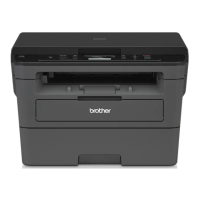
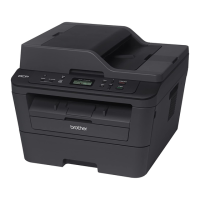
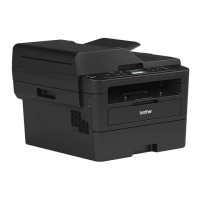
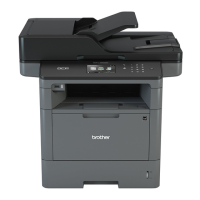
This document serves as a Quick Setup Guide for Brother DCP-L8400CDN, DCP-L8450CDW, MFC-L8650CDW, MFC-L8850CDW, and MFC-L9550CDW models, providing essential instructions for initial setup and configuration. It covers unpacking, component identification, loading paper, connecting to power, language selection, and software installation via CD-ROM or download.
Function Description:
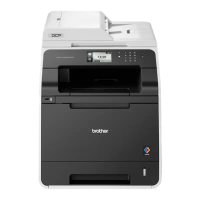
The Brother DCP-L8400CDN, DCP-L8450CDW, MFC-L8650CDW, MFC-L8850CDW, and MFC-L9550CDW series are multi-function color laser devices designed for various office tasks. These models typically offer printing, copying, and scanning functionalities, with the MFC (Multi-Function Center) models additionally providing fax capabilities. They are built to handle a range of document types, from standard text documents to color graphics, making them suitable for small to medium-sized businesses or home offices requiring robust and versatile document management solutions. The devices support both wired (Ethernet) and wireless network connections, allowing for flexible placement within an office environment and shared access among multiple users. USB connectivity is also available for direct connection to a single computer. The inclusion of a Touchscreen interface simplifies navigation and operation, providing an intuitive user experience for selecting functions, adjusting settings, and managing tasks directly from the device.
Usage Features:
The setup process begins with unpacking the machine and verifying all included components. These typically consist of a Drum Unit (pre-installed), Waste Toner Box (pre-installed), Toner Cartridges (Black, Cyan, Magenta, and Yellow; pre-installed), Belt Unit (pre-installed), Power Cord, and for MFC models, a Telephone Line Cord. Additional items include a CD-ROM for software installation, a Quick Setup Guide, Product Safety Guide, and a Basic User's Guide. Users are advised to read the Product Safety Guide first for safety information, followed by the Quick Setup Guide for installation.
The initial physical setup involves removing all packing material from the machine. This step is crucial to ensure proper operation and prevent damage. Once the packing materials are removed, paper can be loaded into the paper tray. The guide illustrates the process of opening the tray, adjusting guides, and inserting the paper stack. After loading paper, the power cord is connected to the machine and then to an electrical outlet, and the machine is turned on.
For DCP models, the next step is to select the language. Upon powering on, the Touchscreen displays a list of available languages. Users can swipe up or down, or use the arrow buttons, to find their preferred language and then press "OK" to select it. The Touchscreen will then prompt for confirmation. If the selection is correct, "Yes" is pressed; otherwise, "No" allows the user to return to the language selection screen. If an incorrect language is accidentally set, it can be changed later via the Touchscreen menu under "All Settings," "Initial Setup," and "Local Language."
For MFC models, after connecting the power cord and turning on the machine, the setup proceeds directly to software configuration.
Software installation is primarily handled via the included CD-ROM for Windows® users. The CD-ROM provides an "MFL-Pro Suite" which includes the full driver and software package. The installation wizard guides the user through the process, starting with the "Connection Type" screen. Users can choose between "Local Connection (USB)," "Wired Network Connection (Ethernet)," or "Wireless Network Connection."
For USB Connection, the wizard proceeds with the installation. For Wired Network Connection, users are instructed to connect a network cable first before continuing. For Wireless Network Connection, the guide offers two methods: a recommended method using a USB cable temporarily for easy setup, or an optional method for users without a USB cable. The recommended method simplifies the wireless setup by temporarily connecting the device to the computer via USB, allowing the software to configure the wireless settings more easily. If connection is unsuccessful, users are advised to repeat the step.
For users without a CD-ROM drive or using a Macintosh, the guide provides instructions to download the full driver and software package from the Brother Solutions Center website. Specific URLs are provided for both Windows® and Macintosh users.
The guide also highlights the ability to print using mobile devices through the "Brother iPrint&Scan" application. This involves two main steps:
- Connecting the machine to a wireless LAN access point/router via the machine's Touchscreen. This typically involves pressing the "WiFi" button, selecting "Setup Wizard," confirming to enable WLAN, choosing the specified SSID (network name), and entering the Network key.
- Downloading the "Brother iPrint&Scan" application from the Brother Solutions Center website (solutions.brother.com/ips) to start using the machine with mobile devices.
Maintenance Features:
While the guide primarily focuses on initial setup, it implicitly touches upon maintenance through the identification of key consumable components. The pre-installed Drum Unit, Waste Toner Box, Toner Cartridges, and Belt Unit are all essential parts that will require replacement over the device's lifespan. The presence of these components in the initial package indicates that they are user-replaceable, simplifying routine maintenance. Although the guide does not detail the replacement process, the clear identification of these parts suggests that instructions for their maintenance and replacement would be available in the more comprehensive Basic User's Guide or other support documentation. The design of the machine, with easily accessible compartments for these consumables, implies a user-friendly approach to maintenance, allowing users to perform basic upkeep tasks without requiring professional service. The mention of the Brother Solutions Center for drivers and software also serves as a resource for troubleshooting and obtaining updated utilities that can help maintain optimal device performance. Regular software updates and driver installations are a form of preventative maintenance, ensuring compatibility and addressing potential issues.


 To Next Page
 General