6
REMOTE CONTROL FUNCTIONS
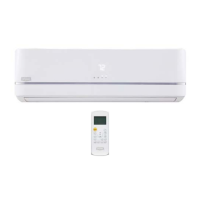
The remote control is the interface between the user and the floor
console systems. Commands are entered by the user to control the
system. Any command that has been entered with the remote
control will remain in the memory until it is changed by the user
or the batteries are replaced.
NOTE: When entering commands, point the remote control in
the direction of the LED display on the front panel. The
OPER
appears for a short period of time on the remote control when
the command is entered. The unit only emits an audible beep
when the signals are received correctly.
ON/OFF:
Press this button to turn unit on and off.
MODE:
Each time this button is pressed, a mode is selected in a sequence that
goes from AUTO, COOL, DRY, FAN and HEAT, as shown below:
T ANRY AT
Fig. 6 − Modes
AUTO mode is the default setting at start−up. In AUTO mode, the
set temperature will not be displayed on the LCD, and the unit
automatically selects the suitable operation mode to provide
comfort based on parameters set from the factory.
—:
Press this button once to decrease the setpoint by 1_F. If the button
is pressed for more than two seconds, the setpoint decreases rapidly
in increments of 1_F. In AUTO mode, set temperature is not
adjustable.
+:
Press this button to increase the setpoint by 1_F. If the button is
pressed for more than two seconds, the setpoint increases rapidly in
increments of 1_F. In AUTO mode, set temperature is not adjustable.
COOL:
To cool to the selected set point and remove moisture.
System varies compressor speed to maintain desired temperature.
HEAT:
To heat to selected room set point. System varies compressor speed
to maintain desired room temperature.
FAN:
This button is used to set the fan speed in the following sequence.
Fig. 7 − Fan speed
:
Press the Up−Down Swing Louver button to select five different
vertical air discharge directions including Continuous Sweep. The
Swing Louver icon appears. Press this button to set swing angle,
which changes directions as shown below.
Indicates louver swings back and forth in the five directions, as shown.
OFF
1023
4
5
1
Fig. 8 − Swing buttons
:
Press the Left−Right Swing Louver button to select five different
horizontal air discharge directions including Continuous Sweep.
The Horizontal Swing Louver icon appears. Press this button to set
swing angle, which changes in direction as shown in the following
figure.
no display
(stops at current
position)
Fig. 9 − Horizontal Swing Louver Angles
FOLLOW ME:
Press this button to use the FOLLOW ME function, and the icon
appears. The unit senses room temperature at the remote controller
instead of at the indoor unit. It then adjusts airflow and temperature
accordingly for the ultimate in personal comfort control and energy
savings.
Press the button again to exit this function. For best performance,
keep remote controller away from heat or cold temperature sources
while using this function.
X−FAN:
Press the X−FAN button in COOL or DRY mode to activate the
DRY function and the X−FAN icon appears. When this function
is activated, the indoor fan continues to run for 2 minutes to dry
the indoor coil after the unit is turned off. X−FAN is not available
in AUTO, FAN and HEAT mode.
T−ON button (Timer ON)
To set when you want the unit to turn On at the end of a selected
time period, use the button labeled “T−ON” on the remote
controller. Press this button to make the clock icon disappear,
replaced with the word “ON” (blinking). Press “+” or“−” buttons
to adjust timer setting 1 minute at a time. Press and hold “+” or
“−” button to set timer more quickly. Press“T−ON” button again
to confirm setting, and the word “ON” stops blinking. To cancel,
press“T−ON” button again.
T−OFF button (Timer OFF)
NOTE: Under Timer On and Off status, you can set T−ON
and T−OFF simultaneously. Before setting timer, be sure to set
clock to correct time.
CLOCK SETTING
Press this button to set clock time. The Clock icon on remote
controller blinks. Within 5 seconds, press “+” or “−” button to set
clock time. With each press of the “+” or “−” buttons, the clock
time increases or decreases by 1 minute. To quickly adjust the time
setting, press and hold “+” or “−” button for 2 seconds.
Release the button when you have reached the desired time setting.
Press the “CLOCK” button to confirm the time, and clock icon
stops blinking.
NOTE: Clock time adopts 24−hour mode. A 12−hour format is
not available.




 To Next Page