EasyManua.ls Logo

BTC 9039ARF III - User Manual

BTC 9039ARF III
3 pages
Print Icon
To Next Page IconTo Next Page
Loading...
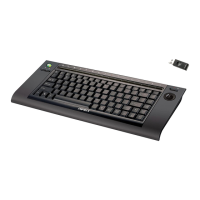
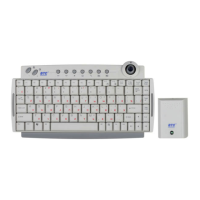
Wireless Keyboard & USB dongle /9039ARF III / BTC / EMPREX
Quick Installation Guide
Hardware Installation
1. Plug the dongle receiver connector into your available USB port on PC.
2. Make sure the batteries of the keyboard are installed correctly. Please follow
the polarity signs in the battery compartment.
Note:
After you plug the receiver USB connector into your PC USB port, please
hold the keyboard close to the receiver within 1m and press any key to pair
ID.
ID Pairing Procedure
If it can’t work, please follow the steps below to process the ID pairing procedures.
The ID-recognition function helps to protect against interference from other RF
products.
Remember to follow the steps below to change ID when other RF
products affect your keyboard kit.
ID pairing/connect button location:
- Receiver ID pairing/connect button on the top of the
dongle receiver
- Keyboard ID pairing/connect button on the bottom of the
keyboard
ID pairing procedures:
1. Press and hold the ID pairing/connect button on the top of the dongle
receiver about 5 seconds until the receiver LED flashes. The receiver LED will
flash 60 seconds to wait for keyboard pairing information. (If you release the
button within 5 seconds, the ID doesn’t make any changes.)
2. Hold the keyboard close to the dongle receiver within 1M.
3. Press and hold the keyboard ID pairing/connect button on the bottom of the
keyboard about 5 seconds until the keyboard LED flashes. (If you release the
button within 5 seconds, the ID pairing will fail.)
4. The receiver LED indicator flashes rapidly as its ID paired with this keyboard.
Then you could press any key to check if the keyboard works or not.
Note:
- The whole ID pairing procedure shall be completed within
60 seconds.
- Make sure your PC is on and running when doing the
pairing procedure.
- You don’t have to pair ID again after changing batteries. If it
can’t work, please follow the steps above to pair ID.
- The keyboard can operate freely up to a radius of about
10m from the receiver.
- The keyboard battery life is up to 4.5 months.
Front View of
Back View of
Power Button
ID LED/
Batter
y
Low
ID Button
ID pairing/connect button on the top of the
ID Button
Keyboard Hotkey Functions (from left to right)
ID pairing/connect button on the bottom of the keyboard
1. MCE Start
Button
To quickly launch Media Center
9. Back
Go to the previous screen.
2. Mouse
Painter
Built-in mouse painter and Left/Right click.
10. More
Show information about the selected
item.
11. Record
Record the TV Show to disk.
3. Live TV
Switch to Live TV to bring up Live TV on
your computer screen or on a television
connected to your Media Center PC.
12. Play
Play the selected song, album, play
list, recorded TV Show, or video.
4. Guide
Go to the electronic programming guide.
13. Pause
Pause the currently playing media.
Press pause again to resume.
5. DVD
Menu
Display the DVD menu
14. Stop
Stop the currently playing media.
Press play to start the track again from
the beginning.
6. Volume -
Adjust the volume
15. Rew/Fwd
Rewind/ Speed up the currently playing
media.
7. Volume+
Adjust the volume
16. Replay
Rewind the position pointer and

Question and Answer IconNeed help?

Do you have a question about the BTC 9039ARF III and is the answer not in the manual?

Overview

This document describes a wireless keyboard and USB dongle, model /9039ARF III / BTC/EMPREX, providing instructions for installation, ID pairing, hotkey functions, and system requirements.

Function Description:

The device is a wireless keyboard designed for use with a PC, connecting via a USB dongle receiver. It features an ID-recognition function to prevent interference from other RF products. The keyboard includes various hotkeys for media control and system functions, making it suitable for use with Media Center PCs.

Installation:

  1. Plug the USB dongle receiver into an available USB port on the PC.
  2. Ensure batteries are correctly installed in the keyboard, observing polarity signs.
  3. After plugging in the receiver, hold the keyboard within 1 meter of the receiver and press any key to initiate pairing.

ID Pairing Procedure:

If the device does not work after initial installation, an ID pairing procedure is required to establish a secure connection and prevent interference.

  1. Receiver Pairing: Press and hold the ID pairing/connect button on the top of the dongle receiver for approximately 5 seconds until its LED flashes. The LED will flash for 60 seconds, waiting for keyboard pairing information. Releasing the button within 5 seconds will prevent any ID changes.
  2. Keyboard Pairing: Hold the keyboard close to the dongle receiver (within 1 meter). Press and hold the ID pairing/connect button on the bottom of the keyboard for approximately 5 seconds until its LED flashes. Releasing the button within 5 seconds will cause pairing to fail.
  3. Confirmation: The receiver LED indicator will flash rapidly once its ID is paired with the keyboard. Users can then press any key to verify keyboard functionality.

Important Notes for ID Pairing:

  • The entire ID pairing procedure must be completed within 60 seconds.
  • Ensure the PC is on and running during the pairing process.
  • ID pairing is not required after changing batteries, unless functionality is lost. If issues arise, repeat the pairing steps.

Important Technical Specifications:

  • Operating Range: The keyboard can operate freely up to a radius of about 10 meters from the receiver.
  • Battery Life: The keyboard battery life is up to 4.5 months.
  • Power: The keyboard requires 1.5V x 4 batteries.
  • Indicators: Features an ID LED and a Battery Low LED indicator.

Usage Features (Hotkey Functions):

The keyboard includes dedicated hotkeys for enhanced media and system control:

  • MCE Start: Quickly launches Media Center.
  • Back: Navigates to the previous screen.
  • Mouse Painter: Built-in mouse painter with Left/Right click functionality.
  • More: Shows information about the selected item.
  • Live TV: Switches to Live TV, displaying it on the computer screen or a connected Media Center PC.
  • Record: Records the TV Show to disk.
  • Guide: Accesses the electronic programming guide.
  • Play: Plays the selected song, album, playlist, recorded TV Show, or video.
  • Pause: Pauses the currently playing media. Pressing it again resumes playback.
  • DVD Menu: Displays the DVD menu.
  • Stop: Stops the currently playing media. Pressing play restarts the track from the beginning.
  • Volume -: Adjusts the volume down.
  • Rew/Fwd: Rewinds/speeds up the currently playing media.
  • Volume +: Adjusts the volume up.
  • Replay: Rewinds the position pointer.
  • Mute: Mutes the sound without stopping playback.
  • Skip (Next): Skips ahead an increment.
  • Power Key: Depending on system power management settings, this button can shut down the PC, put it into standby (sleep) mode, or wake it up from standby.

Maintenance Features:

  • Battery Low Alarm: When keyboard batteries are low, the RED LED indicator (upper right of the keyboard) will blink when any keyboard button is pressed. It is recommended to change batteries immediately to ensure continued good use of the keyboard. The RED LED indicator will disappear after battery replacement.

System Requirements:

  • Operating System: Microsoft® Windows 7 (Home Premium or above), Windows Vista™ (Ultimate/Home Premium), or Windows® XP Media Center Edition 2005 or later.
  • Optical Drive: CD-ROM drive (for CD and Video operation).
  • Sound Card: Standard sound card (for CD and Video operation).

FCC Guidelines:

The device complies with FCC Class B digital device limits (Part 15 of FCC Rules), designed to provide reasonable protection against harmful interference in residential installations. If interference occurs, users are advised to:

  • Reorient or relocate the receiving antenna.
  • Increase separation between equipment and receiver.
  • Connect equipment to an outlet on a different circuit.
  • Consult a dealer or experienced radio/TV technician. FCC Warning: Operation is subject to two conditions: (1) the device may not cause harmful interference, and (2) it must accept any interference received, including undesired operation. FCC Caution: Any unauthorized changes or modifications could void the user's authority to operate the equipment. FCC Radiation Exposure Statement: The equipment complies with FCC radiation exposure limits for an uncontrolled environment. End users must follow specific operating instructions for RF exposure compliance. The transmitter must not be co-located or operating in conjunction with any other antenna or transmitter.

BTC 9039ARF III Specifications

General IconGeneral
BrandBTC
Model9039ARF III
CategoryKeyboard
LanguageEnglish

Related product manuals