Need help?
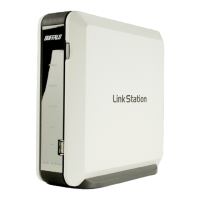
Do you have a question about the Buffalo LinkStation HD-H250LAN and is the answer not in the manual?
Controls powering the LinkStation on and off.
Indicates the LinkStation's power status.
Signals network connection and activity.
Alerts when the internal drive is nearly full.
Flashes to indicate potential errors.
Ports for connecting external storage or printers.
Connect power, then press the power button to boot.
Connect the Ethernet cable and verify network link.
Adjust the cable selection switch for proper communication.
Steps to verify successful network connection.
Launch the IP configuration utility to scan networks.
Set IP address, subnet mask, and administrator password.
Log in using default credentials or set password.
Overview of the LinkStation's main configuration interface.
Set a unique name and description for the LinkStation.
Create and manage shared folders for data storage.
Open LinkStation shares by typing its name in the Run dialog.
Assign a drive letter to the LinkStation for easy access.
Two USB 2.0 ports support external drives and printers.
Details on enabling USB HDDs for shared folders or backups.
Instructions for setting up a USB printer.
Configure a unique name and description for the LinkStation.
Set the LinkStation's internal clock for logging and backups.
Configure static IP address, subnet mask, and gateway.
Set Workgroup/Zone and WINS server information.
Create, edit, and delete shared folders with access restrictions.
Create and manage user groups for security administration.
Create and manage individual user accounts with passwords.
Displays details of connected USB devices.
Configure USB disk as shared folder or for backup.
Enable sharing of connected printers.
Clear the printer queue if it becomes corrupt.
Displays current LinkStation status and configuration.
Schedule LinkStation to enter sleep mode to save energy.
Schedule automatic backups to an external USB drive.
Perform disk checks to scan for and repair errors.
Format internal or attached USB drives.
Set or change the administrator password.
 General
| Brand | Buffalo |
|---|---|
| Model | LinkStation HD-H250LAN |
| Category | Security System |
| Language | English |


 To Next Page