iVina BulletScan S300 Quick Install Guide
Rev. 5 Aug 2010
Scanning from the Front Input Tray:
Flip the front input tray open
Place your document in the center of the front input tray
Gently insert the document
When the scanner detects the document it will automatically
grab the document and pull it into a ready position
Pick the desired profile number on the dial
Press the Scan Button.
The front input tray may be used to scan while docked or
undocked.
Undocking your scanner:
Your scanner can be undocked to become portable.
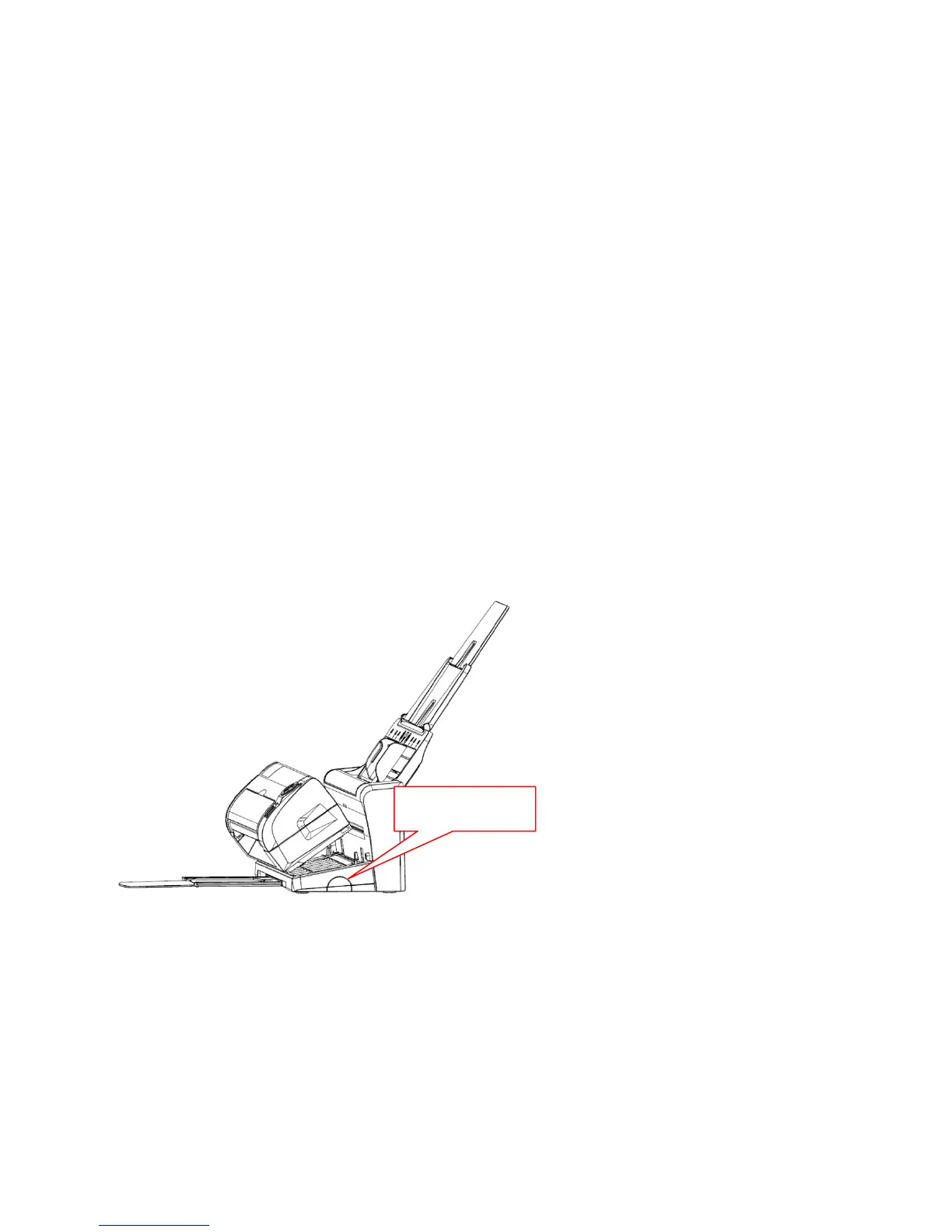
Press the release button on
the right-hand side to
undock the scanner. Lift the
Scan Module up and forward
to undock it.



 To Next Page