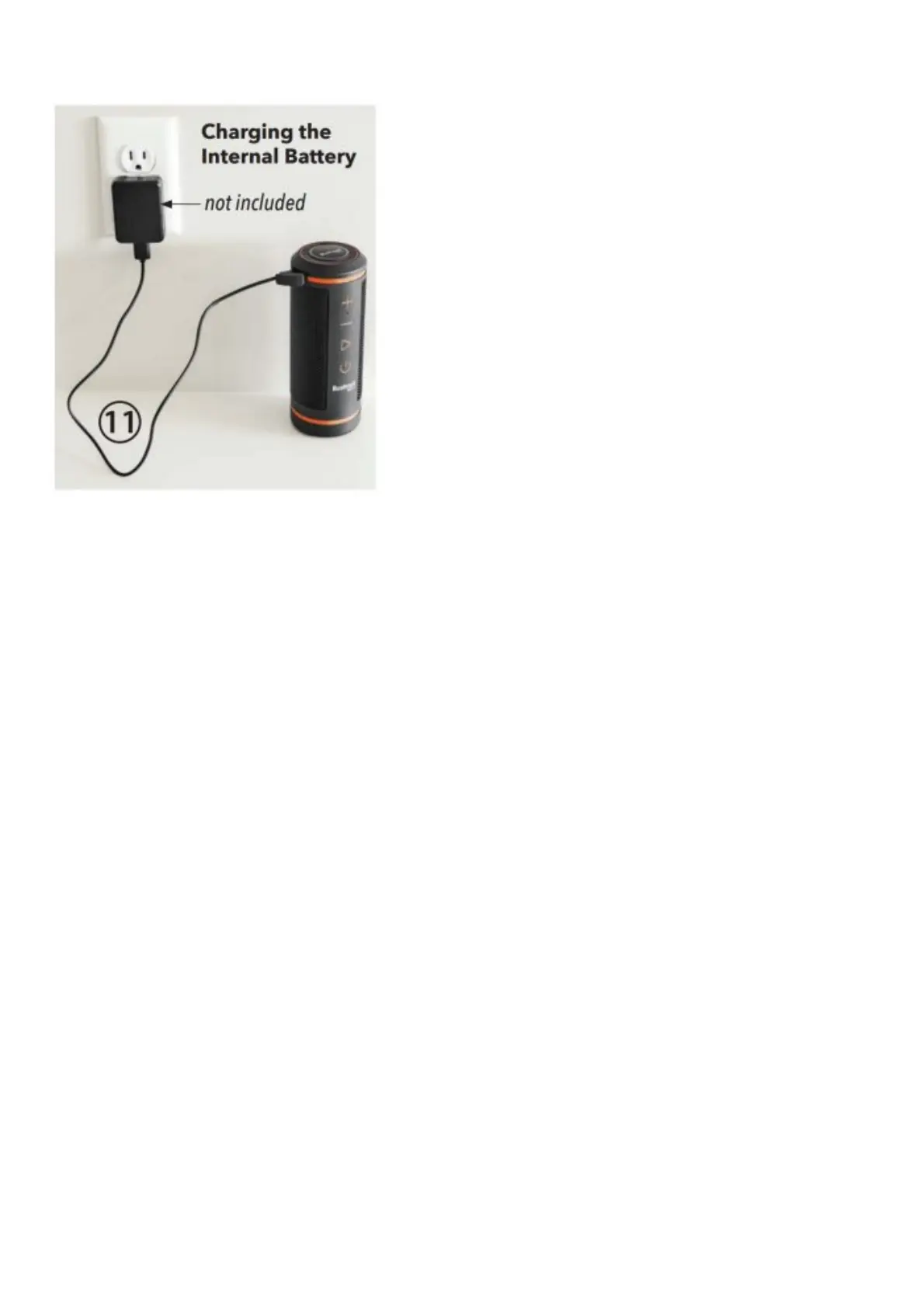
11. CHARGING CABLE (AC adapter/ charger not included)
Charging the Internal Battery
POWER AND BLUETOOTH™ SPEAKER OPERATION
1. To charge the Wingman’s internal lithium-ion battery, connect a smartphone or tablet’s USB charger (any 1A or
2A rated USB charger) to the “IN” micro USB port (1) on the Wingman. The battery is fully charged when the
Wingman’s Indicator Ring (8) turns green. A fully charged battery will provide approximately 10 hours operating
time at a normal, moderate volume level. Low power is indicated by a flashing orange ring. When the battery
charge drops below 3% remaining, the Wingman will power off automatically.
2. The “OUT” micro USB port (3) can be used to recharge your phone if necessary while away from other power
sources. Note: using the Wingman to recharge mobile devices will reduce the battery level and operating time of
the Wingman.
3. Hold the Power button on the Wingman (7) until the startup sound is heard and Indicator Ring flashes orange.
4. Make sure the Wingman is within 10meters/32 feet from your mobile device. Activate Bluetooth® on your
smartphone and select Wingman to pair (Indicator Ring stops flashing when paired with phone). Once paired,
musicplayed on your phone will be heard on the Wingman. To disconnect the currently paired device, press
Plus and Minus buttons simultaneously. The LED Indicator Ring rapidly flashes, indicating the device has been
disconnected, and the Wingman is ready to pair with a new device. Note: when powered on, the Wingman
automatically reconnects to the last mobile device it was paired with. The Wingman can memorize up to 8
paired devices. The Wingman will shut off after 15 minutes in pairing mode if no devices have been paired, as a
power saving feature.
5. Use the Plus (4) and Minus (5) buttons to adjust speaker volume up or down. Press the Play button (6) to pause
music, press again to resume. Press and hold the Plus button to advance to the next track. Press and Hold the
Minus button to start a track over from the beginning.
6. The Wingman has a microphone which allows you to take incoming calls. To answer an incoming call, press the
Play button. To reject an incoming call, Press and hold the Play button. To end a call, press Play. To redial the
last called number, press and hold the Play button.
USING THE WINGMAN’S REMOTE WITH THE BUSHNELL GOLF APP FOR GPS RANGING
1. Download the Bushnell Golf App from the App Store (Apple) or Google Play (Android) and sign up for an
account or log in.
2. Bluetooth pair the Wingman Remote (2) to your phone, following the instructions on the app screens. Note: the
remote control disc needs to be paired separately, in addition to the main Wingman speaker unit, as it can be
physically removed and act independently.
3. Select Wingman from the list of devices.
4. Select “Play Golf”, then select the course you will be playing from the list of nearby golf courses.



 To Next Page