EasyManua.ls Logo

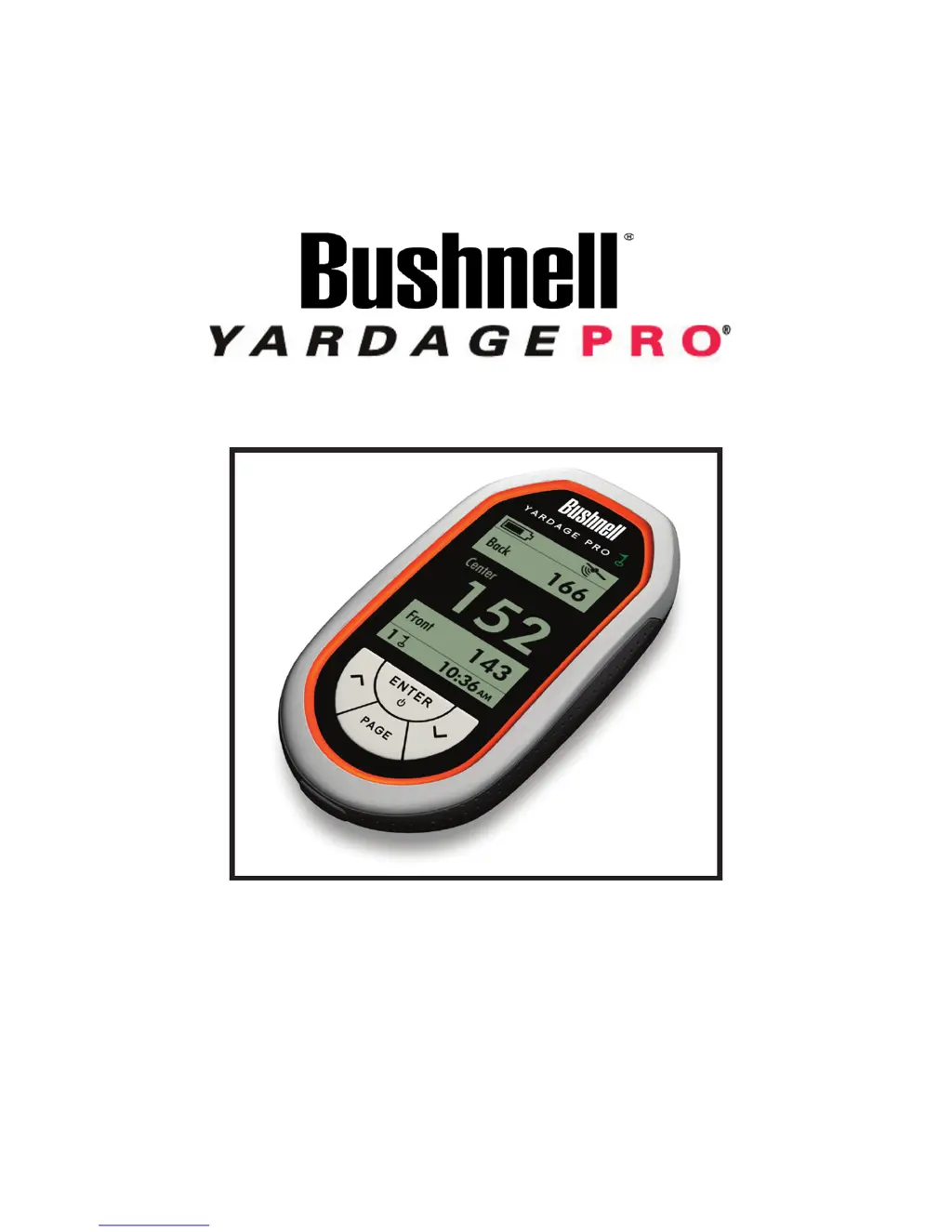
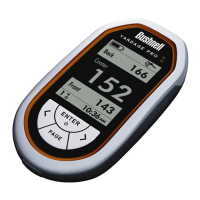
Bushnell Yardage Pro Yardage Pro - User Manual

Bushnell Yardage Pro Yardage Pro
36 pages
Print Icon
To Next Page IconTo Next Page
Loading...
GOLF GPS
Model # 368100
Lit # 98-1182/06-09
Owners Manual

Other manuals for Bushnell Yardage Pro Yardage Pro

Questions and Answers

  • K
    kristina26Jul 26, 2025
    Why Bushnell Yardage Pro Yardage Pro doesn't detect satellites?
    • K
      Kimberly BryantJul 26, 2025
      There are a couple of reasons why your Bushnell GPS unit might not be detecting GPS satellites. First, it may not have been given enough time to acquire the satellites, especially if it has been off for a while. To solve this, check the satellite icon; it will stop flashing once it has locked onto the GPS satellites. Secondly, the unit might not have a clear view of the sky. Ensure that the unit has an unobstructed view, avoiding heavy brush, large buildings, or cliffs. Also, keep the unit out of golf bags or other concealed areas and try holding it further away from your body.
  • S
    susantrujilloJul 31, 2025
    How to fix Bushnell GPS when it won't power on?
    • T
      Timothy HernandezJul 31, 2025
      If your Bushnell GPS unit won't power on, there are a couple of potential reasons. First, the batteries may be low or dead, so you should try recharging the battery. Second, you may not have pressed the power key long enough. Make sure to press and hold the power key for 1-2 seconds until the LCD screen comes on.
  • J
    Jessica WilliamsAug 7, 2025
    What to do if golf course data can’t be used on Bushnell YP GPS unit?
    • C
      Christine FlowersAug 7, 2025
      If golf course data on your YP GPS unit can’t be used 45 days or more after downloading, it's likely because your free trial membership period has expired. The data is no longer valid per the limited time agreement, which is intended to allow testing your new YP GPS for a reasonable period. To resolve this, start the Yardage Pro Sync application, click “Download Courses,” and sign up for a paid membership (1 year renewable fee) to access all course data without the 45-day limitation.
  • Y
    youngjosephAug 13, 2025
    What to do if Bushnell Yardage Pro Yardage Pro is not communicating with PC?
    • M
      Marcus ChavezAug 13, 2025
      If your Bushnell GPS unit is not communicating with your PC, there are a couple of things to check. First, make sure the USB cable is securely connected to both your PC and the unit. If possible, try a different USB cable. Also, the USB port on your PC connected to YP GPS may not be detected with the default setting. To fix this, in the Sync application, go to “Settings” (top right corner) and select the correct Com port # in the “Com Port” pull-down list under “Computer Settings”. If you don't know the Com port #, disconnect the YP GPS unit and note all Com Port #s listed in the menu. Reconnect the unit and check the list again. The new Port # that appears should be the correct one to select.
  • S
    susan16Aug 19, 2025
    Why can't I download more than one course to my Bushnell Yardage Pro Yardage Pro GPS?
    • W
      William CarterAug 19, 2025
      There are two possible reasons why you may be unable to download more than one course or get more courses onto your Bushnell GPS unit. The first reason is that the free trial membership is limited to a single course download. To resolve this, start the Yardage Pro Sync application, click “Download Courses,” and sign up for a paid membership (1 year renewable fee) to access the full database and download multiple courses. The second reason is that the YP GPS internal memory capacity is limited to data for 10 courses. To solve this, delete unnecessary courses and transfer data for only your currently required downloaded courses from your PC.

Summary

Warnings and Notices

GPS System & Map Data Accuracy Notice

Information on GPS system operation and map data accuracy.

General Device Usage Warnings

Warnings regarding proper use, battery safety, and water exposure.

Liability Limitation

Disclaimer of liability for incidental, special, indirect, or consequential damages.

Understanding GPS Technology

How GPS Works

Explanation of GPS satellites, ground stations, and signal reception for location determination.

WAAS for Enhanced Accuracy

Details on the Wide Area Augmentation System (WAAS) for improving GPS accuracy.

Product Introduction and Features

Key Yardage Pro GPS Features

Lists primary features like LCD display, distance readout, course storage, and rechargeable battery.

Software License Agreement

Package Contents and Battery Charging

Included Package Items

Lists items included in the package, such as the device, charger, and USB cable.

Battery Charging Procedure

Instructions on how to charge the device's rechargeable battery using the provided charger and cable.

Device Components and Display

Parts Identification

Diagram and labels identifying the device's physical parts and buttons.

Display Screen Elements

Explanation of icons and information shown on the device's display screen.

Installing the Sync Application

System Requirements

Specifies the necessary PC hardware and software for the Sync application.

Downloading the Software Installer

Installing Software and Drivers

Software Installation Steps

Instructions for running the installer and installing the main software application.

USB Driver Setup

Guide to installing the necessary USB driver for PC communication.

Installing the Sync Application

Downloading Golf Courses

Starting the Sync Application

Instructions on how to launch the Yardage Pro Sync application.

Downloading Course Data

Process to download GPS course data from the iGolf website.

Setting Up iGolf Membership

Searching and Selecting Golf Courses

Saving Course Files

Downloading Course Files

Steps to download the selected course's GPS file to the computer.

Transferring Course Data to the GPS Unit

Completing Course Data Transfer

Selecting a Course for Play

Device Operation Basics

Powering On and Navigating Start Screen

How to turn on the device and navigate the main menu options.

Acquiring GPS Satellite Signals

Explanation of the GPS signal acquisition process and indicators.

Device Settings Menu

Selecting a Golf Course

Detailed steps on how to choose a golf course from the downloaded list.

Configuring Play Settings

Setting Your Tee Box

Instructions on selecting the appropriate tee box for course play.

Managing Settings and Features

Deleting Stored Courses

How to remove unwanted golf courses from the device's memory.

Using the Reset Timer

Instructions for operating the built-in stopwatch feature for pace tracking.

Adjusting Display and Time Settings

Adjusting Contrast Value

How to modify screen contrast for better readability in various lighting conditions.

Setting Units to Yards or Meters

Guide to switching distance display between yards and meters.

Setting the Device Time

Instructions for adjusting the time based on the local time zone.

Unit Information and Settings

Viewing Unit Information

How to access device software and hardware version numbers for reference.

The Play Page Functionality

Standard Green Distance Readings

How to read distances to the front, center, and back of the green in standard mode.

Customizing Green Distances

Customizing Front;Center;Back Locations

Steps to manually adjust green location markers for custom distance readings.

Customizing Green Distances

The Score Card Page

Measuring Drive Distance

Troubleshooting Common Issues

Product Warranty Information

FCC Compliance Statement

Bushnell Yardage Pro Yardage Pro Specifications

General IconGeneral
BrandBushnell
ModelYardage Pro Yardage Pro
CategoryGPS
LanguageEnglish

Related product manuals