Your frame displays photos one at a time in
a Picture Show. Your Picture Show starts
as soon as you turn on your frame and
plays by itself, repeating once it reaches
the fi nal photo. Your photos are displayed
in reverse chronological order, unless you
choose to display them diff erently.
To control your Picture Show,
touch any part of the matting to show the
onscreen controls. You can then choose to
pause your Picture Show, go back to the
previous photo or move forward to
To pause your frame on the current
photo in your Picture Show,
bottom of the matting. To resume play-
back of your Picture Show, touch the
bottom of the matting again.
To go back to the previous photo in
To go forward to the next photo in
FOR ADDITIONAL HELP ON CONNECTING TO YOUR
FRAME, YOU CAN GO TO THE HELP SECTION OF CAGIC’S
WEBSITE, AT WWW.CAGIC.COM.
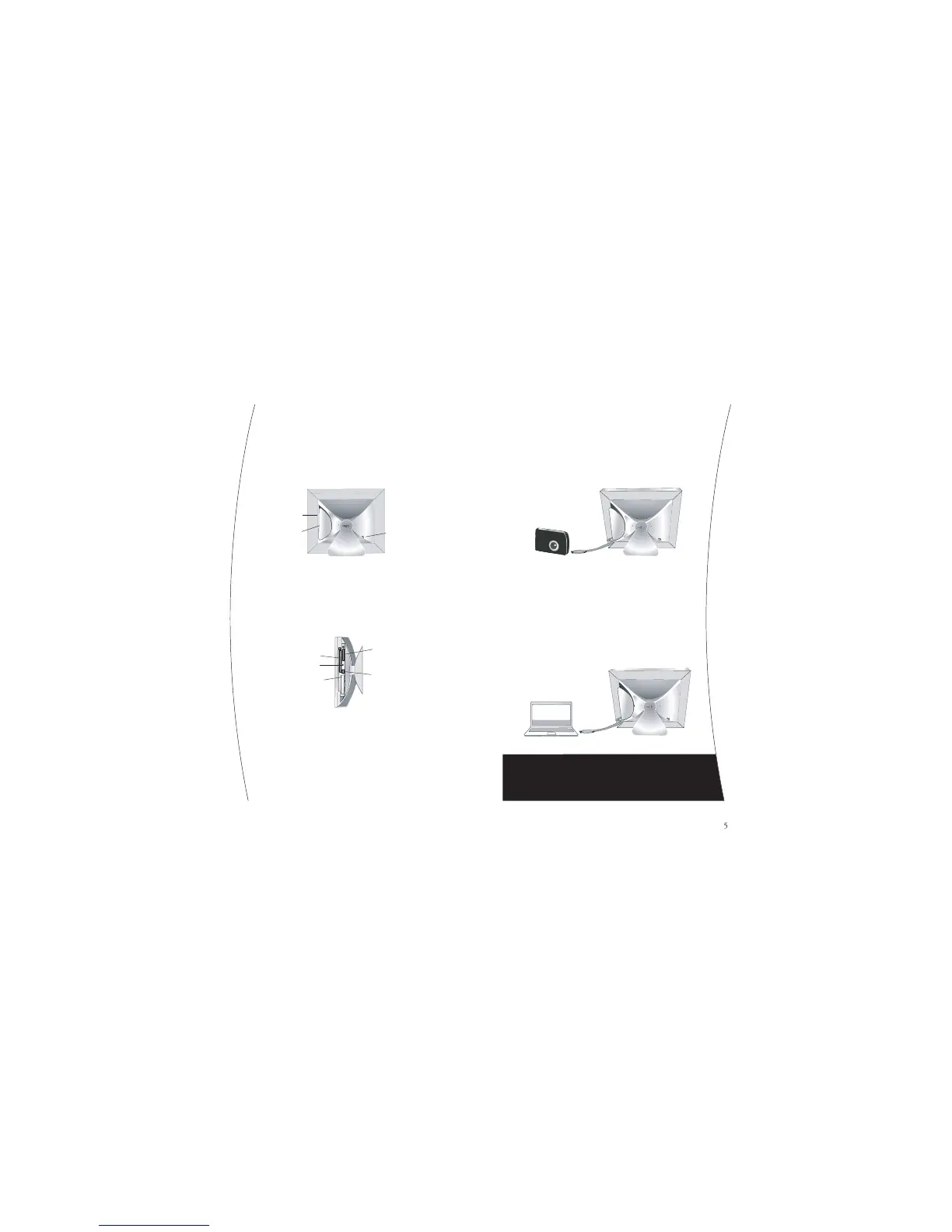
To use advanced mode and connect your frame
to your computer, use the supplied USB cable or
adapter (as appropriate). Your frame will appear
as a fl ash drive on your PC or Mac and allow
AC/DC Power Jack
Card Door
Latch
SD/MMC/MS/xD
Memory Card Slo
CF Memory Card Slot
Storage SD Car
d
USB Port
Reset Button
Right MattingLeft Matting
Scree
n
Top Matting
Bottom Matting
Screen
Top Matting
Bottom Mattin
g
Right MattingLeft Matting
AC/DC Power Jack
Card Door
Latch
SD/MMC/MS/xD
Memory Card Slo
CF Memory Card Slot
Storage SD Car
d
USB Port
Reset Button
Right MattingLeft Matting
Scree
n
Top Matting
Bottom Matting
Screen
Top Matting
Bottom Mattin
g
Right MattingLeft Matting
Simply touch any part of the matting
COPY PHOTOS TO YOUR FRAME
Your frame comes with enough room
to hold more than 10,000 photographs
(1GB). Your frame automatically
reduces the amount of space each photo
takes up on your frame through our
If you are copying more photos to
your frame than your frame can store,
it will automatically remove the oldest
photos in chronological order to make
room for new photos. It will not remove
locked photos (“See Lock a Photo in
You can copy photos to your
frame from three diff erent sources:
Your camera’s memory card
Directly from your camera
From your computer (Advanced Mode)
You will fi nd all the connections you need
behind the door on the back of the frame
to connect via any of these methods. Once
your frame is connected to your camera
card, your camera or your computer,
follow the simple onscreen controls to
AC/DC Power Jack
Card Door
Latch
SD/MMC/MS/xD
Memory Card Slo
CF Memory Card Slot
Storage SD Car
d
USB Port
Reset Button
Right MattingLeft Matting
Scree
n
Top Matting
Bottom Matting
Screen
Top Matting
Bottom Mattin
g
Right MattingLeft Matting
Your frame can read whatever card you use in
your digital camera; simply plug it into
AC/DC Power Jack
Card Door
Latch
SD/MMC/MS/xD
Memory Card Slo
CF Memory Card Slot
Storage SD Car
d
USB Port
Reset Button
Right MattingLeft Matting
Scree
n
Top Matting
Bottom Matting
Screen
Top Matting
Bottom Mattin
g
Right MattingLeft Matting
If you wish to connect your camera to your frame,
use the supplied USB cable or adapter



 To Next Page
 Loading...