EasyManua.ls Logo

Cambridge Audio Melomania Touch - User Manual

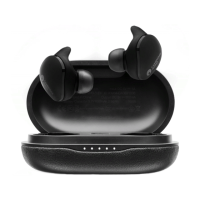
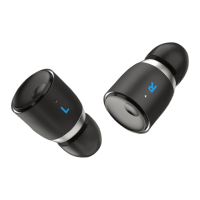
Cambridge Audio Melomania Touch
2 pages
Print Icon
To Next Page IconTo Next Page
Loading...
QUICK START
GUIDE
STATUS LED
THANK YOU!
NEED MORE HELP?
1. Fast white ashing: Powered on
2. Flashing blue and white: Waiting to pair
3. Slow white ashing: Connected and waiting for signal
4. No light: Connected or powered o
5. Slow red ashing: Charging in case
Dear Fellow Music Lover,
Thank you for purchasing our Melomania Touch
earphones. We’re excited that you are one of the rst to
own them.
We’ve become aware of a few things that should have
been explained more clearly in the guide provided inside
the box, so we provide this updated version to guide you
through the correct process more smoothly, step by step.
The pairing process is quite critical in order to connect
your earphones with your device and app fully, passing a
data stream as well as music.
To improve your product as time goes on, we will make
regular rmware updates, so please check the Melomania
App and update your rmware to enjoy these ongoing
enhancements and bug xes (switch on notications to be
alerted).
Kind regards,
- The Cambridge Audio Melomania Team
If you encounter any hiccups, please place the earbuds
back in the case for a few seconds, then take them back
out. This allows them to reset their connection (just be
patient for a few seconds while they reconnect fully).
When you use the app, it may take a few seconds to
connect fully, so if you feel the need to press the “Try
Again” button on the app it may help to wait a few
seconds.
In the app is a “Feedback” button. Please do tell us
what you think! Our team reads all comments and are
commited to your satisfaction.
Download the Melomania App for rmware updates.
For more setup instructions and videos, visit:
melosupport.cambridgeaudio.com
1 2 3 4 5
AP37623/1
BUTTON PRESS FUNCTIONS STATUS
Play/Pause Playing
Next track Playing
Previous track Playing
Volume + Playing / Calling
Volume
-
Playing / Calling
Accept a phone call Calling
Reject a phone call Calling
End phone call Calling
Voice assistant Pause
Manual Pairing Pause
Transparency On/O
Playing / Pause
Please use only the specic ear tips included with this product. Use of other tips is likely to prevent charging.
Please use only the specific ear tips included with this product. Use of other tips is likely to prevent charging.
AP37142A CA0891 BUTTON PRESS FUNCTION CARD ARTWORK 86x54mm R2mm-1.indd 22020/6/11 4:09 PM
8 secs
Please use only the specic ear tips included with this product. Use of other tips is likely to prevent charging.
Question and Answer IconNeed help?

Do you have a question about the Cambridge Audio Melomania Touch and is the answer not in the manual?

Summary

Status LED Indicators

LED Indicator States

Explains the different LED light patterns and their meanings for earphone status and charging.

Button Press Functions

Troubleshooting and Support

Resetting Earbuds

Instructions on how to reset the earbuds by placing them in the case for a few seconds.

App Connection Tips

Advice for ensuring the Melomania app connects correctly and using the 'Try Again' button.

Support Resources

Information on downloading the app and accessing online setup guides and videos.

Getting Started Guide

Download Melomania App

Instructions to download the Melomania app for optimal performance and additional help.

Charge Earphones and Case

Guidance on charging the earphones and case for at least 30 minutes before first use.

Powering On Earphones

Steps for automatically powering on or manually powering on the earbuds.

Enable Bluetooth Pairing

Instructions for enabling Bluetooth pairing on your earphones.

Connect to Device

Steps to enable Bluetooth on your device and select the earphones in settings.

Pairing Notification

Waiting for the Bluetooth pairing request pop-up and confirming the connection.

Summary

Status LED Indicators

LED Indicator States

Explains the different LED light patterns and their meanings for earphone status and charging.

Button Press Functions

Troubleshooting and Support

Resetting Earbuds

Instructions on how to reset the earbuds by placing them in the case for a few seconds.

App Connection Tips

Advice for ensuring the Melomania app connects correctly and using the 'Try Again' button.

Support Resources

Information on downloading the app and accessing online setup guides and videos.

Getting Started Guide

Download Melomania App

Instructions to download the Melomania app for optimal performance and additional help.

Charge Earphones and Case

Guidance on charging the earphones and case for at least 30 minutes before first use.

Powering On Earphones

Steps for automatically powering on or manually powering on the earbuds.

Enable Bluetooth Pairing

Instructions for enabling Bluetooth pairing on your earphones.

Connect to Device

Steps to enable Bluetooth on your device and select the earphones in settings.

Pairing Notification

Waiting for the Bluetooth pairing request pop-up and confirming the connection.

Overview

This document provides a comprehensive guide for the Melomania Touch earphones, covering their functions, usage, and maintenance. It begins with a "Thank You" message to users, acknowledging that this updated guide aims to clarify aspects that might have been less clear in the original in-box instructions, particularly regarding the pairing process. The document emphasizes the importance of a smooth pairing process for full functionality, including both data stream and music transmission.

Function Description:

The Melomania Touch earphones are designed for wireless audio playback and hands-free communication. They feature touch-sensitive controls for various functions, indicated by LED status lights. The core function is to provide high-quality audio, enhanced by regular firmware updates that introduce new features and bug fixes. The earphones are intended to be used in conjunction with the Melomania App, which allows for customization of the listening experience and facilitates firmware updates.

Usage Features:

The guide details several key usage features:

  • Button Press Functions:

    • Play/Pause: A single press on either earphone will play or pause audio.
    • Next Track: A double press on the right earphone advances to the next track.
    • Previous Track: A double press on the left earphone goes back to the previous track.
    • Volume Control: A single press and hold on the right earphone increases volume, while a single press and hold on the left earphone decreases it. These controls also function during calls.
    • Phone Call Management:
      • Accept Call: A single press on either earphone accepts an incoming call.
      • Reject Call: A press and hold on either earphone rejects an incoming call.
      • End Call: A single press on either earphone ends an active call.
    • Voice Assistant: A triple press on either earphone activates the device's voice assistant when audio is paused.
    • Transparency On/Off: A triple press on either earphone toggles the transparency mode, allowing ambient sounds to be heard. This function is available during playback or when paused.
    • Manual Pairing: A press and hold for 8 seconds on either earphone initiates manual pairing mode when audio is paused.
  • LED Status Indicators: The earphones provide visual feedback through LED lights:

    • Fast white flashing: Indicates the earphones are powered on.
    • Flashing blue and white: Signifies that the earphones are waiting to pair.
    • Slow white flashing: Shows that the earphones are connected and waiting for a signal.
    • No light: Indicates the earphones are connected or powered off.
    • Slow red flashing: Means the earphones are charging in their case.
  • Initial Setup and Pairing Process:

    1. Download the Melomania App: Users are instructed to download the Melomania app from the App Store or Google Play Store for optimal performance and additional help. Existing users should ensure their app is updated.
    2. Charge Earphones & Case: Before first use, the earphones and case must be charged for at least 30 minutes by plugging the case into a USB power socket.
    3. Power On: Remove both earphones from the case. They should power on automatically. One earphone may flash blue and white, indicating it's ready to pair. If not, users can manually power on each earphone by pressing and holding its surface until "Power On" is heard and the LEDs flash white (approximately 2 seconds).
    4. Enable Bluetooth Pairing on Earphones: The LED on one earphone will flash blue and white when waiting to pair. If this doesn't happen automatically, users should press and hold the surface of one earphone for 8 seconds until "Waiting to Pair" is heard.
    5. Enable Bluetooth on Device: Activate Bluetooth on the source device (e.g., smartphone).
    6. Select Earphone in Settings: In the device's Bluetooth settings, users should see "Melomania Touch L" (or R) listed and select it.
    7. Wait for Pop-up Notification and Pair: A "Bluetooth Pairing Request" pop-up will appear; users must press "Pair." Upon successful pairing, one earphone will be labeled "connected," and the other "not connected." Some devices may label the secondary earphone "Headset" or list a third connection, which is normal and should not be disconnected.
  • Troubleshooting Tips:

    • If issues arise, users are advised to place the earbuds back in the case for a few seconds, then take them out again to reset their connection. Patience is recommended while they reconnect.
    • When using the app, if connection takes time, waiting a few seconds before pressing "Try Again" can be helpful.

Maintenance Features:

  • Firmware Updates: The Melomania App is crucial for ongoing maintenance. Users are encouraged to check the app regularly for firmware updates to enjoy enhancements and bug fixes. Enabling notifications in the app will alert users to new updates.
  • Feedback Mechanism: The app includes a "Feedback" button, allowing users to provide comments and suggestions, which the Cambridge Audio team actively reviews to improve the product.
  • Charging: Regular charging of the earphones and case is essential for continued use. The initial 30-minute charge is a critical first step.
  • Ear Tip Usage: The guide explicitly states, "Please use only the specific ear tips included with this product. Use of other tips is likely to prevent charging." This highlights the importance of using original accessories for proper functionality and charging.

The document concludes by directing users to melosupport.cambridgeaudio.com for more setup instructions and videos, and provides contact information for Cambridge Audio.

Cambridge Audio Melomania Touch Specifications

General IconGeneral
TypeIn-ear
Bluetooth5.0
Water ResistanceIPX4
Driver Size7 mm
Frequency Response20 Hz - 20 kHz
MicrophoneYes
Noise CancellingNo
Impedance16 Ohms
Bluetooth CodecSBC, AAC, aptX
Touch ControlsYes
Battery Life9 hours (earbuds)
Charging Time2 hours
Voice Assistant SupportYes

Related product manuals